


How to Become a Desktop Engineer — Part 7: Intune + Autopilot
How to Become a Desktop Engineer — Part 7 of 13
Intune + Autopilot
Post 6 gave you networking — the packets get there. This is the seventh post in a thirteen-part series on how to become a desktop engineer, and it's the one the series has been building toward: the platform half of the job — one policy reaching every device at once, a new machine arriving already configured.
Post 1 drew the line that defines the role: help desk fixes one machine; a desktop engineer writes the policy that fixes every machine. Intune is where that policy lives. The first six posts were about understanding the machine, the identity and the network; this one is about operating it all at fleet scale — from a console.
The postings back it: StrideCare, Simtra, Horizon, Dairy Farmers and Frier Levitt all list Intune as a day-to-day requirement. Microsoft's MD-102 exam gives its largest domain, "Manage and maintain devices", a weight of 25–30%.
Intune is the console you live in
Intune is the cloud console where the fleet's configuration, health and software are managed. Four levers do most of the work, and you'll touch all four in your first week.
Configuration profiles are the settings. The Settings Catalog is the searchable list of thousands of them — requiring a PIN, blocking USB storage, and everything between — and a profile is a bundle of settings assigned to a group of devices. This is Group Policy's cloud successor, and the Post 5 discipline carries over: one profile per purpose, named so the next person can tell what it does, tested on a small group first.
Compliance policies are the health bar: BitLocker on, Defender signatures current, the OS above a minimum version. A device that meets the bar is compliant; one that doesn't is flagged — and, chained to Conditional Access from Post 5, a non-compliant device doesn't get into company data.
App deployment is how software reaches the fleet — Win32 apps, Microsoft Store apps, line-of-business apps — assigned to groups and installed silently, with detection rules that decide whether Intune thinks the app is there. Post 9 goes deep on packaging.
Update rings are how patching reaches the fleet without breaking it: who gets the update first, how long the pilot group soaks, when the rest follows. Pilot first, fleet second.
The habit that ties the four together: never assign to devices one by one. Assign to groups, and the groups decide who gets what. A profile assigned to the wrong group lands on five hundred machines that never asked for it — and the fix is in the console, in seconds. That speed is the whole point, and the whole risk.
Autopilot: the machine arrives ready

Autopilot is the other half of the promise: a new laptop ships from the supplier straight to the user, and when they switch it on, it configures itself. No imaging bench, no USB stick, no IT hands on the box. That is zero-touch enrolment: the work happened before the box shipped.
The chain runs like this. First, the device's hardware hash — its fingerprint — is registered in Intune, by the supplier, the reseller, or manually. Second, an Autopilot profile is assigned to the device's group: which edition, which sign-in experience, whether the user can be a local admin. Third, the device ships. At first boot the user signs in, the device joins Entra ID and enrols in Intune, and the Enrollment Status Page holds the desktop until the policies and apps have landed.
Three deployment modes, and the difference is who is in the room. User-driven is the normal one: the user signs in and the machine builds itself around them. Self-deploying has no sign-in at all — kiosks and shared devices. Pre-provisioning: IT touches the machine once, it downloads everything in advance, and the user gets a nearly-ready device.
What "arrives ready" requires is unglamorous: the hash registered, the profile assigned, the licences in place. Microsoft Learn is explicit — a user must have an Intune licence assigned before they can enrol a device, and automatic MDM enrolment needs Entra Premium P1, which is why both usually arrive inside a Microsoft 365 E3 or higher bundle. Autopilot is included with Intune Plan 1, and needs Windows 11 Pro or Enterprise — a Home machine won't join, and no profile fixes that.
Enrolment and groups: who gets what

Enrolment is the moment a device comes under management. Entra ID join is the managed path: the device belongs to the organisation, policies and compliance apply, Conditional Access can see it. Entra ID registration is the lighter touch: a personal or BYOD device, registered so the user can reach company resources. Most of the fleet will be joined; most of the confusion in tickets comes from assuming a registered device is a joined one.
Groups are how enrolment turns into policy. A static group is a list you maintain by hand; a dynamic group is a rule — every device of this model, every machine on this OS version — and membership updates itself. Dynamic groups are what make "one policy reaches every device" true: the new laptop joins the group the moment it enrols.
Remote actions and the Intune Suite
The console also holds the levers for when something is wrong. Remote wipe, lock and restart do what their names say, from anywhere — the stolen laptop in a taxi, the machine frozen mid-update. Autopilot Reset takes a machine back to a business-ready state without reimaging it.
The Intune Suite adds Remote Help, for taking control of a user's screen with their consent, and Endpoint Privilege Management, which lets a standard user elevate for one task without a local admin account. They cost extra — but they answer the two requests every engineer hears in their first year: "can you just look at my screen?" and "can I have admin just this once?"
What breaks, and how you tell
Three failures account for most Intune tickets, and all three are diagnosed in the console before anyone touches a device.
A policy that won't apply. Start with assignment: is the device actually in the group the profile targets? Then sync: a sync from the Company Portal app forces the conversation now. Then conflict: two profiles setting the same thing differently — Intune tells you which one won. The console's per-device policy status is the evidence; read it before you blame the machine.
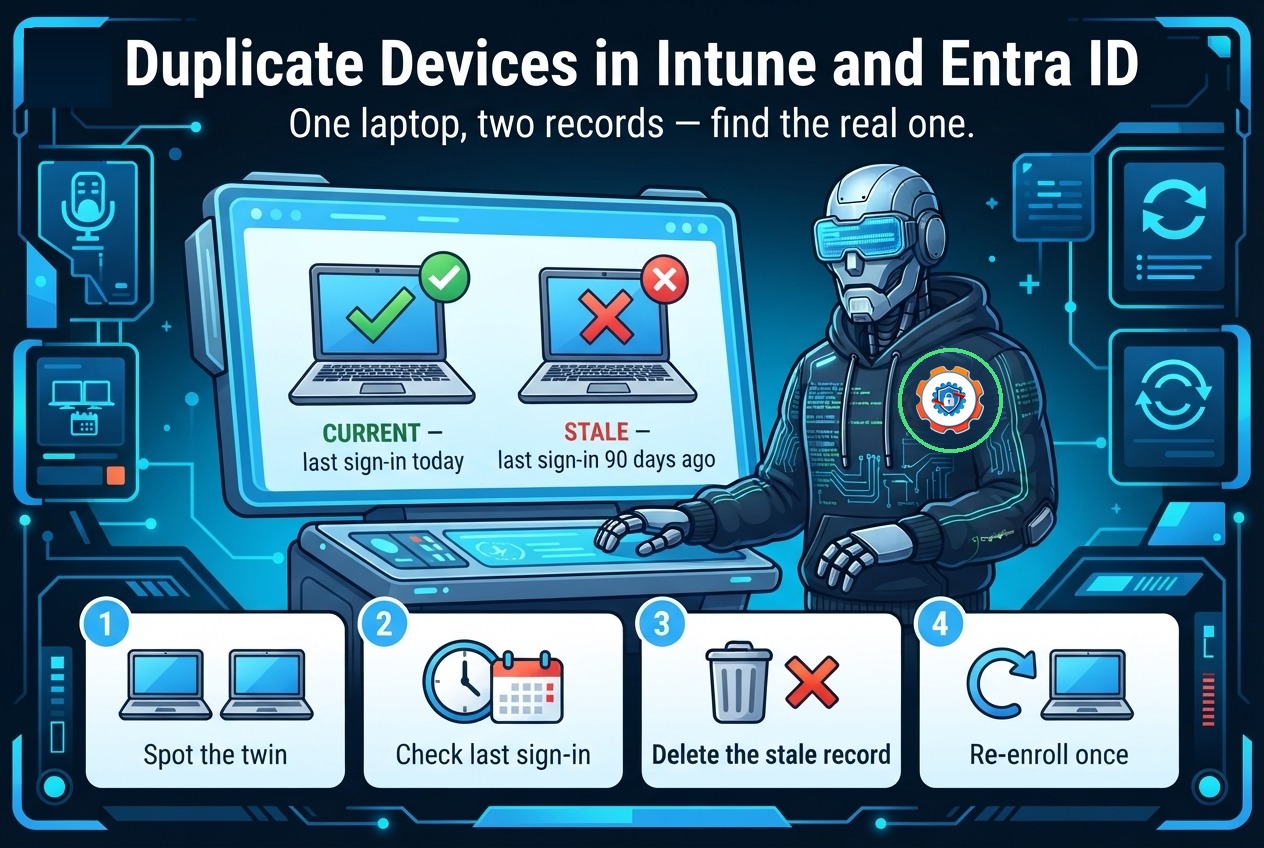
A device that won't enrol. Check the licence first: no Intune licence on the user, no enrolment — Microsoft's own docs say the licence must be assigned before the device can enrol, and it is the commonest silent cause in a new tenant. Then the edition: Home won't join, full stop. Then auto-enrolment: without Entra Premium P1 the device won't enrol itself at sign-in.
A compliance state that lies. A device reports compliant on Monday and non-compliant on Tuesday without anyone touching it — usually the policy changed, or the last check-in is stale. Check when the device last checked in before you trust the badge, and remember the chain from Post 5: the compliance policy says the device is healthy, Conditional Access lets it in. When access breaks, the break is usually one link earlier than where the user is looking.
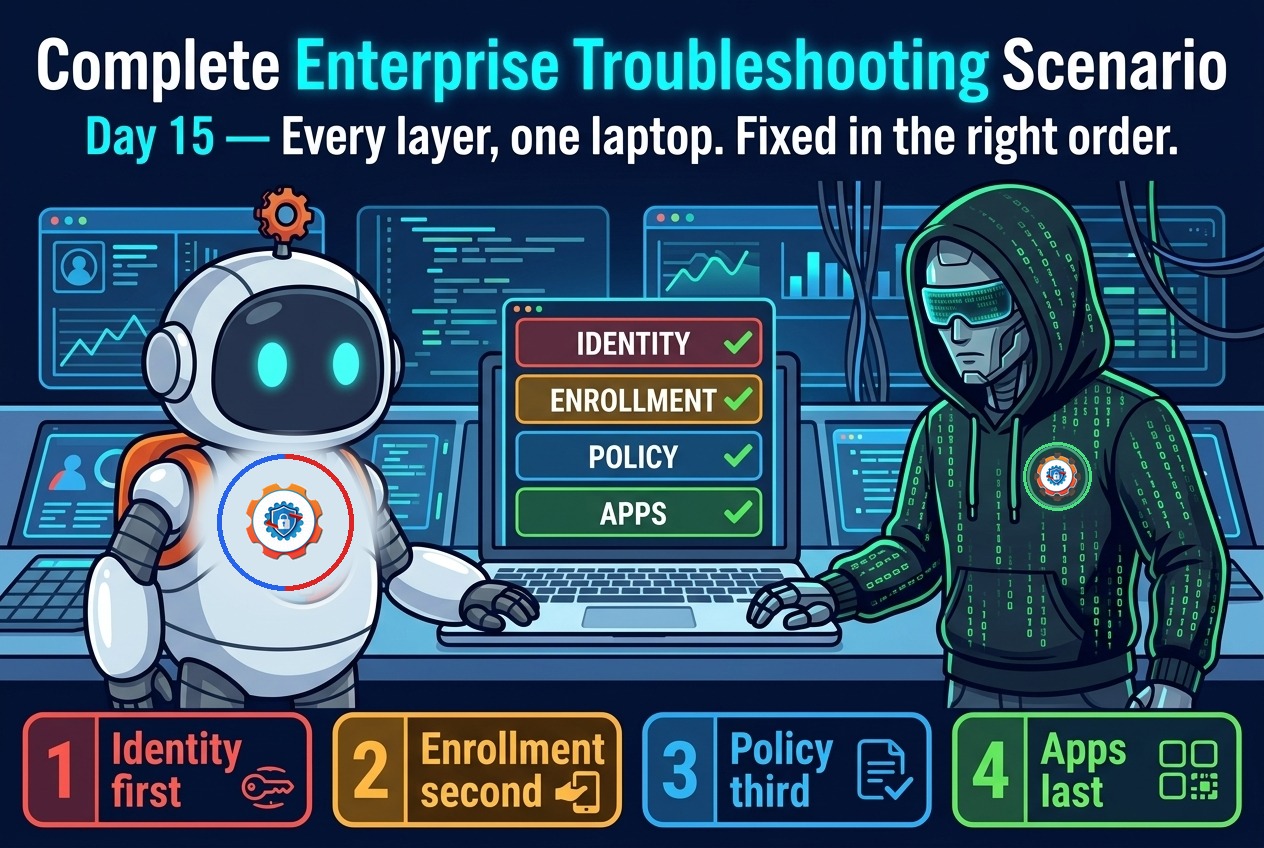
That is Post 3's five-step loop again, wearing a console. The engineer who reads the console first solves the ticket in minutes; the one who starts by reimaging solves it in an afternoon, and never learns why it broke.
Practise it this week
- Enrol a VM. In a trial tenant, take a Windows 11 Pro VM through user-driven Autopilot and watch the Enrollment Status Page. Do it once while everything works.
- Build a compliance policy and a test group. BitLocker on, minimum OS version — one device in the group, one device out. Watch one stay in and the other get flagged.
- Break enrolment on purpose. Remove the Intune licence from the test user and try to enrol. Watch the error, restore the licence, watch it succeed. The failure you cause yourself is the one you'll recognise instantly in a ticket.
Next up: SCCM & Co-management. Intune is the future Microsoft is building toward — but the other half of most estates still runs on ConfigMgr. The next post is the honest other side: what SCCM still owns, why big shops still demand it, and how co-management moves workloads one at a time.
Missed the earlier posts? Start with Part 1: What a Desktop Engineer Actually Does, Part 2: The Path, Stage by Stage, Part 3: The Mindset — Curiosity Is a Technical Skill, Part 4: Windows 11 Inside Out, Part 5: Identity: AD, GPO, Entra ID, Conditional Access, and Part 6: Networking Essentials.