


Complete Enterprise Troubleshooting Scenario — Day 15 of the Microsoft Intune Real-Time Troubleshooting Series
Day 15 of the Microsoft Intune Real-Time Troubleshooting Series
Welcome to Day 15 of the Microsoft Intune Real-Time Troubleshooting Series — 15 days, 15 real-world scenarios, 15 practical solutions. This is the final episode, and it is the one the previous fourteen were building toward.
For two weeks we fixed one layer at a time: enrollment, sign-in, compliance, profiles, apps, the management extension, BitLocker, Autopilot, Conditional Access, sync, scripts, Defender, update rings, and duplicate records. Each day was a single failure with a single root cause and a clean fix. Real enterprise incidents are rarely that polite. Today, everything lands on one laptop at once — and the lesson is not any single fix. It is the order you fix them in, because in a compound failure, fixing the wrong layer first does not help. It hides the real problem behind a new one.
1. Real-World Scenario
It is 8:40 on a Monday morning, and the new chief operating officer's first day starts in twenty minutes. Her laptop — a fresh device, imaged by the vendor, delivered on Friday — is on the desk in the boardroom, and nothing about it works.
The Autopilot deployment never finished. The device reached the out-of-box experience, showed the company branding, and then stopped at the enrollment screen with error 0x80180014. The help desk re-ran the deployment, and the second attempt failed differently: 0x8018000a — "This device is already enrolled" — even though Intune shows no live record for it.
When the device finally does get past enrollment, the problems stack up faster than anyone can write them down. The Company Portal will not sign her in. The device shows as non-compliant in Intune, with no clear reason. The configuration profiles that should have applied — Wi-Fi, VPN, certificate — are all stuck at "Not applicable." The line-of-business app the COO needs for the board meeting fails to install with 0x87D1FDE8. The PowerShell script that maps the shared drives exits with code 1 and no output. BitLocker is on, but the recovery key was never escrowed to Entra ID. The Defender policy that should be protecting the device is in conflict, and the device reports two different policies as applied. The update ring has not installed a single update, and the Windows Update log shows 0x8024402c. And when she tries to open her email, Conditional Access blocks the sign-in with AADSTS53003 — access blocked by Conditional Access — because the device is not compliant, not managed, and not recognized.
Every symptom is real. Every error code is one we have already met in this series. And every one of them has a different fix — which is exactly why this laptop is still broken at 8:40. The team has been fixing symptoms in the order they noticed them, and each fix has made the next symptom harder to read. The laptop does not have fourteen problems. It has one problem wearing fourteen symptoms: the layers underneath were never healthy, and every layer above them inherited the failure.
2. Root Cause Analysis
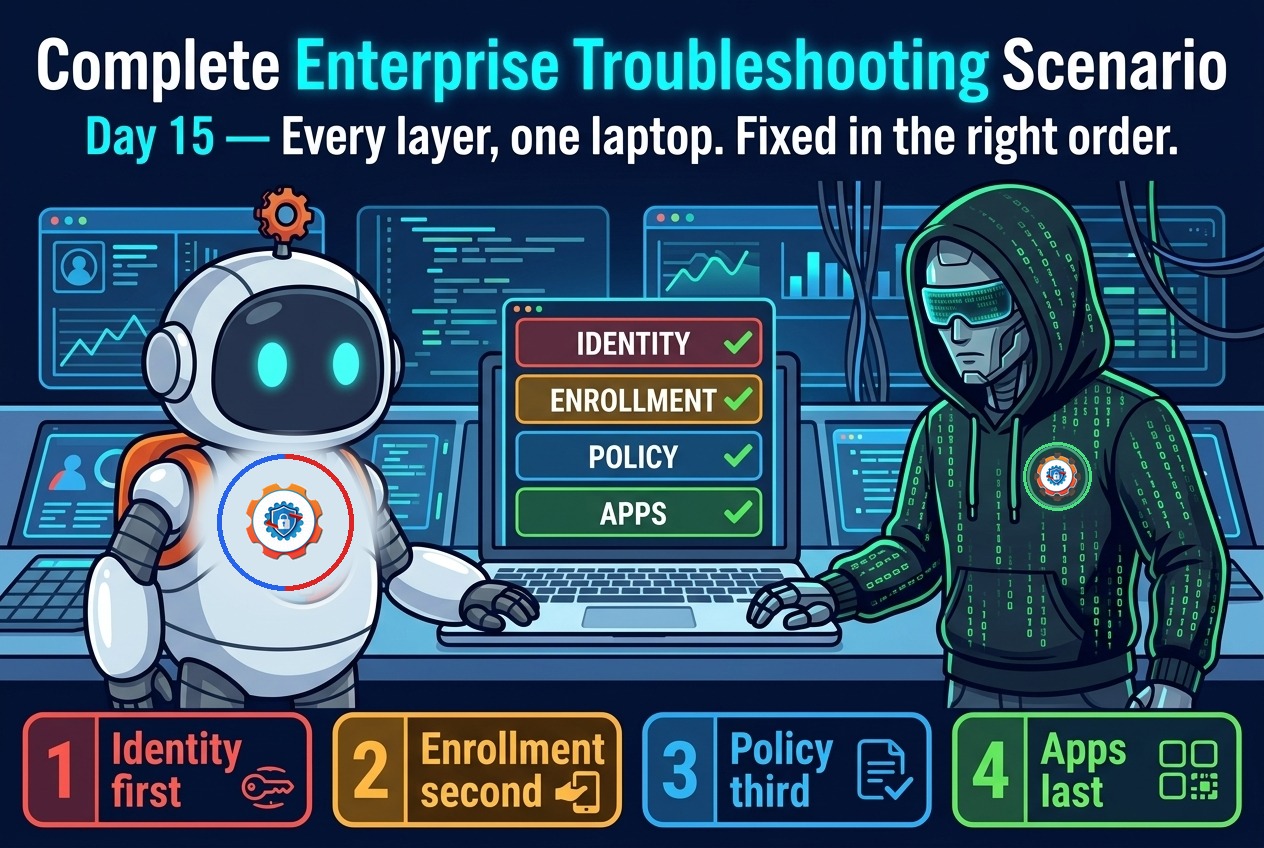
A compound failure is not fourteen independent bugs that happened to arrive together. It is a chain, and the chain has a direction: identity first, enrollment second, policy third, apps last. Each layer depends on the one below it, and a broken lower layer makes every layer above it report a failure that is not its own. Work out which layer is actually broken before you fix anything — the fix order is the root cause.
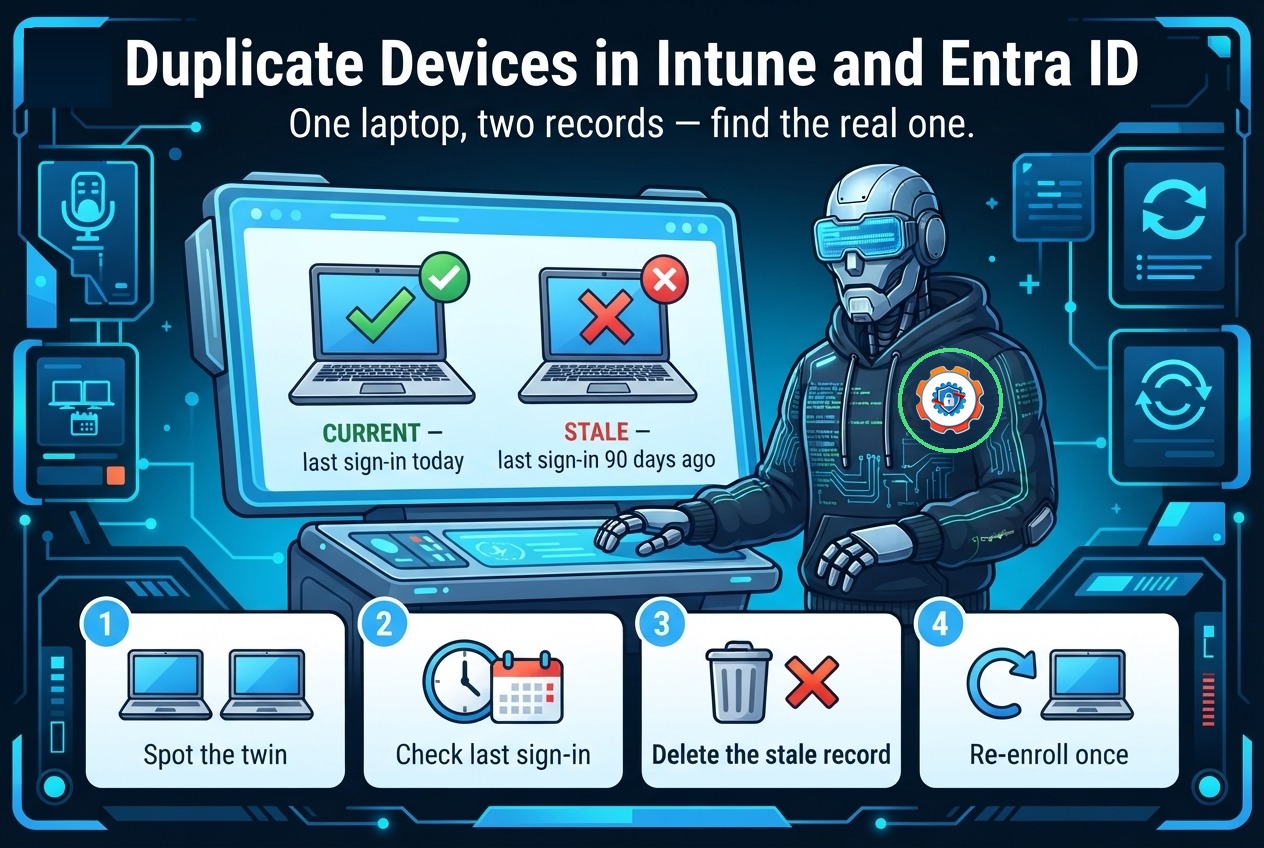
1. Identity was never established — and everything downstream inherited it. This is the bottom of the stack, and it is where the incident starts. The device's Autopilot registration was never imported — Event ID 807 (ZtdDeviceIsNotRegistered) in the ModernDeployment-Diagnostics-Provider log — which is why OOBE stopped with 0x80180014. The vendor delivered the hardware hash late, and nobody checked the registration before the COO's first day. Then the re-run collided with a stale enrollment from the vendor's own test pass: the old enrollment GUIDs under HKLM\SOFTWARE\Microsoft\Enrollments were never cleared, so the second attempt failed with 0x8018000a. And in Entra ID, the device exists twice — a duplicate record from the vendor's test join sitting next to the real one — the Day 14 shape, which is why Conditional Access cannot decide which record the sign-in belongs to. No identity, no enrollment; no enrollment, no management; no management, no policy. Everything after this point is a symptom.
2. Enrollment collided with a stale record instead of completing cleanly. The 0x8018000a is not a portal problem. It is the device holding a previous management relationship — the stale enrollment GUIDs and the old MS-Organization-Access device certificate — while Intune holds no live record to match. The enrollment log agrees: Event ID 76 in the DeviceManagement-Enterprise-Diagnostics-Provider Admin log, failed auto-enrollment, carrying 0x8018000a. Until the device side is cleaned — dsregcmd /leave, stale GUIDs deleted, old certificate removed — no enrollment will succeed, and every retry adds another stale record to the pile.
3. Compliance failed because there was nothing to evaluate. The device shows non-compliant with error 0x87D101F4, and the reason is simple: compliance policies evaluate against a managed, enrolled device. This device was never enrolled, so the compliance engine had no device state to evaluate — it reported failure, not "not evaluated," because the compliance policy was assigned to a device that could not report in. Fixing compliance first — the instinct when the dashboard is red — would have changed nothing, because the compliance result is a downstream report of the enrollment failure, not a failure of its own.
4. Configuration profiles never arrived because the channel was never built. Profiles deploy over the MDM channel, and the MDM channel is created by enrollment. A device that never enrolled has no channel, so every profile sits at "Not applicable" — not failed, not errored, just never delivered. The profile blade is the wrong place to look. The enrollment blade is the right one, and it already told you the answer in cause 2.
5. The Win32 app and the PowerShell script failed for two different reasons, and both are downstream. The app failed with 0x87D1FDE8 — not detected after installation — because the Intune Management Extension never got a healthy check-in to run the install against; the AppWorkload.log shows the install never started, not that it started and failed. The script exited with code 1 because it ran in the wrong context: it was written to run as the user, deployed as system, and the network path it maps is only reachable after the VPN profile applies — the VPN profile from cause 4, which never arrived. Two different failures, one shared cause: the layers below them were not ready.
6. BitLocker and Defender are the quiet ones — and the most dangerous to miss. BitLocker is on, which looks fine on the dashboard, but the recovery key was never escrowed to Entra ID. The BitLocker Management log shows the escrow never happened because the device was never enrolled when encryption completed — there was no Entra device object to escrow the key to. If this laptop is lost or the TPM clears, there is no recovery key anywhere. Defender is in conflict for the same structural reason: two policies apply to the device — one from the group it was supposed to be in, one from the group the duplicate record sits in — and Event ID 5007 records the conflict. Both are silent until the day they matter, which is why they belong in the triage even though nothing on the screen is flashing red about them.
7. The update ring and Conditional Access are the last symptoms, not the first problems. The update ring shows 0x8024402c — the update service cannot resolve the update endpoint — because the device is on the guest network: the Wi-Fi profile from cause 4 never applied, so the laptop fell back to the open guest SSID, which blocks the update endpoints. And Conditional Access blocks the sign-in with AADSTS53003 because the device fails every condition at once: not compliant (cause 3), not managed (cause 2), and matched against the duplicate record (cause 1). The CA error is the most visible symptom in the room — the COO cannot open her email — and it is the last thing you fix, because it clears itself the moment the layers below it are healthy.

3. Step-by-Step Troubleshooting
Work in fix order, not symptom order. Identity first, enrollment second, policy third, apps last — and verify each layer before moving to the next. A layer you skip is a symptom you will see again in an hour.
1. Prove the identity layer: one device, one record. On the laptop, run dsregcmd /status and write down the DeviceId and the join flags. Then check the Autopilot registration: in the Intune admin center, Devices > Enrollment > Windows Autopilot devices, search by serial number. If the device is not there, Event ID 807 in the ModernDeployment-Diagnostics-Provider > Autopilot log confirms it — the hash was never imported. Import the hardware hash, allow at least 15 minutes for the service to sync, and confirm the profile status shows "Assigned" before the device tries again. Then list every Entra record with the device's name and match the DeviceId from dsregcmd — the record that matches is live; the other is the Day 14 duplicate, and it gets disabled first and deleted after a grace period, exactly as in Day 14.
2. Clean the device side, then enroll once. The 0x8018000a is a device-side stale enrollment, so the fix is on the laptop: disconnect the work or school account, run dsregcmd /leave from an elevated prompt, delete the stale GUIDs under HKLM\SOFTWARE\Microsoft\Enrollments, remove the old MS-Organization-Access device certificate, and reboot. Then enroll once — a single, clean enrollment — and confirm Event ID 75 in the DeviceManagement-Enterprise-Diagnostics-Provider Admin log: auto-enrollment succeeded. If the device still fails, read the error code in Event ID 76 before retrying; a second blind retry only adds another stale record.
3. Verify the management channel before touching a single policy. After enrollment, confirm the device appears exactly once in Intune, last check-in current, and the Intune Management Extension service is running — Get-Service IntuneManagementExtension should show Running. Open C:\ProgramData\Microsoft\IntuneManagementExtension\Logs\IntuneManagementExtension.log and confirm a recent check-in. If the extension is not running, nothing below this layer can work, and every profile, app, and script failure you see is this failure in disguise. Restart the service and watch one check-in complete before moving on.
4. Let compliance and profiles re-evaluate — do not force them. With enrollment healthy, trigger a sync from the device (Settings > Accounts > Access work or school > Info > Sync) or from the Intune admin center, then wait for the next policy cycle. Compliance re-evaluates against a real device state now, and the 0x87D101F4 clears without anyone touching the compliance policy. Profiles deploy over the rebuilt MDM channel — Wi-Fi, VPN, and certificate arrive in the next cycle. If a profile is still stuck after two syncs, check its assignment: a profile assigned to a group the device is not in will sit at "Not applicable" forever, and that is an assignment problem, not a device problem.

5. Fix the network, then the update ring. The 0x8024402c clears when the Wi-Fi profile applies and the device moves off the guest network. Confirm it: Test-NetConnection against the update endpoint should succeed, and the Windows Update log should show the next scan completing. If the update ring is still stuck after the network is healthy, check the ring's own settings — deferral days and deadline behavior — before assuming the device is at fault. The ring was never the problem here; the network was.
6. Re-run the app and the script — in that order, after the layers below them are green. The Win32 app first: confirm the Intune Management Extension is healthy (step 3), then check AppWorkload.log for a fresh install attempt. A clean 0x87D1FDE8 after a healthy install means the detection rule is wrong — the app installed, but the detection rule does not find it — and the fix is the detection rule, not the install. The script second: confirm the VPN profile applied (step 4), then re-run it in the context it was written for. Read AgentExecutor.log for the exit code and the script's own output — the log is often the only surviving record, because the extension cleans up the script's .output and .error files after execution.
7. Close the two silent gaps: escrow the BitLocker key and resolve the Defender conflict. For BitLocker, confirm the recovery key is in Entra ID — check the device's record in the Entra admin center. If it is missing, the key was never escrowed; run the escrow manually with manage-bde -protectors -get C: to read the recovery password, then back it up with manage-bde -protectors -adbackup C: -id <key-id> against the domain-joined path, or trigger re-escrow through the BitLocker policy once enrollment is healthy. For Defender, open Event ID 5007 and read which two policies conflict, then remove the device from one of the two groups — the duplicate record's group is the one to leave, now that the duplicate is gone. A policy conflict never resolves itself; it waits until someone removes one of the assignments.
8. Confirm Conditional Access last — it should clear itself. With the device enrolled, compliant, and matched to a single record, have the user sign in again. The AADSTS53003 should be gone, because every condition it checked now passes. If it is not gone, read the sign-in log in Entra ID: it names the exact policy and the exact condition that failed, and that is the only place left to look. Do not edit the Conditional Access policy to work around a device that is still broken — the policy was doing its job.
9. Verify the whole stack, end to end, before handing the laptop back. Run the verification pass from section 6's checklist: one Entra record, one Intune record, compliance evaluated, profiles applied, app installed and detected, script exit code 0, BitLocker key escrowed, Defender conflict gone, update ring scanning, Conditional Access passing. Then have the user sign in and open the app she needs for the meeting. The incident is over when the user can work, not when the dashboard turns green — but on a compound failure, the dashboard turning green is how you know you fixed the layers instead of the symptoms.
10. Write down what the incident taught the team, and put it in the runbook. This laptop broke in fourteen ways because three process gaps lined up: the vendor's hash arrived late and nobody checked the registration, the vendor's test enrollment was never cleaned up, and the device was handed to a user before anyone verified the stack. Add three lines to the runbook: verify Autopilot registration before delivery day, clean the vendor's test enrollment before handover, and verify the full stack — enrollment, compliance, profiles, apps, BitLocker escrow — before the laptop reaches a user. A compound failure is a process failure wearing a technical costume, and the fix that lasts is the process change.
4. PowerShell Commands
Each of these is a real command an admin runs on the device or against the tenant. Run the device-side ones in an elevated prompt where noted.
# Ask the device who it thinks it is — DeviceId is the fingerprint for the whole triage
dsregcmd /status
# Check the Autopilot registration state on the device (TenantMatched 1 = right tenant)
Get-ItemProperty 'HKLM:\SOFTWARE\Microsoft\Provisioning\Diagnostics\Autopilot' |
Select-Object TenantMatched, CloudAssignedTenantId# Leave Entra ID cleanly and clear the stale enrollment (elevated prompt)
dsregcmd /leave# List the stale enrollment GUIDs the re-enrollment is colliding with
Get-ChildItem 'HKLM:\SOFTWARE\Microsoft\Enrollments' | Select-Object PSChildName# Confirm the management extension is running — nothing below this layer works if it is not
Get-Service IntuneManagementExtension | Select-Object Name, Status, StartType# Read the enrollment result — Event ID 75 is success, 76 is failure with the error code
Get-WinEvent -LogName 'Microsoft-Windows-DeviceManagement-Enterprise-Diagnostics-Provider/Admin' -MaxEvents 25 |
Where-Object { $_.Id -in 75, 76 } | Select-Object TimeCreated, Id, Message# Read the Autopilot registration events — 807 means the hash was never imported
Get-WinEvent -LogName 'Microsoft-Windows-ModernDeployment-Diagnostics-Provider/Autopilot' -MaxEvents 25 |
Where-Object { $_.Id -in 807, 809, 815, 908 } | Select-Object TimeCreated, Id, Message# Prove the network is the update problem, not the ring — this must succeed before updates can
Test-NetConnection -ComputerName 'update.microsoft.com' -Port 443 |
Select-Object ComputerName, TcpTestSucceeded# Read the BitLocker recovery password, then back it up — the escrow the device never did
manage-bde -protectors -get C:
manage-bde -protectors -adbackup C: -id '{00000000-0000-0000-0000-000000000000}'# Read the script's own log — the only surviving record of what it printed and why it exited 1
Select-String -Path 'C:\ProgramData\Microsoft\IntuneManagementExtension\Logs\AgentExecutor.log' -Pattern 'error', 'failed' -SimpleMatch |
Select-Object -Last 20# Find every device that shares a display name — the duplicate check from Day 14
Connect-MgGraph -Scopes 'Device.Read.All'
Get-MgDevice -All | Group-Object DisplayName | Where-Object { $_.Count -gt 1 } |
Select-Object Name, Count# Show the device's compliance state as Intune sees it — run after enrollment is healthy
Connect-MgGraph -Scopes 'DeviceManagementManagedDevices.Read.All'
Get-MgDeviceManagementManagedDevice -Filter "deviceName eq 'LTP-0142'" |
Select-Object DeviceName, ComplianceState, LastSyncDateTime, ManagementAgent5. Important Log Locations
| Location | What it tells you |
|---|---|
| Event Viewer > Applications and Services Logs > Microsoft > Windows > ModernDeployment-Diagnostics-Provider > Autopilot | The Autopilot log. Event ID 807 = the device is not registered (ZtdDeviceIsNotRegistered); 809 = the assigned profile was deleted; 815 = no profile assigned; 908 = serial-number mismatch with the registered device. The first log in a compound failure — if identity is broken here, everything below it is a symptom. |
| Event Viewer > Applications and Services Logs > Microsoft > Windows > DeviceManagement-Enterprise-Diagnostics-Provider > Admin | The enrollment log. Event ID 75 = auto-enrollment succeeded; Event ID 76 = failed, with the error code — including 0x8018000a when a stale enrollment blocks the new one. Read this before retrying an enrollment. |
| Event Viewer > Applications and Services Logs > Microsoft > Windows > User Device Registration > Admin | The Entra join log. Event ID 201 = discovery failed; 204 = join failed (carries 0x801c03f2 when the device object is not found); 304 = registration failed at the join phase; 306 = automatic registration succeeded. |
| Event Viewer > Applications and Services Logs > Microsoft > Windows > WindowsUpdateClient > Operational | The update log. Event ID 19 = installation started; 20 = installation succeeded; 21 = installation failed. With 0x8024402c in the same log, the failure is the network, not the ring. |
| C:\ProgramData\Microsoft\IntuneManagementExtension\Logs\IntuneManagementExtension.log | The IME agent lifecycle log — check-ins and policy pulls. If the extension is not checking in, every profile, app, and script failure below it is this failure in disguise. |
| C:\ProgramData\Microsoft\IntuneManagementExtension\Logs\AppWorkload.log | The Win32 app log. Shows whether the install ever started — a 0x87D1FDE8 with no install attempt means the extension never got the job, not that the install failed. |
| C:\ProgramData\Microsoft\IntuneManagementExtension\Logs\AgentExecutor.log | The script execution log. Download, host, exit code, and error output. The script's own .output and .error files are cleaned up after execution, so this log is often the only surviving record. |
| Event Viewer > Applications and Services Logs > Microsoft > Windows > BitLocker-API > Management | The BitLocker management log. The escrow record lives here — if the recovery key never reached Entra ID, this log shows the attempt and the failure. Event ID 24652 in the System log marks a volume unlocked with a recovery key. |
| Event Viewer > Applications and Services Logs > Microsoft > Windows > Windows Defender > Operational | The Defender log. Event ID 5007 records a policy change or conflict; Event ID 1121 marks a blocked behavior. Read 5007 to see which two policies are fighting. |
| Entra admin center > Identity > Monitoring & reports > Sign-in logs | The cloud side of the story: every sign-in, the device record it matched, and the Conditional Access policy that blocked it — AADSTS53003 with the exact condition that failed. The last log you read in a compound failure, not the first. |
| HKLM\SOFTWARE\Microsoft\Enrollments | One subkey per enrollment. Stale GUIDs here are the registry evidence behind 0x8018000a and the reason a re-enrollment collides with the old one. |
| HKLM\SOFTWARE\Microsoft\Provisioning\Diagnostics\Autopilot | The Autopilot state on the device. TenantMatched 0 means the registration and the tenant do not agree — the device is registered somewhere else. |
6. Practical Resolution
Back to 8:40 in the boardroom. The team stops fixing symptoms in the order they notice them and works the fix order instead.
Identity first. dsregcmd /status shows the device is not joined at all. The Autopilot blade shows the serial number is not registered — Event ID 807 confirms the vendor's hash never arrived. The hash is imported, fifteen minutes pass, the profile shows "Assigned." In Entra ID there are two records for the laptop; the DeviceId from dsregcmd matches one of them, and the other — the vendor's test join — is disabled, with deletion scheduled after the grace period.
Enrollment second. On the laptop: disconnect the work or school account, dsregcmd /leave, delete the stale enrollment GUIDs, remove the old MS-Organization-Access certificate, reboot, enroll once. Event ID 75 — auto-enrollment succeeded. The device appears exactly once in Intune, and the management extension checks in within minutes.
Policy third. One sync later, compliance re-evaluates and turns green — the 0x87D101F4 is gone without anyone touching the compliance policy. The Wi-Fi, VPN, and certificate profiles arrive in the next cycle, and the laptop moves off the guest network. The update ring's 0x8024402c clears on the next scan, because the network is fixed. The Defender conflict resolves when the device leaves the duplicate record's group — Event ID 5007 stops recording new conflicts.
Apps last. The line-of-business app installs cleanly once the extension is healthy, and the detection rule finds it — the 0x87D1FDE8 was never an install failure; the install had never started. The drive-mapping script runs after the VPN profile applies and exits 0. The BitLocker recovery key is escrowed to Entra ID, confirmed on the device's record. And the sign-in that was blocked with AADSTS53003 passes on the first attempt — nobody edited the Conditional Access policy, because the policy was never the problem.
At 9:15 the COO opens her email, opens the board app, and the meeting starts on time. The laptop did not have fourteen problems. It had three — a missing registration, a stale enrollment, and a duplicate record — and eleven symptoms. The fix order is what turned fourteen problems into three.
7. Interview Questions
Q1: A laptop fails in ten ways at once — enrollment, compliance, profiles, apps, updates, Conditional Access. Where do you start, and why?
Start at the bottom of the stack: identity, then enrollment, then policy, then apps. Each layer depends on the one below it, so a broken lower layer makes every layer above it report failures that are not its own. Fixing the most visible symptom first — usually the Conditional Access block — changes nothing, because the CA error clears itself once the layers below it are healthy. Prove each layer before moving to the next, and the ten failures collapse into the two or three real ones.
Q2: How do you tell a real failure from a downstream symptom in a compound incident?
Ask what the failing layer depends on. A compliance failure on a device that never enrolled is a symptom — compliance evaluates against a managed device, and there is no managed device yet. A profile stuck at "Not applicable" on a device with no MDM channel is a symptom — the channel is created by enrollment. A 0x87D1FDE8 with no install attempt in AppWorkload.log is a symptom — the install never started. The log that names the layer's own dependency is the one that tells you whether the layer failed or was never given the chance to work.
Q3: The device shows error 0x8018000a, "This device is already enrolled," but Intune shows no live record. What is actually wrong, and what is the fix?
The device holds a stale enrollment — old GUIDs under HKLM\SOFTWARE\Microsoft\Enrollments and an old MS-Organization-Access device certificate from a previous management relationship — while Intune holds no live record to match. The fix is on the device, not in the portal: disconnect the work or school account, run dsregcmd /leave from an elevated prompt, delete the stale enrollment GUIDs, remove the old certificate, reboot, and enroll once. Deleting records in the portal will not clear a stale enrollment on the device.
Q4: Conditional Access blocks a sign-in with AADSTS53003. When is editing the Conditional Access policy the right fix, and when is it the wrong one?
Editing the policy is the right fix only when the sign-in log shows the policy itself is misconfigured — the wrong condition, the wrong group, an exclusion that should not be there. It is the wrong fix when the device fails the conditions the policy is supposed to enforce: not enrolled, not compliant, matched against a duplicate record. In that case the policy is doing its job, and editing it to let a broken device through trades a visible error for an invisible security gap. Fix the device, and the error clears itself.
Q5: BitLocker is on and the dashboard looks fine, but the recovery key was never escrowed to Entra ID. Why did that happen, and how do you fix it?
It happened because encryption completed before enrollment — there was no Entra device object to escrow the key to. The dashboard shows encryption state, not escrow state, which is why it looks fine. Check the device's record in the Entra admin center for the recovery key; if it is missing, read the key with manage-bde -protectors -get C: and back it up with manage-bde -protectors -adbackup C: -id <key-id>, or trigger re-escrow through the BitLocker policy once enrollment is healthy. Never assume a key is backed up because the drive is encrypted.
Q6: What is the one process change that prevents a compound failure like this one?
Verify the full stack before the laptop reaches a user. Three checks, in the runbook, before handover: the Autopilot registration is imported and the profile is assigned, the vendor's test enrollment is cleaned off the device, and the stack is verified end to end — enrollment, compliance, profiles, apps, BitLocker escrow. A compound failure is a process failure wearing a technical costume: fourteen symptoms, three root causes, and every one of them was checkable before the user's first day.
Day 15 done — and the series is complete. Fifteen days, fifteen real-world scenarios, fifteen practical solutions: enrollment, sign-in, compliance, profiles, Win32 apps, the management extension, BitLocker, Autopilot, Conditional Access, sync, PowerShell scripts, Defender, update rings, duplicate records — and finally, all of it at once on one laptop, fixed in the right order.
Thank you for following the series. The full collection lives here on ongoingideas.com — start with Day 1 if you missed any of it, and keep the triage order in your back pocket: identity first, enrollment second, policy third, apps last.
Follow the series here on ongoingideas.com — one scenario a day, for 15 days.
Missed the start of the series? Begin with Day 1: Windows Device Not Enrolling into Intune, then Day 2: Company Portal Login Failures, then Day 3: Device Compliance Issues, then Day 4: Configuration Profile Failures, then Day 5: Win32 Application Installation Issues, then Day 6: Intune Management Extension Troubleshooting, then Day 7: BitLocker Policy Failures, then Day 8: Windows Autopilot Deployment Issues, then Day 9: Conditional Access Errors, then Day 10: Device Sync Problems, then Day 11: PowerShell Script Deployment Failures, then Day 12: Microsoft Defender Policy Issues, then Day 13: Windows Update Ring Issues, then Day 14: Duplicate Devices in Intune and Entra ID.