













Duplicate Devices in Intune and Entra ID — Day 14 of the Microsoft Intune Real-Time Troubleshooting Series
Day 14 of the Microsoft Intune Real-Time Troubleshooting Series
Welcome to Day 14 of the Microsoft Intune Real-Time Troubleshooting Series — 15 days, 15 real-world scenarios, 15 practical solutions.
The first thirteen days got a device enrolled, signed in, compliant, profiled, running its apps, encrypted, deployed by Autopilot, through the Conditional Access gate, checking in on schedule, running its PowerShell scripts, protected by a Defender policy that actually protects, and patched by an update ring that actually restarts. Today is about the layer underneath all of that — identity. A device has two identities in the cloud: one in Microsoft Entra ID, which says who this device is, and one in Intune, which says how this device is managed. When a laptop ends up with two of either, the portals stop agreeing. One record says compliant, the other says not evaluated. One record got the policy, the other got the wipe command. And the help desk is staring at two identical names, trying to work out which one is the laptop sitting on the user's desk — because deleting the wrong one does not clean anything up. It breaks a working machine.
1. Real-World Scenario
It is Monday morning after a reimage weekend. The desktop team rebuilt forty laptops — same names, same users, fresh Windows installs — and by 9 a.m. the Intune admin center shows seventy-eight managed devices where there should be forty.
The symptoms split three ways, and each one points at a different record.
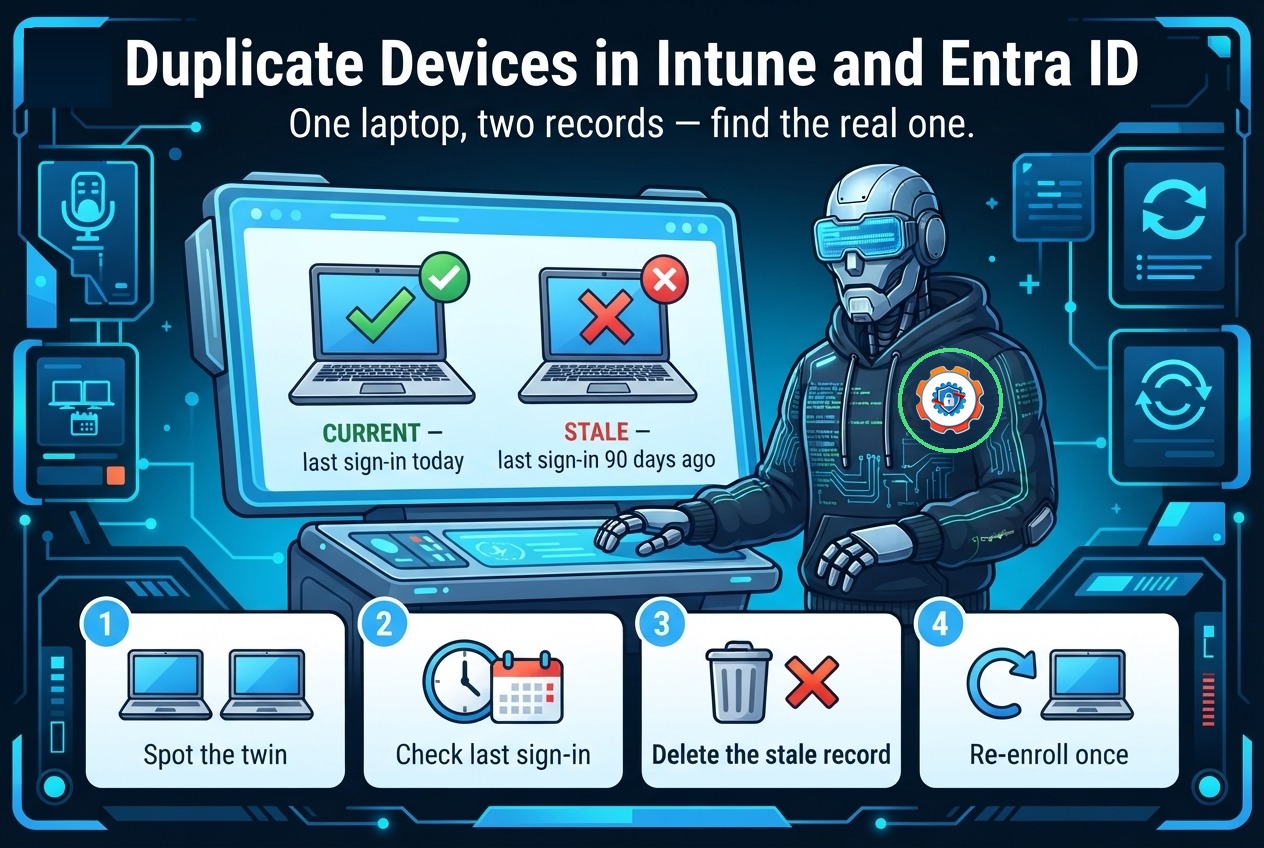
Group one: about twenty laptops show up twice in Intune with the same display name. One record is current — last check-in this morning, compliant, policies applied. The other is frozen — last check-in Friday, before the reimage, compliance state "Not evaluated," and it still holds the old BitLocker recovery key. The help desk cannot tell from the list alone which record the live laptop is talking to, and a policy change pushed "to the device" lands on whichever record the admin happens to click.
Group two: fifteen machines are Entra joined and working, but Entra ID shows each of them twice — one record says Microsoft Entra joined, the other says Microsoft Entra hybrid joined, and neither record shows as managed by Intune. Conditional Access is treating them inconsistently: some sign-ins pass the compliant-device check, some fail it, for the same user on the same laptop, depending on which record the sign-in happens to match.
Group three: five machines are the loud ones. They re-enrolled after the reimage and immediately failed with error 0x8018000a — "This device is already enrolled" — even though Intune shows no live record for them. The old enrollment never cleaned itself up, and the new one cannot start until the stale one is gone.
One weekend, one imaging process, three different duplicate shapes — and the worst part is group one, because it looks like a cosmetic problem. It is not. A wipe or retire command sent to the wrong twin does not wipe a stale record. It wipes a working laptop.
2. Root Cause Analysis
A duplicate is never one device with two names. It is one name with two identities, and each identity was created by a different event. Work out which event created the twin before you delete anything — the delete is the one step you cannot undo.
1. The reimage created a new identity and nobody removed the old one. This is the most common duplicate in the field, and it is group one. Reimaging a laptop and rejoining it to Entra ID creates a brand-new device object with a brand-new device ID. The old object — the pre-reimage laptop — stays in Entra ID and Intune until someone removes it. Same display name, different device ID, and the old record keeps its last check-in, its compliance state, and its BitLocker key. Microsoft's own stale-device guidance names exactly this case: duplicate device objects after an OS reinstall, reimage, or recovery.
2. Hybrid join created a second object next to the cloud-joined one. This is group two. A domain-joined device that hybrid-joins Entra ID should have exactly one Entra object, of join type hybrid. When the Entra Connect sync misfires — the on-premises computer object is not synchronized, or the sync creates a second object — the device ends up with two records: one Microsoft Entra joined and one Microsoft Entra hybrid joined, and the Intune enrollment attaches to neither, or to the wrong one. The signature is in dsregcmd /status: the device believes it is hybrid joined, while Entra ID holds a second, cloud-only record for the same name. Error 0x801c03f2 in the User Device Registration log — "The device object by the given id is not found" — is the same story from the device's side: it is looking for an object the sync never created.
3. The enrollment never completed, so the device registered twice. A registration that stalls halfway leaves a device object in a Pending state, and a user who signs in again — or an admin who re-runs the join — creates a second, live record next to the pending one. The pending record never checks in, never becomes compliant, and never goes away on its own. This is the duplicate that looks the most harmless and causes the most confusion in Conditional Access, because the pending record is the one some sign-ins match.
4. A manual re-registration stacked a personal record on top of the joined one. When a user adds a work or school account to a device that is already Entra joined — or an admin runs a join command on a machine that is already joined — the device gains a second identity of a different kind: a registered (WorkplaceJoined) record sitting next to the joined (AzureAdJoined) record. dsregcmd /status shows both flags as YES, and that combination is the tell. The registered record is not managed by Intune, so policies and compliance attach to the joined record while the registered one sits there looking identical.
5. Autopilot was re-registered without removing the old entry. Reimporting a hardware hash for a device that already has an Autopilot record creates a second Autopilot entry for the same machine. The device then deploys against whichever entry the service picks, and the two entries can disagree about the deployment profile, the assigned user, and the group tag. The Autopilot duplicate is easy to miss because it lives in a different blade from the Intune and Entra duplicates — Devices > Enroll devices > Devices, not All devices.
6. The old enrollment survived the rejoin. This is group three. dsregcmd /leave was never run, the stale enrollment GUIDs under HKLM\SOFTWARE\Microsoft\Enrollments were never cleared, and the device still carries the certificate of its previous management relationship. The new enrollment attempt collides with the old one and fails with 0x8018000a. The device is not in Intune, but Windows believes it is managed — the exact stale-enrollment shape from Day 1, now wearing a duplicate's clothes.
7. Nothing ever ages the stale records out. Orphaned device objects are not automatically removed by the service after 90 days — Microsoft's duplicate-cleanup guidance says so plainly. Without Intune device cleanup rules or Entra device cleanup rules configured, every reimage, every failed join, and every manual re-registration adds a permanent twin to the tenant. The duplicates in this scenario did not appear on Monday. They accumulated for months, and the reimage weekend just made them visible all at once.

3. Step-by-Step Troubleshooting
Work in this order: prove which record is live before you touch any of them. The delete comes last, never first.
1. Ask the device who it thinks it is. On the affected laptop, run dsregcmd /status from an elevated prompt. Write down three fields: DeviceId, TenantId, and the join flags (AzureAdJoined, DomainJoined, WorkplaceJoined). The DeviceId is the single most important value in this whole episode — it is the fingerprint that separates the live record from the twin. If WorkplaceJoined is YES alongside AzureAdJoined YES, you are looking at cause 4. If AzureAdJoined is NO but the device works, you are looking at a record the device no longer owns.
2. Find every record with that name in Entra ID. In the Entra admin center, or with Graph, list all device objects with the laptop's display name. For each one, record the device ID, the join type (Microsoft Entra joined, hybrid joined, or registered), the owner, and ApproximateLastSignInDateTime — the activity timestamp that says when the record last touched a cloud app. The live record is the one whose device ID matches the DeviceId from step 1. The twin is the one that does not match. If two records both claim to be hybrid joined, check the sync: the on-premises computer object may not be synchronized, which is the 0x801c03f2 story from cause 2.
3. Do the same in Intune. Search All devices for the name and list every managed record: Intune device ID, AzureADDeviceId, enrollment date, last check-in, and compliance state. The live Intune record is the one whose AzureADDeviceId matches the DeviceId from step 1. A record whose last check-in predates the reimage and whose compliance state is "Not evaluated" is the stale twin — but confirm it by ID, not by age alone, because a laptop that was simply switched off for a month looks exactly the same age.
4. Check what is attached to each record before you delete either. Open both records and look for three things: the BitLocker recovery key (stored against the Entra device object), the Autopilot registration (stored against the Autopilot device entry), and any Conditional Access or compliance policy that references the record. Microsoft's stale-device guidance is explicit here: if the organization uses BitLocker, make sure the recovery keys are backed up or no longer needed before deleting a device — deleting the wrong record can lose the only copy of a recovery key. A record that holds the live laptop's BitLocker key is not the stale one, whatever its last sign-in date says.

5. Disable first, delete second. Microsoft's best practice for stale devices is a grace period: disable the suspected stale record first, wait, and delete only after nothing breaks. Disabling blocks the record's cloud access while keeping it recoverable; deleting is permanent. For a record that is managed by Intune, retire it in Intune before disabling or deleting it in Entra ID — retiring first prevents the orphaned-record problem in the other direction, where Intune keeps managing a device Entra ID no longer recognizes. Never wipe a twin to clean it up: wipe is a device action, not a record action, and if you picked the wrong twin it wipes the working laptop.
6. Clean the device side when the enrollment is the stale part. For group three — the 0x8018000a machines — the fix is on the laptop, not in the portal. Disconnect the work or school account, run dsregcmd /leave from an elevated prompt, delete the stale GUIDs under HKLM\SOFTWARE\Microsoft\Enrollments, clear the leftover EnterpriseMgmt scheduled tasks, and check the device certificate store: a certificate issued by MS-Organization-Access for the old device ID will keep the old identity alive until it is removed. Then re-enroll, and confirm the new record's device ID matches the fresh dsregcmd /status output.
7. Fix the hybrid twin at the sync, not in the portal. Deleting one hybrid record from Entra ID without fixing the sync just recreates it at the next sync cycle. If dsregcmd /status shows the device as hybrid joined but Entra ID holds a second cloud-only record, run a delta sync in Entra Connect and confirm the on-premises computer object is actually synchronizing. On the device, dsregcmd /forcerecovery re-runs the hybrid join cleanly and lets the service reconcile the records — the wintips flow for this exact case is disconnect, /forcerecovery, verify AzureAdJoined and DomainJoined are both YES, then wait one to four hours for Entra ID to show a single record. Only delete in the portal after the sync has settled, and only the record the device does not own.
8. Clean up Autopilot separately. If the duplicate is an Autopilot entry, delete the duplicate from Devices > Enroll devices > Devices in the Intune admin center — or reimport the hardware hash only after the old entry is gone. Reimporting first creates the second entry again; the order matters.
9. Turn on the cleanup rules so this does not recur. In the Intune admin center, go to Devices > Device cleanup rules and set a rule that automatically deletes devices that have not checked in for a chosen period (30 to 270 days). In Entra ID, enable device cleanup rules the same way for stale device objects. Then add one line to the imaging runbook: before a laptop is reimaged, delete its old Intune and Entra records — or at minimum retire it in Intune. A reimage without a cleanup step is a duplicate factory, and the cleanup rules are the backstop for the ones the runbook misses.
10. Verify the single record everywhere. After the cleanup, confirm the device appears exactly once in Entra ID (join type correct, ApproximateLastSignInDateTime current) and exactly once in Intune (last check-in current, compliance evaluated, policies applied). Run dsregcmd /status one more time and confirm the DeviceId matches the surviving record in both portals. Then have the user sign in and confirm Conditional Access passes on the first attempt — the inconsistent pass/fail from group two is the last symptom to clear, because it depends on every sign-in matching the same, single record.
4. PowerShell Commands
Each of these is a real command an admin runs on the device or against the tenant. Run the device-side ones in an elevated prompt where noted.
# Ask the device who it thinks it is — DeviceId is the fingerprint that separates live from twin
dsregcmd /status
# Find every device that shares a display name — any group with Count over 1 has a duplicate
Connect-MgGraph -Scopes 'Device.Read.All'
Get-MgDevice -All | Group-Object DisplayName | Where-Object { $_.Count -gt 1 } |
Select-Object Name, Count# Show every Entra record for one laptop: IDs, join type, owner, and last activity
Get-MgDevice -Filter "displayName eq 'LTP-0142'" |
Select-Object DisplayName, DeviceId, Id, TrustType, IsManaged, IsCompliant,
ApproximateLastSignInDateTime, RegistrationDateTime# Show every Intune record for the same laptop — match AzureADDeviceId against dsregcmd
Connect-MgGraph -Scopes 'DeviceManagementManagedDevices.Read.All'
Get-MgDeviceManagementManagedDevice -Filter "deviceName eq 'LTP-0142'" |
Select-Object DeviceName, Id, AzureADDeviceId, EnrolledDateTime,
LastSyncDateTime, ComplianceState# Read the join identity the device itself holds (the subkey name is the device GUID)
Get-ChildItem 'HKLM:\SYSTEM\CurrentControlSet\Control\CloudDomainJoin\JoinInfo' |
Select-Object PSChildName# Check the device certificate — the MS-Organization-Access cert carries the old device identity
Get-ChildItem Cert:\LocalMachine\My | Where-Object { $_.Issuer -match 'MS-Organization-Access' } |
Select-Object Subject, NotAfter# Read the recent registration events — 204/304 are failures, 306 is a successful registration
Get-WinEvent -LogName 'Microsoft-Windows-User Device Registration/Admin' -MaxEvents 20 |
Where-Object { $_.Id -in 201, 204, 304, 306, 307 } |
Select-Object TimeCreated, Id, Message# Disable the stale record first (grace period) — deletion is permanent, disabling is not
Connect-MgGraph -Scopes 'Device.ReadWrite.All'
Update-MgDevice -DeviceId '<stale-device-id>' -AccountEnabled:$false# Retire the stale managed device in Intune before touching its Entra record
Connect-MgGraph -Scopes 'DeviceManagementManagedDevices.PrivilegedOperations.All'
Invoke-MgRetireDeviceManagementManagedDevice -ManagedDeviceId '<stale-managed-device-id>'# Delete the stale Entra device object — only after the grace period, and only the non-matching ID
Remove-MgDevice -DeviceId '<stale-device-id>'# Leave Entra ID cleanly, then re-register (elevated prompt — hybrid-join recovery path)
dsregcmd /leave
dsregcmd /forcerecovery# Export the whole duplicate inventory for the cleanup runbook
Get-MgDevice -All | Group-Object DisplayName | Where-Object { $_.Count -gt 1 } |
ForEach-Object { $_.Group } |
Select-Object DisplayName, DeviceId, TrustType, ApproximateLastSignInDateTime |
Export-Csv 'C:\Temp\duplicate-devices.csv' -NoTypeInformation5. Important Log Locations
| Location | What it tells you |
|---|---|
| Event Viewer > Applications and Services Logs > Microsoft > Windows > User Device Registration > Admin | The registration log. Event ID 201 = discovery failed; 204 = join failed (carries 0x801c03f2 when the device object is not found); 304 = registration failed at the join phase; 306 = automatic registration succeeded; 307 = failed to look up the registration service from Active Directory (0x801c001d); 309 = failed to discover the DRS service (0x801c0021). |
| Event Viewer > Applications and Services Logs > Microsoft > Windows > AAD > Operational | The token log. Events 1006 and 1007 bracket a Primary Refresh Token acquisition — 1007 carries the final error code. The log for "joined fine, but single sign-on does not work," which is what a twin record does to Conditional Access. |
| Event Viewer > Applications and Services Logs > Microsoft > Windows > DeviceManagement-Enterprise-Diagnostics-Provider > Admin | The enrollment log. Event ID 75 = auto-enrollment succeeded; Event ID 76 = failed, with the error code — including 0x8018000a when a stale enrollment blocks the new one. |
| HKLM\SYSTEM\CurrentControlSet\Control\CloudDomainJoin\JoinInfo | One subkey per join identity the device holds, named by device GUID. The GUID here must match the live Entra record's device ID — a second subkey is a second identity on the same laptop. |
| HKLM\SOFTWARE\Microsoft\Enrollments | One subkey per enrollment. Stale GUIDs here are the registry evidence behind 0x8018000a and the reason a re-enrollment collides with the old one. |
| Certificates > Local Computer > Personal (MS-Organization-Access issuer) | The device certificate. Its subject carries the device ID the certificate was issued for — a certificate for the old device ID keeps the old identity alive after the record is deleted. |
| C:\ProgramData\Microsoft\IntuneManagementExtension\Logs | Intune Management Extension logs (IntuneManagementExtension.log). When two Intune records exist for one laptop, this log shows which record the extension is actually reporting to. |
| Entra admin center > Identity > Monitoring & reports > Audit logs and Sign-in logs | The cloud side of the story: device deletion and disable events in the audit log, and which device record each sign-in matched in the sign-in log — the place where the inconsistent Conditional Access results from group two finally make sense. |
| Intune admin center > Devices > Device cleanup rules | Not a log, but the control that prevents the next pile-up: the rule that automatically deletes devices that have not checked in for 30 to 270 days. |
6. Practical Resolution
Back to Monday morning and the seventy-eight records. The troubleshooting above sorts them into three piles, and each pile has a different fix.
Group one — the reimage twins. For each duplicated laptop, dsregcmd /status on the live machine gives the true DeviceId. The Entra record with that ID is live; the other one, last active Friday before the reimage, is the stale twin. The team retires the stale Intune record first, then disables the stale Entra record and waits out the grace period — one laptop's stale record turns out to hold the only copy of its BitLocker recovery key, so that key is exported before anything is deleted. After the grace period, the stale records are deleted, and the forty laptops are forty records again.
Group two — the hybrid twins. The Entra Connect delta sync shows three computer objects that stopped synchronizing when their organizational unit was moved. The sync is fixed, the affected devices run dsregcmd /forcerecovery, and within a few hours Entra ID shows one hybrid-joined record per laptop instead of two. The cloud-only twins are deleted only after the sync settles — deleting them first would have recreated them at the next cycle. Conditional Access stops flip-flopping the same afternoon, because every sign-in now matches the same record.
Group three — the 0x8018000a machines. The five laptops get the device-side cleanup: disconnect the work or school account, dsregcmd /leave, delete the stale enrollment GUIDs, remove the old MS-Organization-Access certificate, reboot, and enroll again. All five enroll cleanly on the first attempt, and their new records carry device IDs that match dsregcmd /status exactly.
The last step is the one that prevents the next Monday like this one. Device cleanup rules go on in Intune and Entra ID — stale records now age out automatically after 90 days without a check-in — and the imaging runbook gains its one new line: retire the old records before the laptop is reimaged. The duplicates were never a device problem. They were a lifecycle problem: identities were created and never retired, and the portals kept every one of them.
7. Interview Questions
Q1: A laptop appears twice in Intune with the same name. How do you work out which record is the live one?
Do not guess from the name or the age — match IDs. Run dsregcmd /status on the laptop and take its DeviceId, then compare it against each record's AzureADDeviceId in Intune and device ID in Entra ID. The record whose ID matches is live; the other is the twin. Last check-in and compliance state support the answer, but the ID is the answer.
Q2: Why does reimaging a laptop create a duplicate device record?
Because the reimage creates a brand-new device identity. Rejoining Entra ID generates a new device object with a new device ID, and the old object — the pre-reimage laptop — is not removed by the reimage. It stays in Entra ID and Intune with its old check-in, compliance state, and BitLocker key until someone deletes it. Orphaned objects are not automatically removed after 90 days, so without cleanup rules or a runbook step, every reimage adds a permanent twin.
Q3: What is the difference between disabling and deleting a stale device record, and which do you do first?
Disabling blocks the record's cloud access but keeps it recoverable; deleting removes it permanently. Microsoft's best practice is disable first, wait through a grace period, and delete only after nothing breaks. And if the record is managed by Intune, retire it in Intune before disabling or deleting it in Entra ID — otherwise Intune keeps managing a device Entra ID no longer recognizes.
Q4: What does error 0x801c03f2 mean, and where do you see it?
It means "The device object by the given id is not found." It shows up in the User Device Registration log as Event ID 204, when a hybrid-joined device looks for its on-premises computer object in Entra ID and the sync never created it. The fix is at the sync — run a delta sync in Entra Connect, confirm the computer object is synchronizing — not in the portal, because deleting the record just recreates the problem at the next cycle.
Q5: A device fails to enroll with 0x8018000a, "This device is already enrolled," but Intune shows no live record. What do you do?
The device holds a stale enrollment. Disconnect the work or school account, run dsregcmd /leave from an elevated prompt, delete the stale GUIDs under HKLM\SOFTWARE\Microsoft\Enrollments, remove the old MS-Organization-Access device certificate, clear the leftover EnterpriseMgmt scheduled tasks, reboot, and enroll again. The stale enrollment is on the device, so the fix is on the device — deleting records in the portal will not clear it.
Q6: How do you stop duplicates from piling up again after you clean them out?
Two controls and one habit. Turn on Intune device cleanup rules, which automatically delete devices that have not checked in for a chosen period, and Entra device cleanup rules for stale device objects. Then add the habit to the imaging runbook: retire the old Intune and Entra records before a laptop is reimaged. Cleanup rules are the backstop; the runbook step is the fix — duplicates are a lifecycle problem, and they only stop when identities get retired at the same moment devices get rebuilt.
Day 14 done. Tomorrow, Day 15: Complete Enterprise Troubleshooting Scenario — the final episode, where everything from the last fourteen days lands on one laptop at once.
Follow the series here on ongoingideas.com — one scenario a day, for 15 days.
Missed the start of the series? Begin with Day 1: Windows Device Not Enrolling into Intune, then Day 2: Company Portal Login Failures, then Day 3: Device Compliance Issues, then Day 4: Configuration Profile Failures, then Day 5: Win32 Application Installation Issues, then Day 6: Intune Management Extension Troubleshooting, then Day 7: BitLocker Policy Failures, then Day 8: Windows Autopilot Deployment Issues, then Day 9: Conditional Access Errors, then Day 10: Device Sync Problems, then Day 11: PowerShell Script Deployment Failures, then Day 12: Microsoft Defender Policy Issues, then Day 13: Windows Update Ring Issues.