





How to Become a Desktop Engineer — Part 4: Windows 11 Inside Out
How to Become a Desktop Engineer — Part 4 of 13
Windows 11 Inside Out
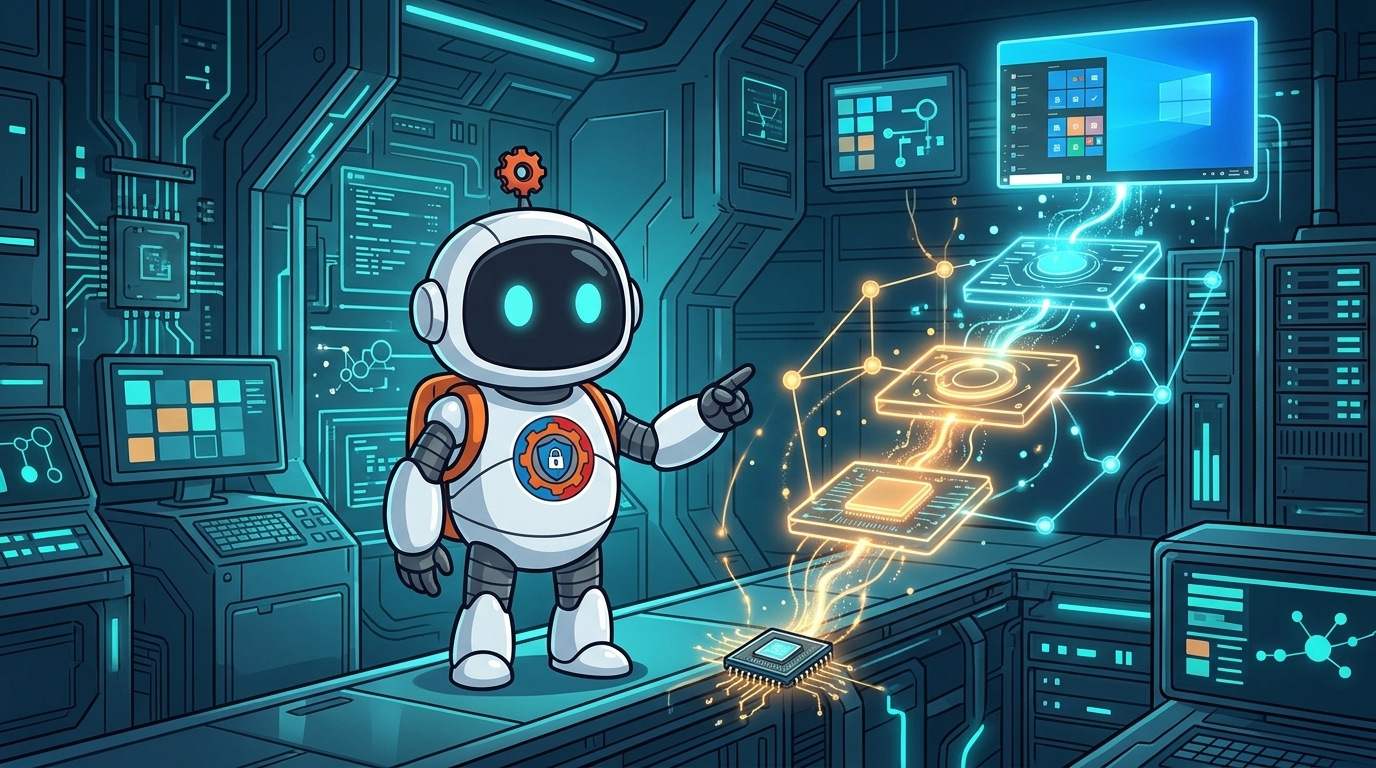
Post 3 gave you the mindset — the five-step loop, the curiosity habit, the notes that outlive the ticket. This is the fourth post in a thirteen-part series on how to become a desktop engineer, and it’s about the machine you’ll be thinking about: Windows 11, from the power button to the desktop, with the troubleshooting method applied live to a real fault.
This is the operating system the job runs on. Microsoft’s MD-102 exam — the certification that maps most directly onto this role — gives its largest domain, “Manage and maintain devices”, a weight of 25–30%. You don’t need kernel-developer depth. You need to know where things live, where the evidence is, and which layer a fault belongs to.
The parts that matter daily
Windows is a big system, but a desktop engineer’s daily work touches the same few parts over and over. Learn the map once and every fault gets faster.
The registry is where Windows keeps its configuration — settings for the system and every user. The two hives you’ll open most are HKEY_LOCAL_MACHINE, the machine’s own settings, and HKEY_CURRENT_USER, the signed-in user’s settings. Most “it worked yesterday” faults live here: a policy that landed, a bad installer, a corrupted profile key. Rule one: export the key before you change it.
Services are the background programs Windows runs whether or not anyone is logged in — networking, printing, updates, security.
Event Viewer is where Windows writes down what happened. The error that matches the fault is usually already written down, with a time stamp.
User profiles are the per-user world: settings, documents, the registry hive NTUSER.DAT that becomes HKEY_CURRENT_USER at sign-in. A surprising share of “my computer is broken” tickets are really “my profile is broken”.
Drivers are the translators between Windows and the hardware. The wrong driver version rarely announces itself with an error message; it shows up as random freezes and a fleet of identical laptops failing in identical ways.
From power button to desktop
When a device won’t boot clean, the first question is where it stops. The boot chain is a sequence, and each stage has its own evidence:
- UEFI firmware runs first — the low-level software on the motherboard. No manufacturer’s logo means you’re here, not in Windows.
- Secure Boot checks that the boot loader is signed and trusted before it runs. It’s a Windows 11 requirement — and when it blocks a legitimate change, the symptom looks like a dead machine.
- Windows Boot Manager finds the Windows installation and starts the loader; Winload loads the kernel and the drivers Windows needs to start.
- The kernel and Session Manager start the core system processes and load the registry hives.
- Winlogon presents the sign-in screen,, then loads the user profile and starts the shell.
Know the chain and a “won’t boot” ticket becomes a location. No logo? Firmware or hardware. Spinning circle forever? The loader or the kernel. Desktop never arrives after sign-in? The profile or the shell.

Windows 11, and what’s different from the Windows 10 era
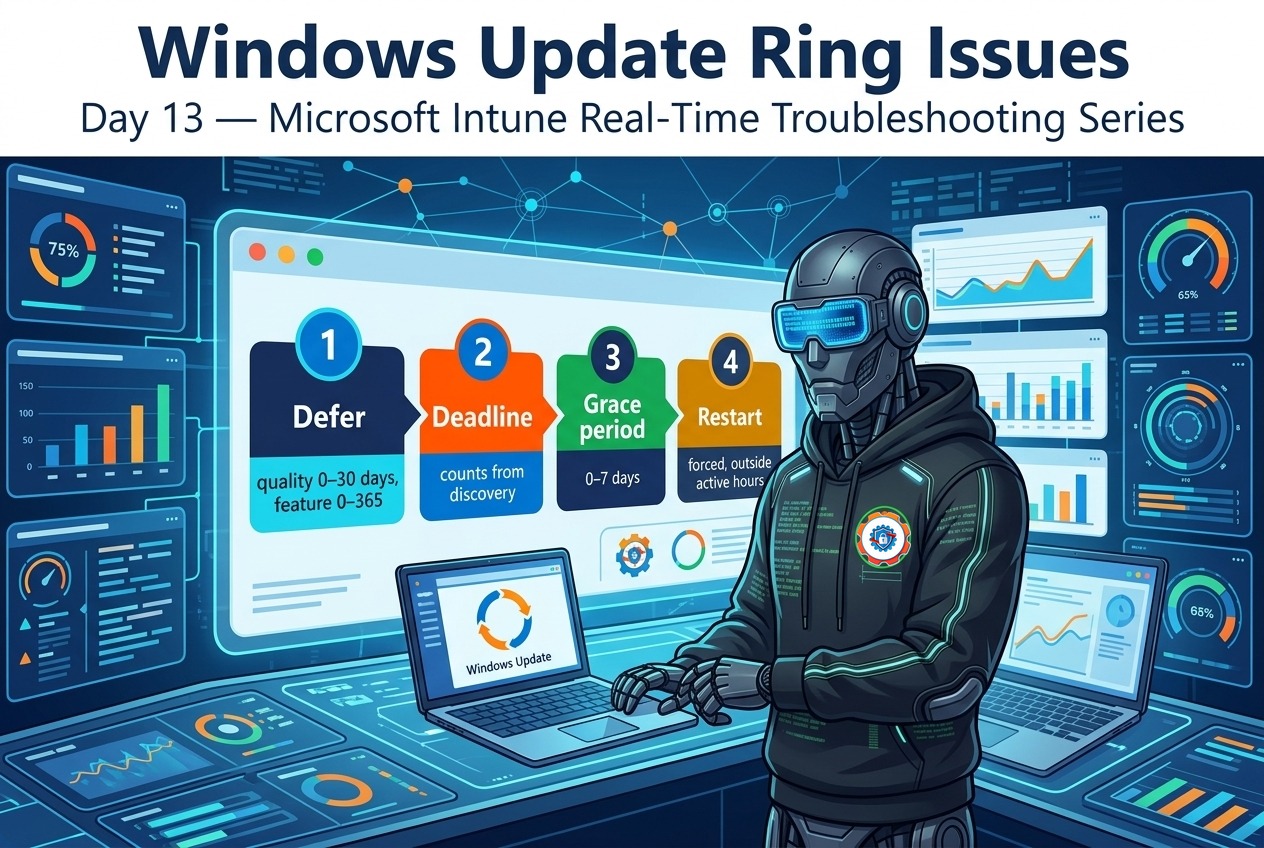
If you learned the job on Windows 10, most of your instincts still work — but the servicing model is the part that changed the job. Windows 10 reached end of support on 14 October 2025. Devices still on it get no security updates unless enrolled in Extended Security Updates — a bridge to October 2027, not a plan.
Windows 11 ships one feature update a year, in the second half of the year. Each version gets 24 months of updates on Home and Pro, 36 months on Enterprise and Education. Version 25H2 arrived on 30 September 2025 as a small enablement package on top of 24H2. The current annual release, 26H2, arrived on 29 September 2026. The fleet is never “on Windows 11” in the abstract — it’s on a specific version with a specific end date.
The other difference that matters daily: Windows 11 requires TPM 2.0 and Secure Boot, and the hardware bar is real. Settings has also swallowed more of what used to live in Control Panel — search inside Settings before you assume a feature is gone.
A fault, worked live
Here’s the five-step loop from Post 3, applied to a fault class every desktop engineer meets: a user signs in and gets a temporary profile, or a message that the profile can’t be loaded. Their desktop is empty, their settings are gone, and they’re convinced the machine ate their files.
Identify: what exactly happens, and when did it start? Temporary profile, or sign-in refused entirely? Is it this user, this machine, or everyone?
Isolate: does the same user sign in fine on another machine? Does another user sign in fine on this one? One user on one machine means the fault lives in that profile on that machine. One user everywhere means the account. Every user on this machine means the machine — disk or system files, not a profile.
Root-cause: open Event Viewer and look at the User Profile Service log — it usually names the problem outright. Then check the registry: under HKEY_LOCAL_MACHINE\SOFTWARE\Microsoft\Windows NT\CurrentVersion\ProfileList, a corrupted profile shows up with a .bak suffix on its key. Check free disk space too — a profile can’t load onto a full disk, and a full disk is the cause nobody checks first.
Remediate: the fix matches the cause. A .bak key means renaming the keys so Windows loads the right profile — not deleting the profile, not reimaging the machine, never deleting a user’s data to “fix” a login.
Document: the cause in one sentence, on the ticket. “Temporary profile — corrupted ProfileList key after failed update; renamed .bak key, profile restored, no data loss.”
Sysinternals: the tools no posting lists
Here’s an honest caveat, straight from the research behind this series: no sampled job posting names Sysinternals. Every strong engineer uses it anyway.

Three tools cover most of it. Process Explorer is Task Manager with the truth switched on: which process owns which window, which files and handles a process has open, and the exact command line it started with. When Task Manager just says “System”, Process Explorer tells you which driver or service inside it is eating the CPU. Process Monitor records every file, registry, and network operation in real time — filter for one process and watch exactly where it fails. Autoruns lists everything that starts with the machine — services, drivers, scheduled tasks, browser helpers, shell extensions — and lets you disable entries one at a time.
All three are free from Microsoft and run without installation. Download them from Microsoft Learn and practise on a lab machine before you need them on a user’s machine.
Driver and firmware hygiene: where “random” problems come from
Ask a room of desktop engineers where their strangest fleet problems came from: a driver or a firmware update. The symptoms never look like a driver problem: one model of laptop freezes at random; a dock works on half the desks. Then someone checks and finds the affected machines all took the same driver version last Tuesday.
The discipline is boring and it works: keep a known-good driver set per model, test new versions on a small ring before they reach the fleet, and never let Windows Update and the manufacturer’s updater fight over the same device.
None of this is glamorous. That’s the point: knowing where things live, reading the evidence before acting, and fixing the cause instead of the symptom.
Practise it this week
- Trace one boot. Restart a lab machine and watch the chain. Now break it on purpose in the lab and find the evidence in Event Viewer.
- Open Process Explorer on your own machine. Find the process using the most CPU, then find what it actually is.
- Audit one fleet version. Pick a model in your estate and find out which Windows 11 version it’s on, and when that version’s support ends.
Next up: Identity: AD, GPO, Entra ID, Conditional Access. The machine is only half the story — the other half is who gets in, and what they’re allowed to do once they’re there. Identity is the new perimeter, and it’s where the job gets interesting.
Missed the earlier posts? Start with Part 1: What a Desktop Engineer Actually Does, Part 2: The Path, Stage by Stage, and Part 3: The Mindset — Curiosity Is a Technical Skill.