









Microsoft Defender Policy Issues — Day 12 of the Microsoft Intune Real-Time Troubleshooting Series
Day 12 of the Microsoft Intune Real-Time Troubleshooting Series
Welcome to Day 12 of the Microsoft Intune Real-Time Troubleshooting Series — 15 days, 15 real-world scenarios, 15 practical solutions.
The first eleven days got a device enrolled, signed in, compliant, profiled, running its apps, encrypted, deployed by Autopilot, through the Conditional Access gate, checking in on schedule, and running its PowerShell scripts. Today is about the layer that is supposed to be watching all of it — Microsoft Defender Antivirus policy. A Defender policy has a failure mode the others do not: the Intune portal can say Succeeded while the device is quietly unprotected. No red banner, no failed status — just a green tick and a laptop whose real-time protection is off, whose signatures are three weeks old, or whose antivirus is not the antivirus Windows thinks it is. The policy says protected. The device says otherwise. Today is about finding out which one is telling the truth.
1. Real-World Scenario
It is Tuesday morning. The security team has just rolled out a new Defender Antivirus baseline to the whole fleet through Intune — Endpoint security > Antivirus: real-time protection on, cloud-delivered protection on, Tamper Protection on, Attack Surface Reduction rules in block mode, and a daily quick scan. The rollout is supposed to be the easy win of the quarter: one profile, one assignment, every device protected by Friday.
By 10 a.m. the portal tells three different stories, and none of them is the one the security team expected.
Group one: about forty laptops report the profile as Error or Conflict. Windows Security on those machines shows a red banner — "Virus & threat protection is managed by your organization" — and real-time protection is off. The per-setting status names a code: 0x87d1fde8.
Group two: the portal says Succeeded on nearly every other device — but the spot-checks fail. On a sample of ten laptops, Get-MpComputerStatus reports RealTimeProtectionEnabled : False on four of them, even though the profile applied cleanly. The devices believe they are protected. They are not.
Group three: the remaining laptops are stuck on Pending, and their signatures are weeks old. The quick scan has not run in a month, the signature update fails with 0x80070643, and nobody can say whether the policy ever reached them at all.
One profile, one assignment, three different failures — and the worst part is group two, because it looks finished. If nobody had run Get-MpComputerStatus on a real device, the audit would have found the gap instead.
2. Root Cause Analysis
A Defender policy is a chain with four links — Intune profile, MDM channel, CSP setting, Defender engine — and each link can break without the portal noticing. Work out which link broke before you touch the policy.
1. Two policies set the same setting to different values. Defender settings can be delivered from three Intune surfaces at once: an Endpoint security > Antivirus profile, a Settings Catalog profile with Defender CSP settings, and a legacy device configuration template (Windows Defender Antivirus). If two of them set the same setting differently, Intune does not pick a winner — the profile reports Conflict, and the device keeps whichever value it already had. The per-setting status usually names the code 0x87d1fde8 (-2016281112, "Remediation failed"): the device was asked to set a value and did not end up with it. Its sibling, 0x87d1fdee, means the setting lost in conflict resolution. This is group one, and it is the most common Defender policy failure in Intune.
2. A compliance policy beats a configuration profile. Compliance policy settings always take precedence over configuration profile settings. If a compliance policy carries a Defender requirement — say, it requires real-time protection — and a configuration profile sets the same thing differently, the compliance value wins and the profile looks broken. The fix is not in the profile; it is in deciding which policy owns the setting.
3. A third-party antivirus keeps Defender in passive mode. When another antivirus registers with Windows Security Center, Microsoft Defender Antivirus steps aside into passive mode: it stays installed, but it stops providing real-time protection, because two real-time engines cannot run at once. That is by design — and it is also the trap. A trial antivirus that was uninstalled badly, or an old agent that was never fully removed, leaves its Security Center registration behind, and Defender stays passive forever. The portal reports Success, because the policy applied; the device is unprotected, because Defender yielded to a product that no longer exists. This is group two.
4. Tamper Protection blocks the change. Tamper Protection locks Defender settings against changes from outside — including changes your own tools make. When it is on, a policy, a script, or even an admin flipping a setting by hand can be refused, and the refusal is logged as Event ID 5013. If the policy you just deployed tries to change a protected setting while Tamper Protection is enforcing an older value, the device quietly keeps the old one. Tamper Protection is managed through Intune (Endpoint security > Antivirus > Tamper Protection) — it is a setting, not a wall, but it has to be changed through the same channel that owns it.
5. The Defender service itself is broken. The policy can be perfect and the device can still be unprotected if the engine underneath it will not start. The service is WinDefend (Microsoft Defender Antivirus Service). When it fails to initialize, the error is 0x800106ba — "The Microsoft Defender Antivirus service is disabled. Enable the service and try again." The usual causes are a corrupt antimalware platform, a platform update that never finished (Events 5008, 5100, 5101), or a third-party product that disabled the service during its own install and never restored it.
6. Signature updates are failing. Defender is only as good as its definitions. When the signature update fails — the classic code is 0x80070643 — the engine keeps running on stale intelligence, the quick scan ages, and the device drifts out of compliance while the portal still shows the profile as applied. The causes are usually a broken definition store, a blocked update path, or a device that has not checked in long enough to pull a new platform version.
7. The policy never arrived. A profile stuck on Pending means the device has not checked in or has not reported a final status yet. Defender policies only reach managed devices: a device that is only registered with Entra ID, not joined, never receives them. And for Microsoft Defender for Endpoint onboarding — the Sense service that reports the device into the Defender portal — a device that never onboarded will show up as unprotected in the Defender portal even while its Intune antivirus profile is green. Two portals, two different truths, and both need checking.
8. Attack Surface Reduction rules in block mode are breaking real apps. ASR rules are the part of the baseline that bites back. A rule in block mode that stops Office apps from creating child processes, or blocks credential stealing from LSASS, will also block a legitimate line-of-business app that does the same thing — and the user experiences it as "my app stopped working after the security update," not as a policy event. ASR blocks are logged as Event ID 1121 (audit mode is 1122). The fix is never to turn ASR off fleet-wide; it is to find the one rule, put it in audit, read the events, and exclude the one process that needs it.

3. Step-by-Step Troubleshooting
Work in this order: prove what the device actually believes first, then work backward to the setting that caused it.
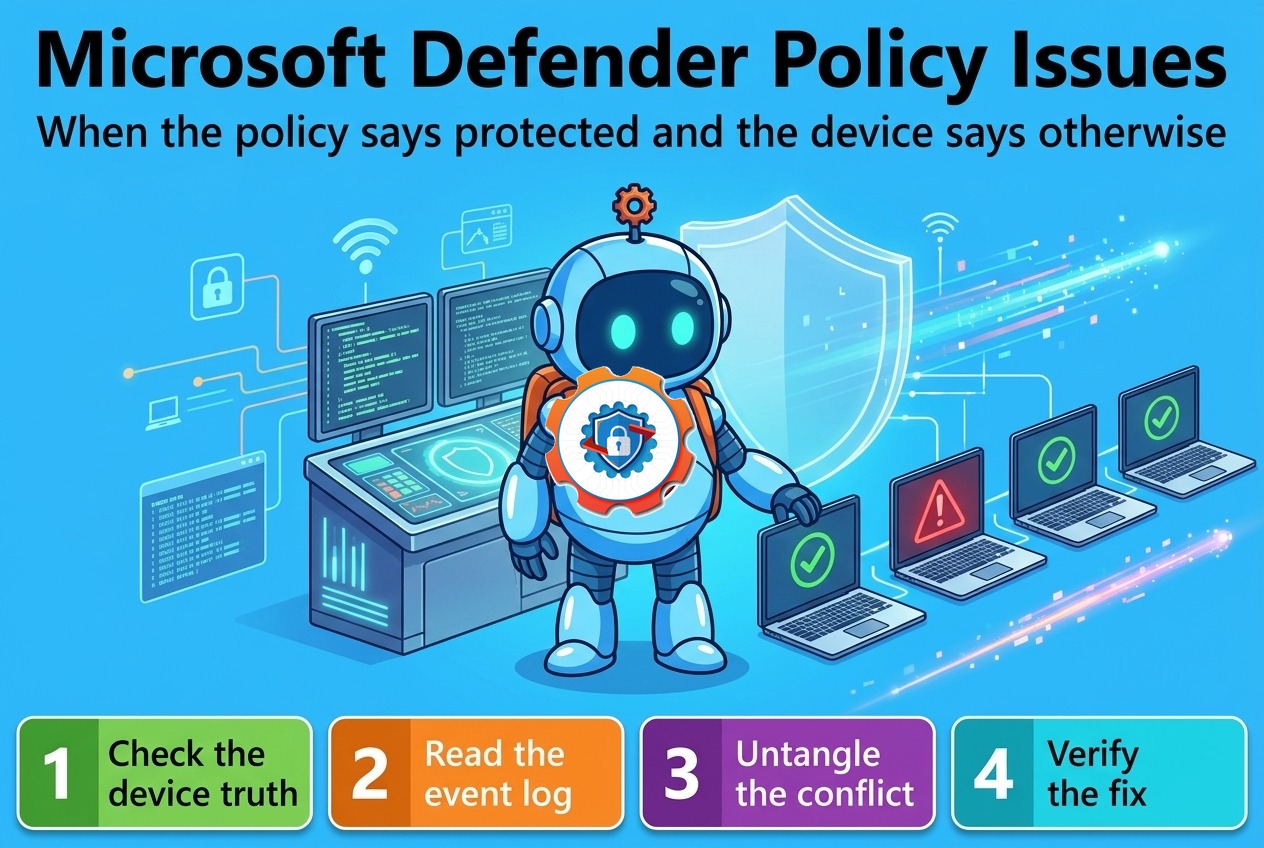
1. Check the device truth, not the portal. On a sample device, run Get-MpComputerStatus and read four fields: RealTimeProtectionEnabled, AntivirusEnabled, AMServiceEnabled, and AntivirusSignatureLastUpdated. Then open Windows Security > Virus & threat protection and look at the banner. If the portal says Succeeded and the device says real-time protection is off, the portal is reporting the policy — not the protection. Trust the device.
2. Read the per-setting status in Intune. In the Intune admin center, open the device, choose Device configuration, and read the status per setting, not per profile. One bad setting turns the whole profile red. Find the exact setting that reports 0x87d1fde8 or Conflict, and note its CSP path — it usually starts ./Device/Vendor/MSFT/Policy/Config/Defender/. That path tells you which surface delivered it and which other profile might be fighting it.
3. Read the Defender event log. On the device, open Event Viewer and go to Applications and Services Logs > Microsoft > Windows > Windows Defender > Operational. Four events do most of the work: 5001 (real-time protection disabled), 5007 (configuration changed — and Microsoft warns an unexpected 5007 may be malware), 5013 (Tamper Protection blocked a change), and 1116 (malware detected, with 1117 for the action taken). 5008 means the engine crashed; 5100/5101 mean the platform is expiring or expired. Note the time of the first bad event — it usually lines up with the profile's deployment time or with a third-party install.

4. Check for a third-party antivirus — including a dead one. Run the Security Center query (section 4, command 4) and read every registered product. If anything other than Microsoft Defender Antivirus is listed, Defender is passive by design. If the product is one you thought was uninstalled, its registration is still there: remove it properly with the vendor's removal tool, not just Add/Remove Programs, and confirm Defender flips back to active with Get-MpComputerStatus.
5. Check Tamper Protection state. Get-MpComputerStatus also reports IsTamperProtected and TamperProtectionSource. If Tamper Protection is on and sourced from Intune, the setting can only be changed through Intune — a local Set-MpPreference or registry edit will be refused and logged as Event 5013. Change it in the Antivirus profile, let the device check in, and re-test.
6. Check the service and the platform. Confirm the WinDefend service exists, is running, and is set to Automatic. If it will not start, or exits with 0x800106ba, reset the platform: MpCmdRun.exe -RemoveDefinitions -All followed by MpCmdRun.exe -SignatureUpdate, and check the platform version in Get-MpComputerStatus — an expired platform (Event 5101) will not protect anything until it is updated.
7. Collect the support logs when the answer is not in the event log. Run MpCmdRun.exe -GetFiles from an elevated prompt. It bundles the Defender support logs — including MPLog — into a .cab on the desktop. This is the bundle Microsoft support asks for, and it is the fastest way to prove a signature-update failure or a platform fault when the event log is thin.
8. Untangle the conflict. List every profile that touches Defender settings: the Endpoint security Antivirus profile, any Settings Catalog profile with Defender CSP settings, any legacy device configuration template, and the compliance policy. Pick ONE surface to own each setting — Endpoint security Antivirus is the modern home — and remove the setting from the others. A setting owned by two profiles is a conflict waiting for its next deployment; a setting owned by one profile is a setting you can reason about.
9. Put ASR in audit before you put it in block. For any ASR rule that is blocking a real app, flip that one rule to Audit mode in the profile, let the devices check in, and read the Event 1122 audit events to see exactly which process and path the rule would have blocked. Add a narrow exclusion for that process, then flip the rule back to Block. Never exempt a whole folder or turn a rule off fleet-wide to fix one app.
10. Force a check-in and re-verify the device truth. Sync the device from the Intune admin center (or Settings > Accounts > Access work or school > Info > Sync), wait for the check-in, then re-run Get-MpComputerStatus. The fix is only real when RealTimeProtectionEnabled is True, the signature is less than a day old, and the profile reports Succeeded per setting. A green profile with a red device is not a fix.
4. PowerShell Commands
Each of these is a real command an admin runs on the device or against the tenant. Run the device-side ones in an elevated prompt where noted.
# On the device: the device truth — real-time protection, engine, tamper source, signature age
Get-MpComputerStatus | Select-Object RealTimeProtectionEnabled, AntivirusEnabled,
    AMServiceEnabled, IsTamperProtected, TamperProtectionSource, AMEngineVersion,
    AntivirusSignatureVersion, AntivirusSignatureLastUpdated, QuickScanAge, FullScanAge
# On the device: the effective Defender preferences — what the engine is actually doing
Get-MpPreference | Select-Object DisableRealtimeMonitoring, DisableBehaviorMonitoring,
DisableBlockAtFirstSeen, MAPSReporting, EnableControlledFolderAccess,
AttackSurfaceReductionRules_Actions# On the device: the four Defender events that name the cause (5001, 5007, 5013, 1116)
Get-WinEvent -LogName 'Microsoft-Windows-Windows Defender/Operational' -MaxEvents 25 |
Where-Object { $_.Id -in 5001, 5007, 5013, 1116, 5008, 5101, 1121 } |
Select-Object TimeCreated, Id, LevelDisplayName, Message# On the device: every antivirus registered with Windows Security Center — a second product means Defender is passive
Get-CimInstance -Namespace root/SecurityCenter2 -ClassName AntiVirusProduct |
Select-Object displayName, productState, timestamp# On the device: confirm the Defender service (WinDefend) and the MDE sensor (Sense) are running
Get-Service WinDefend, Sense | Select-Object Name, Status, StartType# On the device: force a signature update from the command line (MpCmdRun lives under the Defender platform folder)
& 'C:\Program Files\Windows Defender\MpCmdRun.exe' -SignatureUpdate# On the device: run a quick scan on demand and confirm the engine can scan at all
& 'C:\Program Files\Windows Defender\MpCmdRun.exe' -Scan -ScanType 1# On the device: recent detections and the action Defender took on each
Get-MpThreatDetection | Select-Object ThreatID, Resources, DetectionTime, ActionSuccess |
Sort-Object DetectionTime -Descending | Select-Object -First 10# On the device: collect the Defender support logs into a .cab on the desktop (the bundle Microsoft support asks for)
& 'C:\Program Files\Windows Defender\MpCmdRun.exe' -GetFiles# On the device: re-enable real-time protection locally — only works when Tamper Protection allows it; otherwise change it in the Intune profile
Set-MpPreference -DisableRealtimeMonitoring $false# From the admin side: read the antivirus profile's per-device status from Microsoft Graph
Connect-MgGraph -Scopes 'DeviceManagementConfiguration.Read.All'
Invoke-MgGraphRequest -Method GET -Uri 'https://graph.microsoft.com/v1.0/deviceManagement/deviceConfigurations' |
Select-Object -ExpandProperty value | Select-Object displayName, id5. Important Log Locations
| Location | What it tells you |
|---|---|
| Intune admin center > Devices > device > Device configuration (per-setting status) | The profile's status per setting. Find the exact setting that reports 0x87d1fde8 or Conflict — and its CSP path, usually under ./Device/Vendor/MSFT/Policy/Config/Defender/. |
| Intune admin center > Endpoint security > Antivirus > profile > Monitor | The profile's per-device status across the fleet. Succeeded here is a claim about the policy, not about the protection — always cross-check with the device. |
| Event Viewer > Applications and Services Logs > Microsoft > Windows > Windows Defender > Operational | The Defender log. Event 5001 = real-time protection disabled; 5007 = configuration changed (unexpected = possible malware); 5013 = Tamper Protection blocked a change; 1116 = malware detected, 1117 = action taken; 5008 = engine crashed; 5100/5101 = platform expiring/expired; 1121 = ASR blocked, 1122 = ASR audited. |
| C:\ProgramData\Microsoft\Windows Defender\Support\MPLog-*.log | The Defender support logs — the detail behind a signature-update failure (0x80070643) or a platform fault. Collected with MpCmdRun.exe -GetFiles. |
| C:\ProgramData\Microsoft\Windows Defender\Definition Updates | The signature store. A stale or corrupt store here is the usual cause of 0x80070643; MpCmdRun.exe -RemoveDefinitions -All clears it. |
| C:\ProgramData\Microsoft\Windows Defender\Scans\History\Service\DetectionHistory | The on-device detection history — what Defender found and what it did, even when the portal has no record of it. |
| HKLM\SOFTWARE\Policies\Microsoft\Windows Defender | The policy-set Defender values (what Intune/GPO wrote). Compare with the effective state to spot a setting that was written but never took effect. |
| HKLM\SOFTWARE\Microsoft\Windows Defender | The effective Defender state on the device — what the engine is actually running with. |
| Microsoft Defender portal > Devices > device > Timeline | The MDE view of the same device: onboarding state, sensor health, and alerts. A device missing here never onboarded — the Sense service never reported in. |
| Event Viewer > Applications and Services Logs > Microsoft > Windows > DeviceManagement-Enterprise-Diagnostics-Provider > Admin | The MDM client log. It shows the Defender profile arriving on the device; if nothing arrives here, the problem is assignment or sync, not Defender. |
6. Practical Resolution
Back to the Tuesday-morning baseline. The troubleshooting above sorts the three groups fast, and each group has a different fix.
Group one — Error / Conflict, 0x87d1fde8. Two profiles set the same Defender setting differently: the new Endpoint security Antivirus profile and an older Settings Catalog profile that still carries Defender CSP settings from the last project. The fix is in the tenant, not on the devices: pick the Endpoint security Antivirus profile as the single owner of every Defender setting, and delete the Defender settings from the Settings Catalog profile. Then check the compliance policy — it also carried a Defender requirement that outranked both. Once one surface owns each setting, the devices check in, the conflict clears, and the per-setting status flips to Succeeded.
Group two — portal green, device unprotected. A trial antivirus from a vendor evaluation six months ago was "uninstalled" with Add/Remove Programs — but its Security Center registration survived, so Defender stayed in passive mode. The fix is on the devices: run the vendor's removal tool, confirm the Security Center query lists only Microsoft Defender Antivirus, and verify Get-MpComputerStatus reports RealTimeProtectionEnabled : True. The policy was never broken; Defender was yielding to a ghost.
Group three — Pending, signatures weeks old. Three different causes across the group: a handful of devices are only workplace-registered, not Entra joined, so they never receive Defender policies at all; two have a corrupt definition store that fails every update with 0x80070643; and the rest simply had not checked in since the baseline was assigned. The fixes: join the devices properly, clear the definition store with MpCmdRun.exe -RemoveDefinitions -All and force a signature update, and sync the rest.
The fix, in order:
- Check the device truth first —
Get-MpComputerStatuson a real device, not the portal. - Read the per-setting status and name the exact failing setting and its CSP path.
- Read the Defender event log — 5001, 5007, 5013, and 1116 name the cause.
- Check the Security Center for a second antivirus, living or dead — passive mode hides behind a green portal.
- Respect Tamper Protection: change protected settings through Intune, not locally.
- One surface owns each Defender setting — Endpoint security Antivirus is the modern home; remove the setting from every other profile.
- Put ASR rules in audit before block, exclude the one process that needs it, then block again.
- Verify the fix on the device: real-time protection on, signature less than a day old, profile Succeeded per setting.
- Document the ownership rule in the security runbook — one profile type per setting, and the compliance policy named as the owner when it carries a Defender requirement — so the next baseline starts from a deliberate choice instead of a duplicate.
The policy was never the whole story. One group was a conflict between two profiles, one was a ghost antivirus holding Defender passive, and one was devices the policy never reached. The portal said Succeeded for two of them. The devices said otherwise — and the devices were right.
7. Interview Questions
Q1: The Intune portal says a Defender Antivirus profile Succeeded, but Get-MpComputerStatus reports RealTimeProtectionEnabled : False. What is the first thing you check?
Whether another antivirus is registered with Windows Security Center. When a third-party product registers, Defender steps into passive mode by design — the policy applied fine, but Defender yielded real-time protection to the other product. Run the Security Center query (Get-CimInstance -Namespace root/SecurityCenter2 -ClassName AntiVirusProduct); if anything besides Microsoft Defender Antivirus is listed, that is the answer. A badly removed trial product leaves its registration behind and keeps Defender passive indefinitely.
Q2: What does error 0x87d1fde8 mean, and where do you find which setting failed?
It is "Remediation failed" (-2016281112): the device was asked to set a value and did not end up with it. It is a generic code, so the work is finding the setting: in the Intune admin center, open the device, choose Device configuration, and read the status per setting, not per profile — one bad setting turns the whole profile red. The failing setting's CSP path, usually under ./Device/Vendor/MSFT/Policy/Config/Defender/, tells you which surface delivered it and which other profile may be setting the same thing differently.
Q3: What is the difference between Defender in passive mode and Defender disabled?
Passive mode is a deliberate handover: another antivirus is registered with Windows Security Center, so Defender stays installed and keeps its engine, but stops providing real-time protection to avoid two engines fighting. Disabled means the Defender service or scanning is actually off — Event 5001 (real-time protection disabled) or 5010/5012 (scanning disabled) — with no other product taking over. Passive is safe when a real product is there; it is a gap when the other product is a ghost that was uninstalled badly. Get-MpComputerStatus shows both states the same way, so the Security Center query is what separates them.
Q4: What is Tamper Protection, and what event proves it blocked a change?
Tamper Protection locks Defender settings against changes from outside the management channel — malware, scripts, and even an admin flipping a setting by hand. When it refuses a change, the Defender Operational log records Event ID 5013. It is managed through Intune (Endpoint security > Antivirus > Tamper Protection), and when it is on and sourced from Intune, a local Set-MpPreference will be refused — the setting has to be changed in the profile and delivered on the next check-in.
Q5: How do you prove a signature-update failure is different from a policy failure?
By the evidence each one leaves. A policy failure shows in the per-setting status (0x87d1fde8, Conflict) and the MDM event log. A signature failure shows on the device: Get-MpComputerStatus reports an old AntivirusSignatureLastUpdated and a large QuickScanAge, the update fails with 0x80070643, and the MPLog support logs name the broken definition store. The fix is also different — clear the store with MpCmdRun.exe -RemoveDefinitions -All and force MpCmdRun.exe -SignatureUpdate — not a policy change.
Q6: An ASR rule in block mode stops a legitimate business app from working. How do you fix it without turning ASR off?
Find the rule first: ASR blocks are Event ID 1121 in the Defender Operational log, and the event names the rule and the blocked process. Flip only that one rule to Audit mode in the profile, let the devices check in, and read the Event 1122 audit events to confirm exactly which process and path needs to run. Add a narrow exclusion for that process, then flip the rule back to Block. Never exempt a whole folder and never turn a rule off fleet-wide to fix one app — the rule is protecting the other 999 devices.
Day 12 done. Tomorrow, Day 13: Windows Update Ring Issues — when the ring says patched and the devices say otherwise.
Follow the series here on ongoingideas.com — one scenario a day, for 15 days.
Missed the start of the series? Begin with Day 1: Windows Device Not Enrolling into Intune, then Day 2: Company Portal Login Failures, then Day 3: Device Compliance Issues, then Day 4: Configuration Profile Failures, then Day 5: Win32 Application Installation Issues, then Day 6: Intune Management Extension Troubleshooting, then Day 7: BitLocker Policy Failures, then Day 8: Windows Autopilot Deployment Issues, then Day 9: Conditional Access Errors, then Day 10: Device Sync Problems, then Day 11: PowerShell Script Deployment Failures.