
















PowerShell Script Deployment Failures — Day 11 of the Microsoft Intune Real-Time Troubleshooting Series
Day 11 of the Microsoft Intune Real-Time Troubleshooting Series
Welcome to Day 11 of the Microsoft Intune Real-Time Troubleshooting Series — 15 days, 15 real-world scenarios, 15 practical solutions.
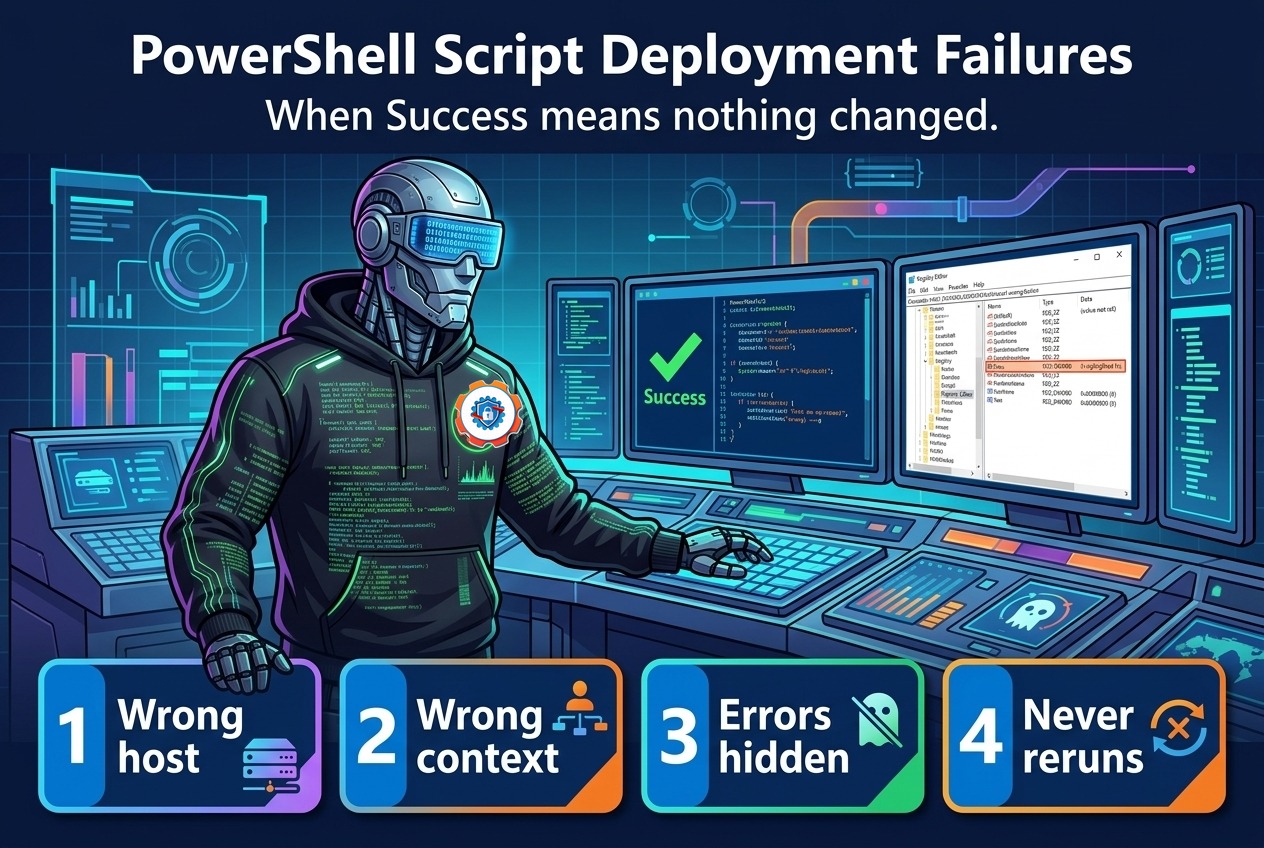
The first ten days got a device enrolled, signed in, compliant, profiled, running its apps, encrypted, deployed by Autopilot, through the Conditional Access gate, and checking in on schedule. Today is about the tool admins reach for when no built-in policy covers the job — PowerShell scripts: the Intune Management Extension downloads your script, runs it on the device, and reports the result back. It is the most flexible thing Intune does, and the most quietly deceptive when it goes wrong. A script deployment has a failure mode no other Intune feature has: the portal can say Success while absolutely nothing changed on the device. No error, no red banner, no failed status — just a green tick and a setting that never landed.
1. Real-World Scenario
It is Wednesday morning. The security team asked for one registry setting pushed to the whole fleet before Friday's audit: a DWORD value under HKLM\SOFTWARE\Policies\Microsoft\Windows\WindowsUpdate\AU that stops Windows Update from rebooting a machine while a user is signed in. No built-in profile covers it cleanly, so the admin writes a ten-line PowerShell script, tests it on her own laptop — it works — uploads it to Intune as a platform script, assigns it to All Devices, and goes to lunch.
By 2 p.m. the portal shows Success on nearly every device. Then the audit prep team starts spot-checking laptops, and the story falls apart in three groups.
Group one: on about half the laptops, the value exists — but in the wrong place. It sits under HKLM\SOFTWARE\WOW6432Node\Policies\Microsoft\Windows\WindowsUpdate\AU, a key no Windows component ever reads. The setting is "applied" to a registry branch that does nothing.
Group two: on a quarter of the laptops, the value is nowhere at all. The script ran — the portal says so — but the registry is untouched, and the marker file the script was supposed to write to C:\ProgramData was never created. There is no error anywhere to explain it.
Group three: the remaining laptops still show Pending in the portal, hours after assignment, and nothing has happened on them at all. The script has not run, has not failed, and has not reported anything.
One script, one green tick in the portal, three different failures — and the worst part is that the first two groups look finished. If nobody had spot-checked, the audit would have found the gap instead.
2. Root Cause Analysis
A script deployment is a chain with four stages — assignment, download, execution, report — and each stage can break silently. Work out which stage broke before you touch the script.
1. The script ran in the 32-bit PowerShell host — the default. When you create a platform script, the setting Run script in 64-bit PowerShell host defaults to No, which runs the script in a 32-bit host on 64-bit Windows. A 32-bit process sees a redirected world: writes to HKLM\SOFTWARE land in HKLM\SOFTWARE\WOW6432Node, and C:\Windows\System32 silently resolves to C:\Windows\SysWOW64. The script did exactly what it was told — in a registry branch and a system folder the operating system never consults for that setting. This is group one, and it is the single most common script failure in Intune.
2. The script ran in the wrong context. The setting Run this script using the logged on credentials defaults to Yes — the script runs as the signed-in user. A standard user cannot write to HKLM or to C:\ProgramData, and a script running as the user has no access to anything in another user's profile. Flip the setting to No and the script runs as SYSTEM instead — and SYSTEM has the opposite problem: it can write to HKLM, but it has no mapped drives, no user certificates, and its own profile under C:\Windows\System32\config\systemprofile, so anything the script reads from $env:USERPROFILE or HKCU lands in the wrong place.
3. Exit code 0 is not success. Intune judges a script by its exit code and almost nothing else. A script that hits a non-terminating error — an access denied on a registry write, a missing path, a cmdlet that fails but does not stop — keeps running to the end and exits 0, and Intune reports Success. Add -ErrorAction SilentlyContinue, a try/catch that swallows the exception, or a cmdlet that writes an error without stopping, and the script will report success while doing nothing at all. This is group two: the error happened, the script hid it, and the portal believed the exit code.
4. The script already ran — once — and Intune will not run it again. Platform scripts are run-once by design. Once a script executes, it does not execute again unless the script or the policy changes. If it fails, the Intune Management Extension retries it three times, once on each of the next three consecutive check-ins — and then it stops trying entirely. Editing the assignment, re-assigning the same group, or waiting longer changes nothing: until you change the script itself (even a comment counts) or the policy, that device will never run it again.
5. The script timed out. PowerShell scripts in Intune time out after 30 minutes. A script that waits on user input — a Read-Host, a confirmation prompt, a GUI dialog — or that runs Start-Process -Wait against an installer that never finishes, sits there until the timeout kills it. The timeout counts as a failure, so it gets the three retries, and then it stops. A script that "takes forever" is usually a script waiting for a human who will never arrive, because scripts run with no interactive desktop.
6. The Intune Management Extension never picked the script up. The extension installs automatically when a script is assigned, but it only runs on devices that are Microsoft Entra joined or hybrid joined — devices that are only registered with Entra ID never receive scripts. The extension also fails to run scripts when the device's system clock is out of date by months or years, and scripts do not run at all on Surface Hubs or Windows in S mode. If the extension service is set to Manual, it may not restart after a reboot, and the script simply never arrives. This is group three: nothing ran, nothing failed, nothing reported.
7. Antivirus sandboxed the execution. Microsoft documents this one explicitly: if antivirus sandboxes AgentExecutor — the component that actually runs your script — a failing script can report success. The script errored, the sandbox ate the evidence, and Intune recorded the exit code it was given. When a script reports success but the device disagrees, the antivirus is a suspect, not an afterthought.
8. The assignment never matched the device. Scripts can be targeted to device groups or user groups — but when targeting workplace-joined devices, only device groups work; user targeting is ignored. A script assigned to the wrong group, or to a user group for devices that are only workplace joined, sits in Pending forever while the admin waits for a run that was never scheduled.

3. Step-by-Step Troubleshooting
Work in this order: prove what actually happened on the device first, then work backward to the setting that caused it.
1. Check the end state, not the portal. Before anything else, look at the device: does the registry value exist, in the right key? Does the marker file exist? The portal's Success is a claim about an exit code, not about your setting. If the end state is missing, you have a silent failure — keep going. If the end state is present but in WOW6432Node, you already have your answer: cause 1.
2. Read the portal run states properly. In the Intune admin center, open the script, choose Monitor, and read Device status and User status. Success means exit code 0 and nothing more. Failed means a non-zero exit code or a timeout. Pending means the script has not run yet — or has never been picked up. Note which devices are in which state before you touch anything; the pattern across the fleet usually names the cause.
3. Read AgentExecutor.log — the script's own log. On the device, open C:\ProgramData\Microsoft\IntuneManagementExtension\Logs\AgentExecutor.log. This is the first log for script problems: it records the script being downloaded, the host it ran in, the exit code, and the error output. The Intune Management Extension cleans up the script's own .output and .error files after execution, so this log is often the only surviving record of what the script actually printed.
4. Prove which host and which context ran it. Add two lines to a copy of the script and run it on a test device: [Environment]::Is64BitProcess and whoami. If Is64BitProcess is False, your script ran in the 32-bit host and every HKLM\SOFTWARE write went to WOW6432Node. If whoami returns nt authority\system, it ran as SYSTEM; if it returns the user, it ran as the user. Never guess the context — print it.
5. Reproduce the run exactly as Intune runs it. On the device, test the script in the SYSTEM account with the Sysinternals tool: psexec -i -s powershell.exe, then run the script. If it fails there and worked in your own console, the difference is the context — and that is the fix. For the full reproduction, run it through AgentExecutor itself with the output captured, using the command Microsoft documents for exactly this purpose (see section 4, command 9).

6. Check the extension itself. On the device, confirm the Microsoft Intune Management Extension service exists and is running, and that it is set to Automatic — a service set to Manual may not restart after a reboot. Confirm the agent files are present under %ProgramFiles(x86)%\Microsoft Intune Management Extension. If the extension is missing, check the prerequisites: Entra joined (not just registered), Windows 10 version 1607 or later, and a system clock that is not months out of date.
7. Check the 30-minute timeout. In AgentExecutor.log, look for a run that started and never finished, or a failure that follows a long gap. A script that prompts, waits on a GUI, or runs an installer with -Wait will hit the 30-minute timeout, fail, retry three times, and then stop. Remove anything interactive, and split long work into a script that finishes fast plus a scheduled task or a remediation for the long tail.
8. Force a check-in and watch the retry. Restart the Intune Management Extension service to force a check-in, then watch AgentExecutor.log for the script being picked up. Remember the retry rule: a failed script gets three more attempts, one per check-in. If the retries are already spent, no amount of forcing will run it again — you must change the script or the policy first, even if the change is only a comment.
9. Test the fix the way Microsoft tests it. Deploy the corrected script to a pilot group first, using Microsoft's own smoke test as the baseline: a script that writes Script worked to C:\Scripts\output.txt. If the smoke test succeeds and your script does not, the problem is in your script. If the smoke test fails too, the problem is the extension, the assignment, or the device — stop editing the script.
10. Confirm the rerun actually happened. After changing the script, verify on a pilot device that the end state landed — the value in the right key, the file in the right place — and that the portal's Device status flipped. A changed script re-runs on the next check-in or after a reboot. Only then roll the fix to the full assignment.
4. PowerShell Commands
Each of these is a real command an admin runs on the device or against the tenant. Run the device-side ones in an elevated prompt where noted.
# On the device: confirm the Intune Management Extension service exists, is running, and starts automatically
Get-Service IntuneManagementExtension | Select-Object Name, Status, StartType
# On the device: confirm the agent files are present (AgentExecutor.exe is the component that runs scripts)
Get-ChildItem 'C:\Program Files (x86)\Microsoft Intune Management Extension' |
Select-Object Name, Length, LastWriteTime# On the device: list the IME logs newest-first, so you open the one that just changed
Get-ChildItem 'C:\ProgramData\Microsoft\IntuneManagementExtension\Logs' |
Sort-Object LastWriteTime -Descending | Select-Object Name, LastWriteTime, Length# On the device: search AgentExecutor.log for the script's errors (read this log first for any script problem)
Select-String -Path 'C:\ProgramData\Microsoft\IntuneManagementExtension\Logs\AgentExecutor.log' -Pattern 'error', 'failed' -SimpleMatch |
Select-Object -Last 20# On the device: check BOTH registry views — the value may be hiding under WOW6432Node after a 32-bit run
Get-ItemProperty 'HKLM:\SOFTWARE\Policies\Microsoft\Windows\WindowsUpdate\AU' -ErrorAction SilentlyContinue
Get-ItemProperty 'HKLM:\SOFTWARE\WOW6432Node\Policies\Microsoft\Windows\WindowsUpdate\AU' -ErrorAction SilentlyContinue# Inside a test copy of the script: print the host bitness and the account, so the context is proven, not guessed
[Environment]::Is64BitProcess
whoami# On the device: test the script exactly as Intune runs it — in the SYSTEM account (Sysinternals PsExec)
psexec -i -s powershell.exe# From the admin side: read the script's per-device run states from Microsoft Graph
Connect-MgGraph -Scopes 'DeviceManagementConfiguration.Read.All'
Invoke-MgGraphRequest -Method GET -Uri 'https://graph.microsoft.com/v1.0/deviceManagement/deviceManagementScripts' |
Select-Object -ExpandProperty value | Select-Object displayName, id# On the device: run the script through AgentExecutor with the output captured (Microsoft's documented diagnostic)
$scriptPath = Read-Host "Enter the path to the script file to execute"
$logFolder = Read-Host "Enter the path to a folder to output the logs to"
$outputPath = $logFolder + "\output.output"
$errorPath = $logFolder + "\error.error"
$timeoutPath = $logFolder + "\timeout.timeout"
$timeoutVal = 60000
$PSFolder = "C:\Windows\SysWOW64\WindowsPowerShell\v1.0"
$AgentExec = "C:\Program Files (x86)\Microsoft Intune Management Extension\agentexecutor.exe"
& $AgentExec -powershell $scriptPath $outputPath $errorPath $timeoutPath $timeoutVal $PSFolder 0 0# On the device: force the IME to check in now (the extension checks for new scripts after a reboot, too)
Restart-Service IntuneManagementExtension# On the device: check the clock — a clock out by months silently blocks scripts from running at all
w32tm /query /status# On the device: show the most recent MDM client events, including script assignment arrivals
Get-WinEvent -LogName 'Microsoft-Windows-DeviceManagement-Enterprise-Diagnostics-Provider/Admin' -MaxEvents 25 |
Select-Object TimeCreated, Id, LevelDisplayName, Message5. Important Log Locations
| Location | What it tells you | |
|---|---|---|
| Intune admin center > Devices > Scripts and remediations > Platform scripts > script > Monitor > Device status / User status | The portal's run states per device and per user. Success means exit code 0 — nothing more. Pending means the script has not run yet. | |
| C:\ProgramData\Microsoft\IntuneManagementExtension\Logs\AgentExecutor.log | The script execution log — read this first for any script problem. Download, host, exit code, and error output. The script's own .output and .error files are cleaned up after execution, so this log is often the only surviving record. |
|
| C:\ProgramData\Microsoft\IntuneManagementExtension\Logs\IntuneManagementExtension.log | The IME agent lifecycle log — check-ins, policy pulls, and whether the extension itself is healthy. | |
| C:\ProgramData\Microsoft\IntuneManagementExtension\Logs\AppWorkload.log | The Win32 app log. Scripts run before Win32 apps at startup — if an app install depends on a script, this log shows whether the ordering held. | |
| C:\ProgramData\Microsoft\IntuneManagementExtension\Logs\HealthScripts.log | The Remediations log, not the platform-scripts log. Do not confuse the two: a platform script problem will not appear here. | |
| %ProgramFiles(x86)%\Microsoft Intune Management Extension | The agent's install folder, including agentexecutor.exe — the component that actually executes your script. If this folder is missing, the extension never installed. |
|
| Event Viewer > Applications and Services Logs > Microsoft > Windows > DeviceManagement-Enterprise-Diagnostics-Provider > Admin | The MDM client log. It shows the script assignment arriving on the device; if nothing arrives here, the problem is assignment or sync, not the script. | |
| C:\Scripts\output.txt | The output of Microsoft's documented smoke-test script (`write-output "Script worked" \ | out-file c:\Scripts\output.txt`). If this file appears, the extension can run scripts at all. |
| Microsoft 365 admin center > Health > Service health | Whether Intune itself has an incident. Check this before rebuilding anything when many devices fail at once. |
6. Practical Resolution
Back to the Wednesday-morning script. The troubleshooting above sorts the three groups fast, and each group has a different fix.
Group one — the value in WOW6432Node. The script ran in the 32-bit host, the default. The fix is in the script's settings, not the script: set Run script in 64-bit PowerShell host to Yes — and note the trap Microsoft documents for existing scripts: changing an existing script to 64-bit opens it in a 64-bit host but does not run it, so create the corrected script as a new assignment. Then change the script itself (a comment is enough) so Intune runs it again, and verify the value lands in the real HKLM\SOFTWARE key.
Group two — the value nowhere, no error. The script ran as the signed-in user (the default) and the user is a standard user: the HKLM write was denied, the error was non-terminating, and the script exited 0. The fix is twofold: set Run this script using the logged on credentials to No so it runs as SYSTEM, and harden the script so it can never silently succeed again — $ErrorActionPreference = 'Stop' at the top, explicit Test-Path checks on the end state, and a non-zero exit 1 when the setting did not land. A script that cannot prove its own result should fail loudly.
Group three — still Pending. Three different causes across the group: a handful of devices are only workplace-registered, not Entra joined, so they never receive scripts at all; two have a system clock four months out of date; and the rest were assigned through a user group while the devices are workplace joined, where user targeting is ignored. The fixes: join the devices properly, correct the clocks, and re-target with a device group.
The fix, in order:
- Check the end state on the device, not the portal — the portal reports an exit code, not your setting.
- Read
AgentExecutor.logfor the host, the context, and the exit code. - Prove the context with
Is64BitProcessandwhoami— never guess it. - Set the 64-bit host to Yes for any script that touches
HKLM\SOFTWAREorSystem32. - Choose the run context on purpose: SYSTEM for machine settings, user credentials only when the script genuinely needs the user's profile, drives, or certificates.
- Make the script fail loudly:
$ErrorActionPreference = 'Stop', verify the end state,exit 1when it did not land. - Remember run-once: a failed script gets three retries, then stops until you change the script or the policy.
- Pilot every script with Microsoft's smoke test first, then with the real script on a small group — and spot-check the end state on a real device before trusting the portal.
- Document the three defaults in the scripting runbook — 32-bit host, user context, signature check — so the next script starts from a deliberate choice instead of a default.
The script was never broken. It ran in the wrong bitness, in the wrong context, and with errors it was told to hide — and the portal's green tick was reporting the exit code, not the outcome.
7. Interview Questions
Q1: A script reports Success in Intune, but the setting never landed on the device. What is the first thing you check?
The end state on the device — the registry value, the file, whatever the script was supposed to create. The portal's Success means the script exited with code 0, and a script can exit 0 while doing nothing: a non-terminating error, a swallowed exception, or a write that went to the wrong place all still exit 0. Then read AgentExecutor.log, which records the host, the context, and the error output the portal never shows.
Q2: What is the difference between the 32-bit and 64-bit PowerShell host in Intune, and why does the default catch people out?
The Run script in 64-bit PowerShell host setting defaults to No, so scripts run in a 32-bit host on 64-bit Windows. A 32-bit process sees a redirected world: HKLM\SOFTWARE writes land in HKLM\SOFTWARE\WOW6432Node and System32 resolves to SysWOW64. A script tested in a 64-bit console writes to the real keys; the same script through Intune writes to the redirected ones. Set the host to Yes for scripts that touch HKLM\SOFTWARE or System32, or call %SystemRoot%\Sysnative\WindowsPowerShell\v1.0\powershell.exe from inside the script to reach the true System32.
Q3: A script ran once and will not run again, even though you re-assigned it. Why?
Platform scripts are run-once by design: once a script executes, it does not execute again unless the script or the policy changes. If it failed, the extension retries it three times, once on each of the next three consecutive check-ins, and then stops. Re-assigning the same unchanged script changes nothing. To force a rerun, change the script itself — even a comment counts — or change the policy, and the device will pick it up on the next check-in or reboot.
Q4: What is the 30-minute timeout, and what kind of script hits it?
PowerShell scripts in Intune time out after 30 minutes. The scripts that hit it are the ones waiting for something that will never arrive: a Read-Host or confirmation prompt, a GUI dialog, or Start-Process -Wait against an installer that never finishes — scripts run with no interactive desktop. A timeout counts as a failure, gets the three retries, and then stops. Keep scripts non-interactive and fast; split long work into a script that finishes quickly plus a scheduled task or a remediation for the long tail.
Q5: How do you test a script exactly the way Intune runs it?
Three layers. First, reproduce the context: run it in the SYSTEM account with psexec -i -s powershell.exe if it runs as SYSTEM, and in a 32-bit host (C:\Windows\SysWOW64\WindowsPowerShell\v1.0\powershell.exe) if the 64-bit setting is No. Second, run it through AgentExecutor itself with the output and error files captured, using the command Microsoft documents for this purpose — the extension cleans up those files after a real run, so this is the only way to see them. Third, run Microsoft's smoke test to prove the extension can run scripts at all before blaming your script.
Q6: A device shows a script as Pending for hours. Where do you look?
At the chain, link by link. Is the device Entra joined or only registered — registered devices never receive scripts? Is the Intune Management Extension installed, its service running and set to Automatic? Is the system clock months out of date, which silently blocks scripts? Is the script assigned to the right group — and if the devices are workplace joined, is it a device group, since user targeting is ignored there? Is the script over the 200 KB limit, unsigned with signature check enforced, or targeted at a Surface Hub or a device in S mode? Pending means the script never ran — the answer is in the assignment and the extension, not in the script.
Day 11 done. Tomorrow, Day 12: Microsoft Defender Policy Issues — when the policy says protected and the device says otherwise.
Follow the series here on ongoingideas.com — one scenario a day, for 15 days.
Missed the start of the series? Begin with Day 1: Windows Device Not Enrolling into Intune, then Day 2: Company Portal Login Failures, then Day 3: Device Compliance Issues, then Day 4: Configuration Profile Failures, then Day 5: Win32 Application Installation Issues, then Day 6: Intune Management Extension Troubleshooting, then Day 7: BitLocker Policy Failures, then Day 8: Windows Autopilot Deployment Issues, then Day 9: Conditional Access Errors, then Day 10: Device Sync Problems.