



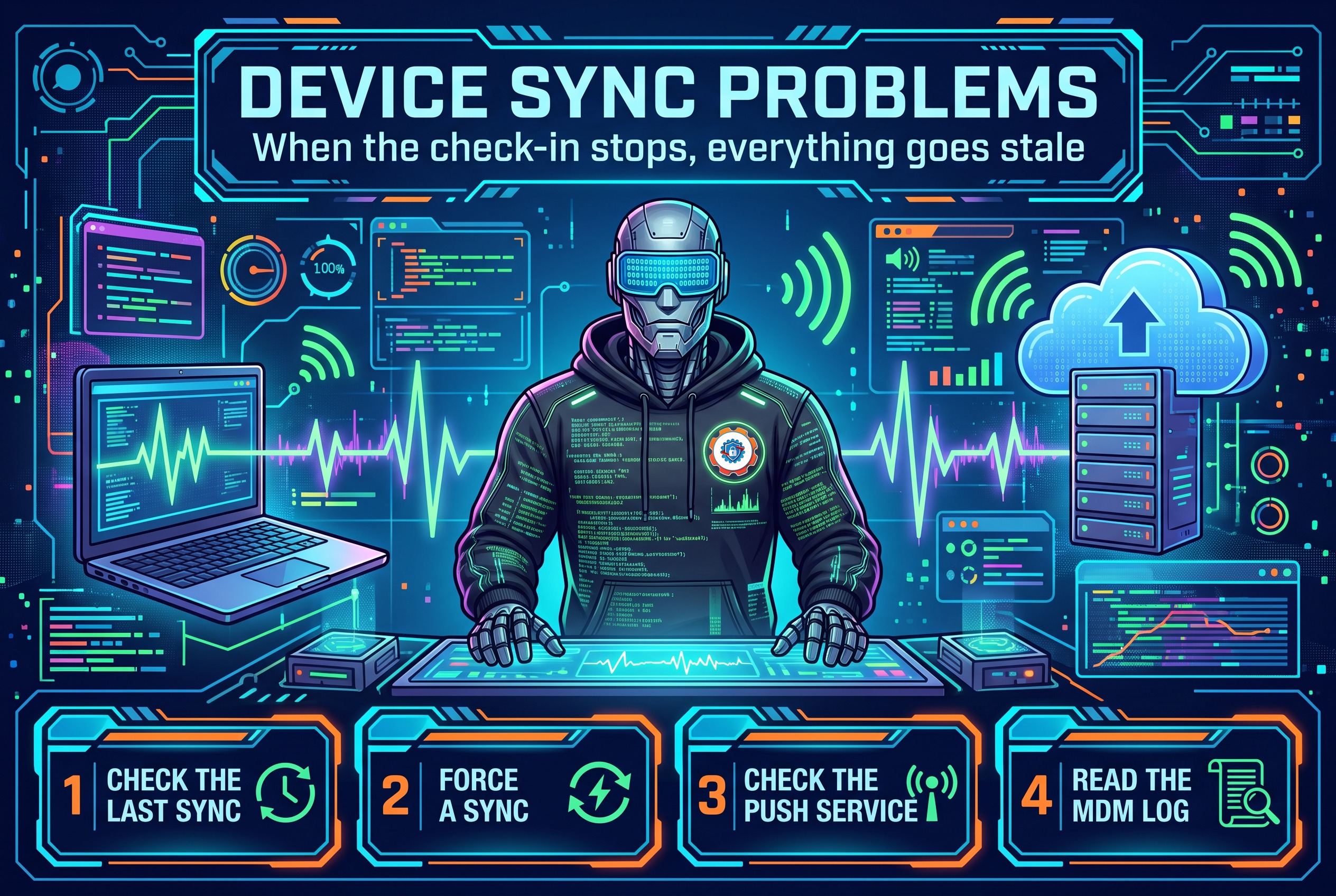








Device Sync Problems — Day 10 of the Microsoft Intune Real-Time Troubleshooting Series
Day 10 of the Microsoft Intune Real-Time Troubleshooting Series
Welcome to Day 10 of the Microsoft Intune Real-Time Troubleshooting Series — 15 days, 15 real-world scenarios, 15 practical solutions.
The first nine days got a device enrolled, signed in, compliant, profiled, running its apps and scripts, encrypted, deployed by Autopilot, and through the Conditional Access gate. Today is about the quiet thing underneath all of it — device sync: the regular check-in where a managed device talks to Intune, picks up new policies and apps, and reports its state back. When sync works, it is invisible. When it stops, nothing dramatic happens on the device — no error, no red banner — and that is exactly what makes it dangerous. Policies stop arriving, compliance quietly goes stale, and the first person to notice is usually a user whose new app never appeared, or an admin who opens the console and finds a fleet whose last check-in was three days ago.
1. Real-World Scenario
It is Tuesday morning. On Monday afternoon the security team pushed a new Wi-Fi profile to the whole fleet and tightened a compliance policy. The change window closed clean, and the Intune console showed the assignments as healthy.
By 9 a.m. the service desk has three groups of tickets that look unrelated until you line them up.
Group one: about forty laptops never received the new Wi-Fi profile. Their users are still on the old network, and the new profile sits at Pending in the console. The same laptops were fine last week.
Group two: a dozen users report that the Company Portal app spins when they open it, and the Sync button does nothing visible — no error, no confirmation, just a spinner that gives up. One user says her laptop "hasn't synced in days" and she can prove it: the Info page under Access work or school shows a last successful sync from Friday.
Group three: the compliance report. Thirty devices that were compliant on Friday are now drifting toward non-compliant, and a handful already flipped. Nothing changed on the devices. Nobody touched the compliance policies.
One change window, one quiet failure, and three symptoms that all point at the same thing: the devices stopped checking in.
2. Root Cause Analysis
A device syncs in two ways, and you have to know which one failed before you can fix anything. On a schedule, a Windows device checks in about every 8 hours in steady state — and much more aggressively right after enrollment: every 3 minutes for 15 minutes, then every 15 minutes for 2 hours, then it settles to the 8-hour rhythm. On demand, Intune can also push a device to check in the moment a policy, profile, or app assignment changes — the notification usually lands within minutes, though Microsoft says it can take up to a few hours, and Intune retries the notification three more times if the device does not answer. If neither path is working, the device goes quiet.
1. The device is simply off, asleep, or offline. This is the most common cause and the one most often skipped. A laptop in a bag, a machine shut down for the weekend, a device on a plane — none of them can check in, and none of them is broken. A stale Last check-in on a device nobody has switched on is a fact, not a fault. Rule this out first, before touching anything else.
2. The push path is broken — the device never hears that anything changed. When Intune assigns something new, it wakes the device through Windows Push Notification Services, and on the device the Device Management WAP Push Message Routing Service (dmwappushservice) routes that wake-up into the MDM client. If a hardening baseline disabled that service before enrollment, the scheduled tasks that drive sync — PushLaunch and PushRenewal under \Microsoft\Windows\EnterpriseMgmt\ — are never created, and the device silently stops syncing. There is no error anywhere: the device still syncs on its 8-hour schedule if it is awake, but a new profile can sit at Pending for hours while the console insists everything is fine.
3. The device's Intune certificate expired. Every sync is authenticated with the Intune MDM Device CA certificate issued at enrollment. When it expires, the sync fails at the TLS layer with error 0x80190190, and the device cannot prove who it is. The trap: the Last check-in timestamp in the console can still look recent while the certificate is already expired, because the timestamp records the last successful check-in, not the last attempted one. Verify the certificate in the store directly instead of trusting the timestamp.
4. The clock is wrong. A device whose clock has drifted breaks TLS validation and token checks — the certificate looks not-yet-valid or already expired, and the Primary Refresh Token fails. This is free to check and frequently the whole answer on a machine that was just reimaged or whose CMOS battery is dying.
5. One bad setting is failing the whole sync session. Sync is a SyncML conversation, and a setting that cannot be applied fails with a code built as 0x87D10000 plus the SyncML status — so 0x87D10194 is SyncML 404, a configuration setting pointing at a CSP node that does not exist on that device. The profile stays Pending, the device reports the failure, and the admin reads "sync problem" when the sync itself worked fine. A device can also fail remediation of a setting with 0x87D1FDE8. Read the code before you blame the connection.
6. The network is in the way. A proxy that requires authentication the device cannot provide, TLS inspection that breaks the certificate chain, or a firewall rule that never allowed the MDM endpoints will kill sync with WinHTTP errors in the 0x80072Fxx family, or 0x80072EE7 when the device cannot even resolve the name. This is the cause to suspect when a whole site or a whole network segment goes quiet at once — one device is a device problem, a floor full of them is a network problem.
7. The device record is stale or duplicated. A laptop re-enrolled without its old record being cleaned up can leave Intune watching a dead record while the live device reports to a different one. The console shows a Last check-in from days ago for the record you are looking at, while the device itself insists it synced an hour ago. Both are telling the truth about different records.
8. Intune itself is delayed — or the app sync is a different sync. Service incidents and tenant-side delays do happen; check service health before rebuilding anything. And the two syncs are not one sync: the MDM policy sync runs on the schedule above, but Win32 apps and PowerShell scripts run through the Intune Management Extension on its own roughly 60-minute cycle. A device that synced its policies five minutes ago can still have an app sitting in "Waiting for install status" because the IME has not had its turn yet.

3. Step-by-Step Troubleshooting
Work in this order: establish what "not syncing" actually means, then test the cheapest explanations before you go to the logs.
1. Read both sides of the same fact. In the Intune admin center, open the device and read Last check-in. Then, on the device, go to Settings > Accounts > Access work or school, select the work account, click Info, and read the last attempted and last successful sync times there. If the portal says Friday and the device says an hour ago, you have a record problem (cause 7), not a sync problem. If both say Friday, the device really has not checked in.
2. Confirm the device is actually on and online. Ask the user, or check the obvious: powered on, connected to a network, not in airplane mode, not asleep in a bag since Friday. If the device has not been on, there is nothing to fix — wake it, let it check in, and watch the timestamp move.
3. Force a sync and watch what happens. On the device, use Settings > Accounts > Access work or school > Info > Sync, or Company Portal > Settings > Sync. From the admin side, use the device blade in the Intune admin center and choose the Sync action. Wait several minutes and refresh: if Last check-in moves, the sync path works and you were looking at a schedule gap or a missed push. If it does not move, the path itself is broken — keep going.
4. Check the push service and its scheduled tasks. On the device, confirm the Device Management WAP Push Message Routing Service (dmwappushservice) is running and set to Automatic. Then open Task Scheduler and look under \Microsoft\Windows\EnterpriseMgmt\ — the enrollment GUID folder should contain PushLaunch and PushRenewal tasks. If the service is disabled or those tasks do not exist, that is the failure: set the service to Automatic (Delayed Start), start it, and re-trigger enrollment so the tasks are recreated.
5. Check identity and the certificate. Run dsregcmd /status and confirm AzureAdJoined : YES and AzureAdPrt : YES — a missing Primary Refresh Token is an identity problem, not a sync problem. Then open certlm.msc, look under Personal > Certificates, and check the Intune MDM Device CA certificate's expiry date. An expired certificate is error 0x80190190 and the fix is re-enrollment, not another sync attempt.

6. Check the clock and the network from the device. Compare the device clock against a known-good source — a drift of minutes is enough to break TLS. Then verify the device can actually reach the MDM endpoints: Test-NetConnection against manage.microsoft.com on port 443, and confirm the proxy settings the device is actually using. If the whole floor is affected, stop troubleshooting devices and talk to the network team.
7. Read the MDM log for the failed session. Open Event Viewer and go to Applications and Services Logs > Microsoft > Windows > DeviceManagement-Enterprise-Diagnostics-Provider > Admin. A device that has not checked in has no recent events there at all — and that absence is itself the finding. If there are recent errors, the code names the layer: 0x87D10194 is a SyncML 404 on one setting, 0x80190190 is the expired certificate, 0x80072Fxx is the network or TLS layer.
8. Generate the MDM diagnostic bundle. Run mdmdiagnosticstool.exe from an elevated prompt, or use Settings > Accounts > Access work or school > Info > Create report. Open MDMDiagHtmlReport.html in the bundle — it shows the management URLs, the certificates, and the policy state in one readable page, including the sync times the portal never shows you.
9. Separate sync from assignment. If the Last check-in timestamp moves after a forced sync but the profile still sits at Pending, sync is fixed and the problem was never sync: check the assignment (right group? right filter? user-targeted or device-targeted?), then the per-setting status in the console, which names the setting that failed and its exact error code.
10. Check the service side — then decide whether to re-enroll. In the Microsoft 365 admin center, check Health > Service health for an Intune incident, and whether other devices on other networks are affected. If it is one device, the certificate is expired, and the record is stale, re-enroll it cleanly: retire the old record, remove the stale enrollment, and enroll again. Re-enrollment is the last resort, not the first step — most sync failures are a sleeping laptop, a disabled push service, or an expired certificate, and none of those needs a rebuild.
4. PowerShell Commands
Each of these is a real command an admin runs on the device or against the tenant. Run the device-side ones in an elevated prompt where noted.
# From the admin side: read one device's last check-in, compliance, and management state
Connect-MgGraph -Scopes 'DeviceManagementManagedDevices.Read.All'
Get-MgDeviceManagementManagedDevice -Filter "deviceName eq 'LTP-0142'" |
    Select-Object DeviceName, LastSyncDateTime, ComplianceState, ManagementState, OperatingSystem
# From the admin side: find every device that has not checked in for 7 days
$Cutoff = (Get-Date).AddDays(-7)
Get-MgDeviceManagementManagedDevice -All -Property DeviceName, LastSyncDateTime, OperatingSystem, UserPrincipalName, Id |
Where-Object { $_.LastSyncDateTime -lt $Cutoff } |
Select-Object DeviceName, UserPrincipalName, LastSyncDateTime, OperatingSystem# From the admin side: force one device to check in now (needs PrivilegedOperations scope)
Connect-MgGraph -Scopes 'DeviceManagementManagedDevices.PrivilegedOperations.All'
Sync-MgDeviceManagementManagedDevice -ManagedDeviceId '00000000-0000-0000-0000-000000000000'# On the device: show the most recent MDM client events, including sync sessions
Get-WinEvent -LogName 'Microsoft-Windows-DeviceManagement-Enterprise-Diagnostics-Provider/Admin' -MaxEvents 25 |
Select-Object TimeCreated, Id, LevelDisplayName, Message# On the device: check the push routing service that wakes the MDM client
Get-Service dmwappushservice | Select-Object Name, Status, StartType# On the device: list the MDM scheduled tasks (PushLaunch / PushRenewal drive sync)
Get-ScheduledTask | Where-Object { $_.TaskPath -like '*EnterpriseMgmt*' } |
Select-Object TaskName, TaskPath, State, LastRunTime, LastTaskResult# On the device: confirm Entra join and a valid Primary Refresh Token
dsregcmd /status# On the device: check the Intune MDM Device CA certificate and its expiry date
Get-ChildItem Cert:\LocalMachine\My | Where-Object { $_.Issuer -match 'Intune' } |
Select-Object Subject, Issuer, NotAfter, Thumbprint# On the device: confirm the MDM endpoint is reachable (run as the user, not just as admin)
Test-NetConnection manage.microsoft.com -Port 443# On the device: check the clock — drift breaks TLS and token validation
w32tm /query /status# On the device: read the proxy settings the device is actually using
Get-ItemProperty 'HKCU:\Software\Microsoft\Windows\CurrentVersion\Internet Settings' |
Select-Object ProxyEnable, ProxyServer# On the device: generate a full MDM diagnostic bundle (report lands in C:\Temp)
mdmdiagnosticstool.exe -zip "C:\Temp\MDMDiag.zip"5. Important Log Locations
| Location | What it tells you |
|---|---|
| Intune admin center > Devices > All devices > device overview > Last check-in | What Intune last heard from the device, and when. The first number in any sync investigation — but it records the last successful check-in, not the last attempt. |
| Settings > Accounts > Access work or school > work account > Info | The device's own view: last attempted and last successful sync times. Compare with the portal — if they disagree, suspect the device record, not the sync. |
| Event Viewer > Applications and Services Logs > Microsoft > Windows > DeviceManagement-Enterprise-Diagnostics-Provider > Admin | The MDM client log. Recent events mean the device is talking; no recent events means it has not checked in at all. Errors here carry the code that names the layer. |
C:\Users\Public\Documents\MDMDiagnostics (output of mdmdiagnosticstool.exe) |
The diagnostic bundle, including MDMDiagHtmlReport.html — management URLs, certificates, and policy state in one readable page. |
| Task Scheduler > Microsoft > Windows > EnterpriseMgmt | The sync tasks created at enrollment (PushLaunch, PushRenewal). Missing tasks mean the push path was never built — usually because dmwappushservice was disabled. |
| certlm.msc > Personal > Certificates | The Intune MDM Device CA certificate. Check its expiry date directly — an expired certificate fails sync with 0x80190190 while the portal timestamp still looks recent. |
| C:\ProgramData\Microsoft\IntuneManagementExtension\Logs\IntuneManagementExtension.log | The IME agent log. Win32 apps and PowerShell scripts sync on the IME's own roughly 60-minute cycle, not the MDM sync — if policies arrive but apps do not, the answer lives here. |
| Microsoft 365 admin center > Health > Service health | Whether Intune itself has an incident. Check this before rebuilding anything when many devices go quiet at once. |
| Intune admin center > Devices > Monitor > Device actions / per-device Device compliance | Whether a Sync action you sent actually completed, and the per-setting compliance state — the check that separates "sync is broken" from "one setting failed." |
6. Practical Resolution
Back to the Tuesday-morning tickets. The troubleshooting above sorts them fast, and each group has a different fix.
Group one — the forty laptops that never got the Wi-Fi profile. Their Last check-in timestamps are all from Friday afternoon, and the Info page on one laptop agrees: last successful sync Friday, last attempted sync Monday evening, failed. The event log shows 0x80072EE7 — the device could not resolve the MDM endpoint. The common factor: all forty are on the new branch-office network, and the branch firewall never allowed the Intune endpoints. The fix is a firewall rule, not a device rebuild. Once the endpoints are reachable, a forced sync pulls the profile down within minutes.
Group two — the Company Portal spinners. One laptop's push service is the story: dmwappushservice is stopped and set to Manual, and Task Scheduler has no PushLaunch task at all. A hardening baseline applied in last month's patching cycle disabled the service before these machines enrolled, so the push path was never built. The fix: set the service to Automatic (Delayed Start), start it, re-trigger enrollment so the tasks are recreated, then force a sync. The other laptops in this group just needed a manual sync from Settings — they were asleep over the weekend and their 8-hour check-in had not come around yet.
Group three — the drifting compliance. This one is the calendar, not a failure: the compliance status validity period defaults to 30 days, and these thirty devices are field laptops that have been offline for most of that window. Intune treats a device that has not reported inside the validity period as non-compliant even though nothing on the device changed. The fix is a forced sync and a fresh compliance evaluation once the devices are back online — and a cleanup-rule review, so devices that genuinely never come back are retired on a schedule instead of drifting silently.
The fix, in order:
- Confirm the devices are actually on and online — rule out the sleeping laptop before anything else.
- Compare the portal's Last check-in with the device's own Info page; if they disagree, fix the record, not the sync.
- Force a manual sync and watch the timestamp: if it moves, the path works.
- Check
dmwappushserviceand the EnterpriseMgmt scheduled tasks — a disabled push service is the silent killer. - Check
dsregcmd /statusand the Intune MDM Device CA certificate — an expired certificate means re-enrollment. - Check the clock, the proxy, and the endpoint reachability — a floor full of quiet devices is a network problem.
- Read the MDM event log and the diagnostic bundle for the code that names the layer, then fix that layer.
- Separate sync from assignment: a moving timestamp with a still-Pending profile is an assignment problem.
- Document the push-service check in the imaging and hardening runbooks, so the next baseline cannot silently disable sync again.
The devices were never broken. They were asleep, unheard, or unauthenticated — and the console's silence was the symptom, not the mystery.
7. Interview Questions
Q1: A device's Last check-in is three days old. What is the first thing you check?
Whether the device is actually on and online. A laptop that has been off, asleep, or offline cannot check in, and a stale timestamp on a device nobody switched on is not a fault. Then compare the portal's Last check-in with the device's own Info page (Settings > Accounts > Access work or school > Info) — if the device says it synced an hour ago and the portal says Friday, you have a stale or duplicate device record, not a sync failure.
Q2: What is the difference between a push-triggered sync and the scheduled 8-hour check-in?
The scheduled check-in is the maintenance rhythm: about every 8 hours in steady state (more aggressive right after enrollment — every 3 minutes for 15 minutes, then every 15 minutes for 2 hours). The push sync is event-driven: when you assign or change a policy, profile, or app, Intune sends a push notification that wakes the device to check in, usually within minutes and up to a few hours, retrying three more times if the device does not answer. A device with a broken push path still syncs on schedule — which is why a new profile can sit at Pending for hours while nothing looks wrong.
Q3: A forced sync succeeds — the Last check-in timestamp moves — but a profile still sits at Pending. What does that mean?
Sync works; the problem is not sync. It is assignment, applicability, or reporting: the wrong group or filter, a user-targeted assignment on a device-targeted setting, or one setting failing to apply. Check the per-setting status for that profile in the console — it names the setting that failed and its error code, for example 0x87D10194, a SyncML 404 meaning the setting points at a CSP node that does not exist on that device.
Q4: What is dmwappushservice, and what happens when it is disabled?
It is the Device Management WAP Push Message Routing Service — the service that routes Intune's push notifications into the MDM client so the device wakes up and syncs when something changes. If a hardening baseline disables it before enrollment, the PushLaunch and PushRenewal scheduled tasks are never created, and the device silently stops receiving push syncs. There is no error anywhere; the device just never hears about changes until its next scheduled check-in or a manual sync. Fix it by setting the service to Automatic (Delayed Start), starting it, and re-triggering enrollment so the tasks are created.
Q5: How do you tell a device sync problem from an Intune service problem?
By scope. One device quiet is a device problem — certificate, push service, clock, network on that machine. A whole site or a whole fleet going quiet at the same time is a network or service problem: check the Microsoft 365 admin center's Service health first, and check whether devices on other networks are affected. Never rebuild devices over a service incident, and never blame the service for one laptop's expired certificate.
Q6: A laptop comes back from five weeks of leave and shows non-compliant, though nothing changed on it. Why?
Because compliance expires. The compliance status validity period defaults to 30 days: if a device does not successfully report on all its compliance policies inside that window, Intune treats it as non-compliant even if nothing on the device changed. The fix is a forced sync and a fresh compliance evaluation once the device is back online — and a review of the cleanup rules, which automatically delete device records that have not checked in for a configurable number of days, so a returning device is not surprised by a missing record.
Day 10 done. Tomorrow, Day 11: PowerShell Script Deployment Failures — when the script runs, reports success, and nothing actually happened.
Follow the series here on ongoingideas.com — one scenario a day, for 15 days.
Missed the start of the series? Begin with Day 1: Windows Device Not Enrolling into Intune, then Day 2: Company Portal Login Failures, then Day 3: Device Compliance Issues, then Day 4: Configuration Profile Failures, then Day 5: Win32 Application Installation Issues, then Day 6: Intune Management Extension Troubleshooting, then Day 7: BitLocker Policy Failures, then Day 8: Windows Autopilot Deployment Issues, then Day 9: Conditional Access Errors.
One thought on “Device Sync Problems — Day 10 of the Microsoft Intune Real-Time Troubleshooting Series”