






Conditional Access Errors — Day 9 of the Microsoft Intune Real-Time Troubleshooting Series
Day 9 of the Microsoft Intune Real-Time Troubleshooting Series
Welcome to Day 9 of the Microsoft Intune Real-Time Troubleshooting Series — 15 days, 15 real-world scenarios, 15 practical solutions.
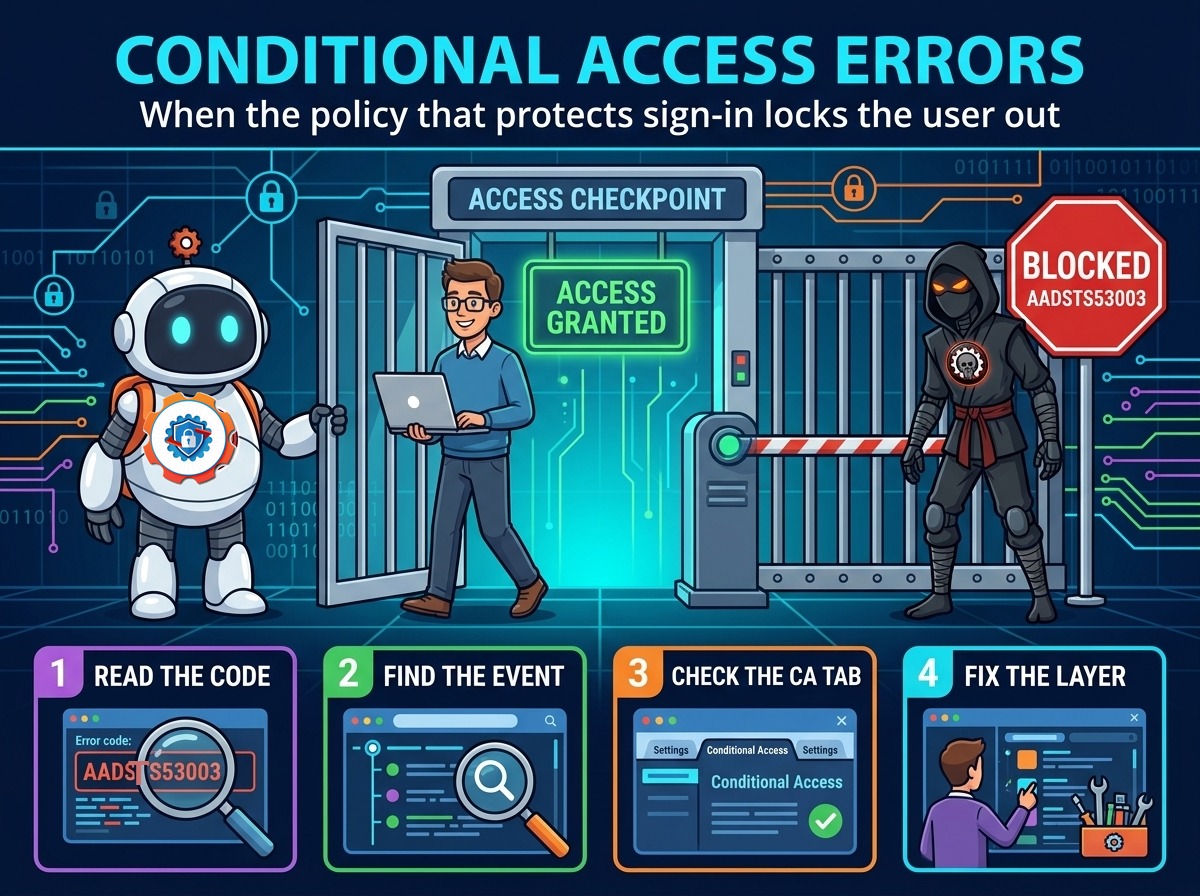
The first eight days got a device enrolled, signed in, compliant, profiled, running its apps and scripts, encrypted, and deployed without anyone from IT touching it. Today is about the gate in front of all of it — Conditional Access: the Entra ID policy engine that decides, at every sign-in, whether the user gets a token or gets stopped. When it works, it is invisible. When it breaks, the user gets a short error page with a code like AADSTS53003 and no way forward, and the help desk gets a ticket that says "I can't sign in" with nothing else attached. Conditional Access fails in a small number of places, and the error code plus one sign-in log entry usually tell you which one.
1. Real-World Scenario
It is Monday morning, and on Friday evening the identity team flipped four Conditional Access policies from report-only to On: CA-01 requires MFA for all users, CA-02 requires a compliant device for all cloud apps, CA-03 blocks legacy authentication, and CA-04 blocks sign-ins from outside trusted locations. The change window closed clean — no alerts, no failed change ticket.
By 8:30 a.m. the service desk has three groups of tickets that do not look related until you put them together.
Group one: the whole office floor. Users on managed, compliant laptops open Outlook or Teams and get "Your sign-in was blocked" with error AADSTS53003. The same laptops worked fine on Friday. Nothing about the devices changed over the weekend.
Group two: remote staff on personal and home devices. Some get the same AADSTS53003; others get AADSTS53000 — device not compliant — and a third group gets stuck in an MFA loop that ends in AADSTS50079, saying they need to register for MFA first.
Group three: the warehouse scanner stops syncing its mailbox, an old finance application that sends mail through IMAP goes silent, and the on-call admin — the one person who could fix any of this — cannot sign into the Entra admin center at all.
Three groups, one change window, and a policy engine that did exactly what it was told to do.
2. Root Cause Analysis
A Conditional Access policy only applies when all of its configured conditions match — the user, the target resource, and every condition it sets. That is also why a bad policy fails so precisely: it blocks exactly the people its scope describes.
1. The office egress IP changed, so the trusted location no longer matches. Over the weekend the ISP moved the office onto a new circuit, and the office's public IP changed. The named location CA-04 trusts still lists the old address, so every office sign-in now looks untrusted — and CA-04 blocks it with AADSTS53003. IPv6 is the same trap in smaller print: a location listing only the IPv4 range misses the IPv6 address the device actually signs in from.
2. The compliant-device requirement went live before the fleet was actually compliant. CA-02 requires a compliant device, and several devices are not — some never finished a compliance evaluation, some have a compliance state that went stale over the weekend, and the personal devices in group two were never enrolled at all. The error is AADSTS53000 (DeviceNotCompliant): a device problem, not a policy-scope problem.
3. Legacy authentication was blocked while real dependencies still used it. CA-03 blocks the old protocols — IMAP, POP, SMTP AUTH, Exchange ActiveSync on old clients — and the warehouse scanner and the finance application still sign in that way. A legacy client cannot do MFA and cannot satisfy a modern grant control, so the block lands as AADSTS53003 and the service stops. This is the dependency report-only mode exists to catch.
4. "All users" included the accounts that should never have been in scope. The service accounts, the scanner mailbox, and the on-call admin were all inside CA-01 and CA-02's scope, and nobody excluded them. A service account cannot complete MFA. The break-glass emergency access account, which should be excluded from every Conditional Access policy, was never created or never excluded. Exclusions are not a nicety; they are the recovery path.
5. MFA was required before users had registered for it. Several remote users never set up the Authenticator app, so the first time CA-01 challenged them they hit AADSTS50079 — MFA enrollment required. Others started the challenge and never finished it: AADSTS50074. A policy that requires MFA assumes registration already happened; rolling the requirement out before the registration campaign finishes turns a security control into a lockout.
6. A sign-in risk policy challenged a traveling user — and guests hit policies built for employees. One remote worker signed in from a new city and network, and the sign-in risk condition flagged the attempt; when the risk is high enough the MFA registration itself can be blocked — AADSTS53004 (ProofUpBlockedDueToRisk). The user is not compromised; the signal just looks unfamiliar. B2B guests have the same shape of problem: they sign in with their home tenant's identity and cannot satisfy a compliant-device requirement from this tenant, so a policy scoped to "All users" needs a guest baseline or an exclusion.
8. Two policies matched at once, and the report-only one looked guilty. A second policy with a sign-in frequency session control set to "every time" was also matching these users, forcing a fresh sign-in on every app — a session control doing its job, not a failure. And the report-only policy in the list, showing "Report-only: Failure," looked like the blocker even though report-only never blocks anything. Only an On policy produces AADSTS53003.

3. Step-by-Step Troubleshooting
Work in this order: capture the exact failure, find the exact sign-in event, read which policy failed, then fix the layer the evidence points at.
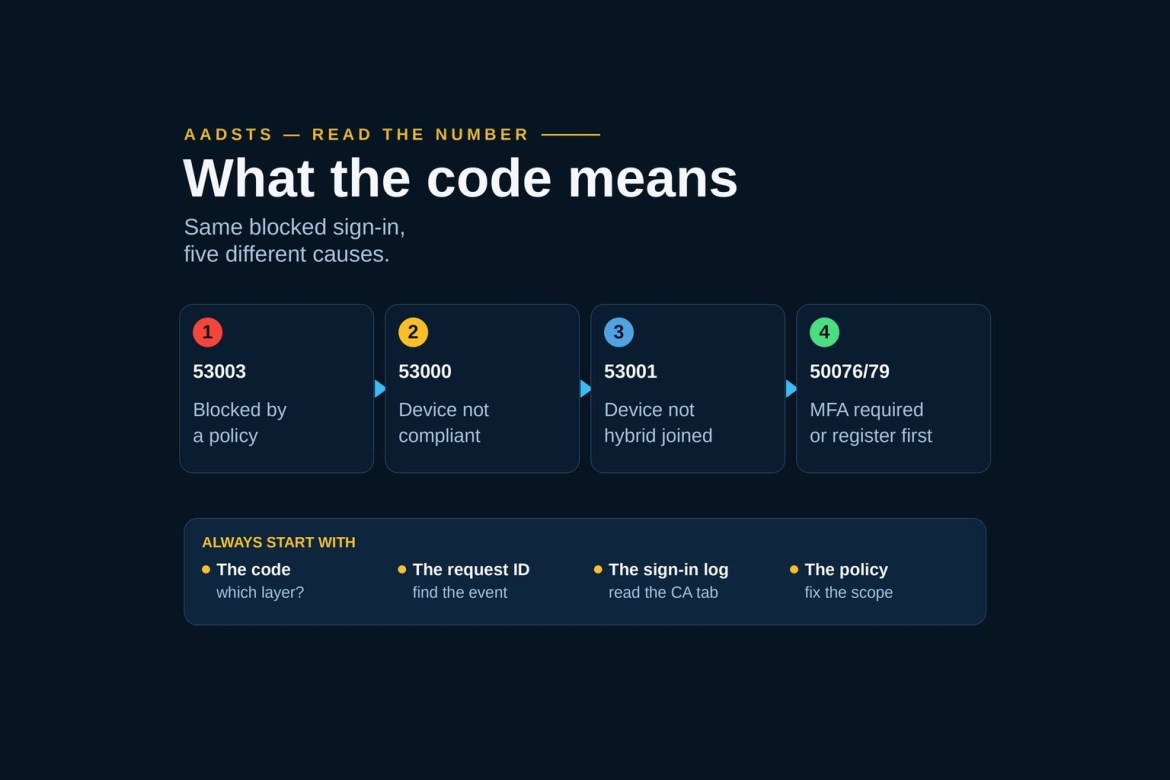
1. Capture the exact error from the user's screen. Note the code — 53003, 53000, 53001, 50076, 50079 each point at a different layer — and the request ID, correlation ID, and timestamp from the error page. Without those three identifiers you will be guessing at which of hundreds of sign-in events is theirs.
2. Find the exact event in the sign-in logs. In the Entra admin center, go to Entra ID > Monitoring & health > Sign-in logs and filter by the user and the time window from step 1. Check the User sign-ins (interactive) tab first, then the User sign-ins (non-interactive) tab — background token refreshes from Outlook, Teams, and OneDrive fail there too, and that is where a lot of 53003 noise lives.
3. Open the event's Conditional Access tab. It lists every policy evaluated for that sign-in and the result for each one: Success, Failure, or Not applied. The policy with Failure and a Block grant control is what stopped the token. A policy showing "Not applied" never matched, so it is not your problem, however suspicious its name looks.
4. Check the Report-only tab before you blame anything. The same event has a Report-only tab showing what the report-only policies would have done. A "Report-only: Failure" there means the policy would block that sign-in if it were On — useful for planning, irrelevant to this failure. Only an On policy produces a real block.
5. Read the rest of the event. The authentication details show whether MFA was attempted and what happened; the device info shows whether the device was compliant and joined; the location shows the IP the sign-in actually came from; the client app shows whether it was a modern client or a legacy protocol. Each field maps to one condition in the suspect policy — compare them one by one.
6. Run What If with the failed event's inputs. In the Entra admin center, go to Entra ID > Protection > Conditional Access > What If, and enter the same user, target resource, device platform, location, client app, and risk level as the real sign-in. It shows which enabled and report-only policies would apply. A policy that applies in What If but not in the logs (or the reverse) usually means the inputs differ, often the location or the client app. Remember what What If cannot do: it does not evaluate Conditional Access service dependencies, and it is not a replay of the actual event.
7. Open the suspect policy and read it end to end. Check the assignments first: who is included, who is excluded, and which target resources it covers. Then the conditions: device platforms, locations, client apps, sign-in risk, device state. Then the grant controls (Block, or require MFA / compliant device / hybrid joined device / approved client app) and the session controls (sign-in frequency, persistent browser session). Most policy bugs live in the assignments — a group wider than intended, or an exclusion never added.
8. Check the device side. On the affected device, run dsregcmd /status and confirm AzureAdJoined : YES and AzureAdPrt : YES. In the Intune admin center, check the device's compliance state and last check-in — a stale compliance state is the usual reason a compliant device still gets 53000. For a hybrid joined requirement, confirm the device actually completed hybrid join; 53001 means it did not.
9. Check MFA registration. If the code is 50079, the user has to register security info first — send them to aka.ms/mfasetup and confirm the registration lands. If the code is 50074, the challenge was started and not completed — check the Authenticator app, the number-matching prompt, and whether push notifications reach the phone.
10. Fix at the right layer — and never edit a live policy blind. If the scope is wrong, narrow the assignments or add the missing exclusion, and put the policy back to Report-only first so you can watch the effect in the sign-in logs before it enforces again. If the location is wrong, update the named location with the current egress IP (both IPv4 and IPv6). If the device is the problem, fix compliance or enrollment, not the policy. If the admins are locked out, sign in with the break-glass emergency access account — it must be excluded from every policy — and set the offending policy to Off or Report-only. Then test with one user before the policy goes back to On, and record the change in the runbook.
4. PowerShell Commands
Each of these is a real command an admin runs against the tenant or on the device. Run the Graph ones after connecting with the least-privilege scopes for reading policies and logs.
# Connect to Microsoft Graph with the least-privilege scopes for policies and sign-in logs
Connect-MgGraph -Scopes 'Policy.Read.ConditionalAccess', 'AuditLog.Read.All', 'Directory.Read.All'
# List every Conditional Access policy with its enforcement state (On, Off, or Report-only)
Get-MgIdentityConditionalAccessPolicy -All |
Select-Object DisplayName, State# Pull the failed sign-ins for one user, with the error code from each event's status
Get-MgAuditLogSignIn -Filter "userPrincipalName eq 'ana@contoso.com'" -Top 10 |
Select-Object CreatedDateTime, AppDisplayName, IPAddress, ConditionalAccessStatus,
@{Name='ErrorCode'; Expression={ $_.Status.ErrorCode }}# Count the recent sign-ins where Conditional Access failed across the tenant
Get-MgAuditLogSignIn -Filter "conditionalAccessStatus eq 'failure'" -Top 20 |
Select-Object CreatedDateTime, UserPrincipalName, AppDisplayName, IPAddress# Read one policy in full — assignments, conditions, grant and session controls
Get-MgIdentityConditionalAccessPolicy -ConditionalAccessPolicyId 'a1b2c3d4-0000-0000-0000-000000000000'# Check the device's Entra join state and whether it holds a Primary Refresh Token
dsregcmd /status# Check the device object itself — compliant, managed, and how it joined
Get-MgDevice -Filter "displayName eq 'LTP-0142'" |
Select-Object DisplayName, IsCompliant, IsManaged, TrustType# List the MFA methods a user has actually registered (one entry per method)
Get-MgUserAuthenticationMethod -UserId 'ana@contoso.com' |
Select-Object Id# List the named locations — which ranges the policies treat as trusted
Get-MgIdentityConditionalAccessNamedLocation -All |
Select-Object DisplayName, IsTrusted# Find who changed a Conditional Access policy, and when (audit log)
Get-MgAuditLogDirectoryAudit -Filter "activityDisplayName eq 'Update conditional access policy'" -Top 10 |
Select-Object ActivityDateTime, ActivityDisplayName,
@{Name='ChangedBy'; Expression={ $_.InitiatedBy.User.UserPrincipalName }}# After the fix, force the user to sign in fresh so the new policy evaluation applies
Revoke-MgUserSignInSession -UserId 'ana@contoso.com'5. Important Log Locations
| Location | What it tells you |
|---|---|
| Entra admin center > Monitoring & health > Sign-in logs (interactive + non-interactive tabs) | The event itself: error code, authentication details, device info, location and IP, client app — and the Conditional Access tab listing every policy evaluated with Success, Failure, or Not applied, plus the Report-only tab. Retention is 7 days on a free tenant, 30 days with Entra ID P1/P2. |
| Entra admin center > Monitoring & health > Audit logs | Who changed which Conditional Access policy and when — the first place to look when a failure starts right after a change window. |
| Entra admin center > Conditional Access > Insights and reporting | The aggregate impact of each policy across the tenant. Needs the sign-in logs streamed to a Log Analytics workspace. |
Microsoft Graph: GET /auditLogs/signIns?$filter=conditionalAccessStatus eq 'failure' |
The same sign-in data, scripted — the way to pull every Conditional Access failure for a day without clicking through the portal. |
| Event Viewer > Applications and Services Logs > Microsoft > Windows > AAD > Operational | The Web Account Manager / token broker log on the device. PRT acquisition and token failures land here — the device-side half of a sign-in failure. |
| Intune admin center > Devices > Compliance status | The device's compliance state and last check-in — the answer to "this device should be compliant, why does the policy say it isn't?" |
| C:\ProgramData\Microsoft\IntuneManagementExtension\Logs\IntuneManagementExtension.log | The agent log — whether the device actually checked in and synced its compliance state, which is what 53000 usually comes down to. |
| Microsoft Authenticator diagnostic logs (in the app) and Company Portal logs | The phone side of an MFA failure — whether the push arrived, whether number matching was answered, and whether the challenge completed. |
| Entra admin center > Conditional Access > Policies > What If | Not a log, but the simulation record: which enabled and report-only policies apply to a given identity, resource, and set of conditions. |
6. Practical Resolution
Back to the Monday-morning tickets — each group has a different fix at a different layer, and none of them is "turn Conditional Access off."
Group one — the whole office, 53003. The sign-in log event for one office user shows the location as the new ISP address, and the Conditional Access tab shows CA-04 failing on its location condition. The named location still lists the old egress IP. The fix: update the named location with the current office egress range — IPv4 and IPv6 — and confirm one office laptop signs in cleanly. The network changed; the policy's picture of the office did not.
Group two — remote staff, 53000 and 50079. The 53000 users are on personal devices that were never enrolled — CA-02's compliant-device requirement cannot be met by a device Intune has never seen. The fix is a separate policy for personal devices that requires an app protection policy instead of a compliant device, scoped to the BYOD group. The 50079 users never registered MFA: they go to aka.ms/mfasetup, register the Authenticator app, and the next sign-in completes. The one user with 53004 signed in from a new city with a high sign-in risk, which blocked the MFA registration itself — clear the risk after confirming the sign-in was legitimate, then let the registration through.
Group three — the scanner, the finance app, and the locked-out admin. The scanner and the finance app sign in with IMAP and SMTP AUTH, which CA-03 now blocks. The long-term fix is modern authentication for both; the immediate fix is a narrowly scoped exception policy for those two service accounts, conditioned on the office named location, while the migration is scheduled — not a blanket exclusion. The on-call admin was inside CA-01 and CA-02 with no exclusion: the break-glass account, excluded from every policy, is used to set the two policies to Report-only, add the admin and service-account exclusions, and bring the policies back On one at a time.
The fix, in order:
- Sign in with the break-glass account and set CA-01 and CA-02 to Report-only so nobody else gets locked out while you work.
- Update the office named location with the new egress IP (IPv4 and IPv6) and confirm the office signs in.
- Add exclusions for the break-glass account, the service accounts, and the on-call admin — and verify with What If that the break-glass account matches no policy at all.
- Register MFA for the
50079users, and give personal-device users the app-protection policy instead of the compliant-device requirement. - Scope the legacy-auth exception to the two service accounts behind the office location, and put the modern-auth migration on the calendar.
- Bring the policies back to On one at a time, watching the sign-in logs' Report-only tab first, and add three runbook checks: no policy goes On without a week in report-only; every policy change ends with a What If run against the break-glass account; every network change triggers a named-location review.
The policies did exactly what they were told to do. The failures were a stale location, a scope that included accounts it should never have touched, and a requirement that went live before the users and devices were ready for it.
7. Interview Questions
Q1: A user reports "Your sign-in was blocked" with error AADSTS53003. What is the first thing you do?
Capture the code, the request ID, the correlation ID, and the timestamp from the error page, then find that exact event in the sign-in logs — Entra ID > Monitoring & health > Sign-in logs, filtered by user and time. Open the event's Conditional Access tab: the policy with Failure and a Block grant control is what stopped the token. 53003 tells you a Block policy matched; it never tells you which one, so the log entry is the diagnosis.
Q2: What is the difference between AADSTS53000, AADSTS53001, and AADSTS53003?
53000 (DeviceNotCompliant) means a grant control required a compliant device and this device was not proven compliant — a device problem, fixed with enrollment or compliance. 53001 (DeviceNotDomainJoined) means a grant required a hybrid Entra joined device and this one is not joined. 53003 (BlockedByConditionalAccess) means a policy with Block access matched the sign-in — a policy problem, fixed by correcting the policy's scope or conditions. Read the number before you pick a runbook.
Q3: How do you tell whether a policy actually blocked someone, or only would have blocked them?
Open the sign-in event and check both tabs. The Conditional Access tab shows enforced policies — only a policy in the On state with a Failure result blocks a sign-in. The Report-only tab shows what the report-only policies would have done; a "Report-only: Failure" there means the policy would block that sign-in if it were On, but it blocked nothing. Confusing the two is how a harmless report-only policy gets blamed for an outage.
Q4: What does the Conditional Access What If tool tell you — and what does it not tell you?
It simulates a sign-in: given a user, a target resource, and a set of conditions (device platform, location, client app, risk), it lists which enabled and report-only policies would apply. That makes it the right check before a policy goes On. What it does not do is evaluate Conditional Access service dependencies, and it is not a replay of a real sign-in — a permissive What If result does not prove the actual flow will succeed, and it never replaces reading the real sign-in log event.
Q5: A Conditional Access change just locked the admins out of the portal. How do you get back in?
With the break-glass emergency access account — a cloud-only global admin excluded from every Conditional Access policy, using phishing-resistant MFA and monitored for any sign-in. Sign in with it, set the offending policy to Off or Report-only, fix the exclusions, and verify with What If that the break-glass account matches no policy before the change goes back to On. Every policy needs the break-glass account excluded from day one, and the account must never be used for daily work.
Q6: You need to block legacy authentication, but something in the environment still uses it. How do you find out what, before you enforce the block?
Do not enforce on day one. Create the policy in Report-only and leave it there for one to two weeks. Then check the sign-in logs — filter the Client App column for the legacy protocols (IMAP, POP, SMTP AUTH, Exchange ActiveSync, "Other clients") and check the non-interactive tab too, because services fail there silently. Read the policy's results on the Report-only tab and in the Insights and reporting workbook: every sign-in that shows "Report-only: Failure" is a dependency you have to migrate or except before the policy goes On.
Day 9 done. Tomorrow, Day 10: Device Sync Problems — when the device stops checking in and policies, apps, and compliance quietly go stale.
Follow the series here on ongoingideas.com — one scenario a day, for 15 days.
Missed the start of the series? Begin with Day 1: Windows Device Not Enrolling into Intune, then Day 2: Company Portal Login Failures, then Day 3: Device Compliance Issues, then Day 4: Configuration Profile Failures, then Day 5: Win32 Application Installation Issues, then Day 6: Intune Management Extension Troubleshooting, then Day 7: BitLocker Policy Failures, then Day 8: Windows Autopilot Deployment Issues.