







Windows Update Ring Issues — Day 13 of the Microsoft Intune Real-Time Troubleshooting Series
Day 13 of the Microsoft Intune Real-Time Troubleshooting Series
Welcome to Day 13 of the Microsoft Intune Real-Time Troubleshooting Series — 15 days, 15 real-world scenarios, 15 practical solutions.
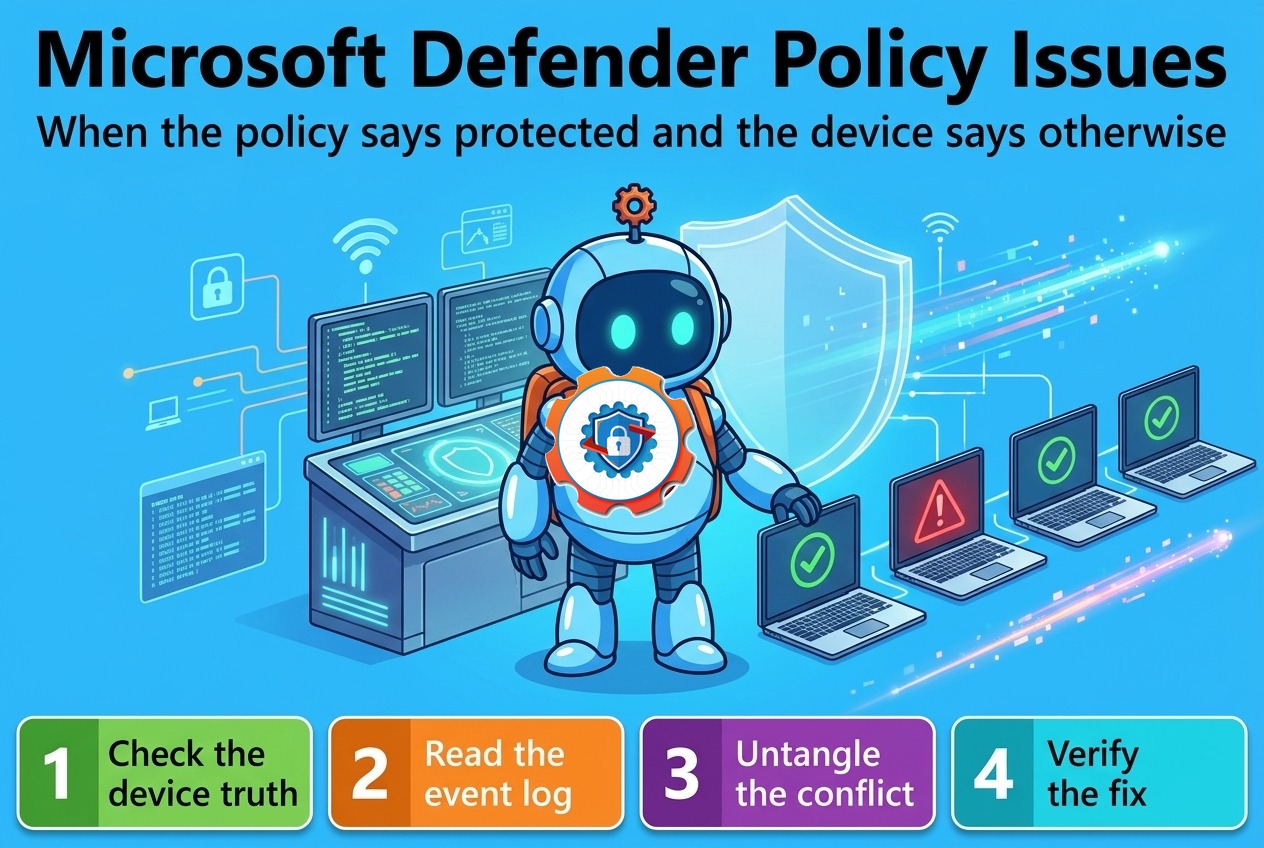
The first twelve days got a device enrolled, signed in, compliant, profiled, running its apps, encrypted, deployed by Autopilot, through the Conditional Access gate, checking in on schedule, running its PowerShell scripts, and protected by a Defender policy that actually protects. Today is about the layer that keeps all of that current — Windows update rings. An update ring has a failure mode the other policies do not: the Intune portal can say Succeeded while the device is quietly months behind on patches. No red banner, no failed status — just a green tick and a laptop whose last quality update installed in September, whose feature update never arrived, or whose restart has been "pending" for three weeks. The ring says patched. The device says otherwise. Today is about finding out which one is telling the truth.
1. Real-World Scenario
It is the Wednesday after Patch Tuesday. The security team pushed this month's quality update through the fleet's update rings — pilot on Tuesday, early production on Wednesday, broad production on Thursday — and the Intune dashboard tells three different stories, and none of them is the one the team expected.
Group one: about sixty laptops show the ring as Succeeded in the portal, but the spot-checks fail. On a sample of ten machines, Get-HotFix shows the newest quality update missing on six of them, and the Windows Update history on those devices shows the update as "pending restart" — a restart that has been pending for nine days. The deadline passed. The grace period passed. The laptop never rebooted.
Group two: an entire department — forty machines — was never offered the update at all. Windows Update on those devices says "You're up to date," and the last successful install in the registry is six weeks old. The ring is assigned, the portal says the policy applied, and the devices simply never saw the update. Nobody can say whether the ring is wrong, the assignment is wrong, or the devices are looking somewhere else entirely.
Group three: the remaining failures are loud. A dozen laptops are failing the install outright, with error 0x800f081f on some and 0x8024402c on others. One machine has been retrying the same update for two weeks, downloading it, failing, downloading it again — burning bandwidth and patience in equal measure.
One ring, one assignment, three different failures — and the worst part is group one, because it looks finished. If nobody had run Get-HotFix on a real device, the audit would have found the gap instead.
2. Root Cause Analysis
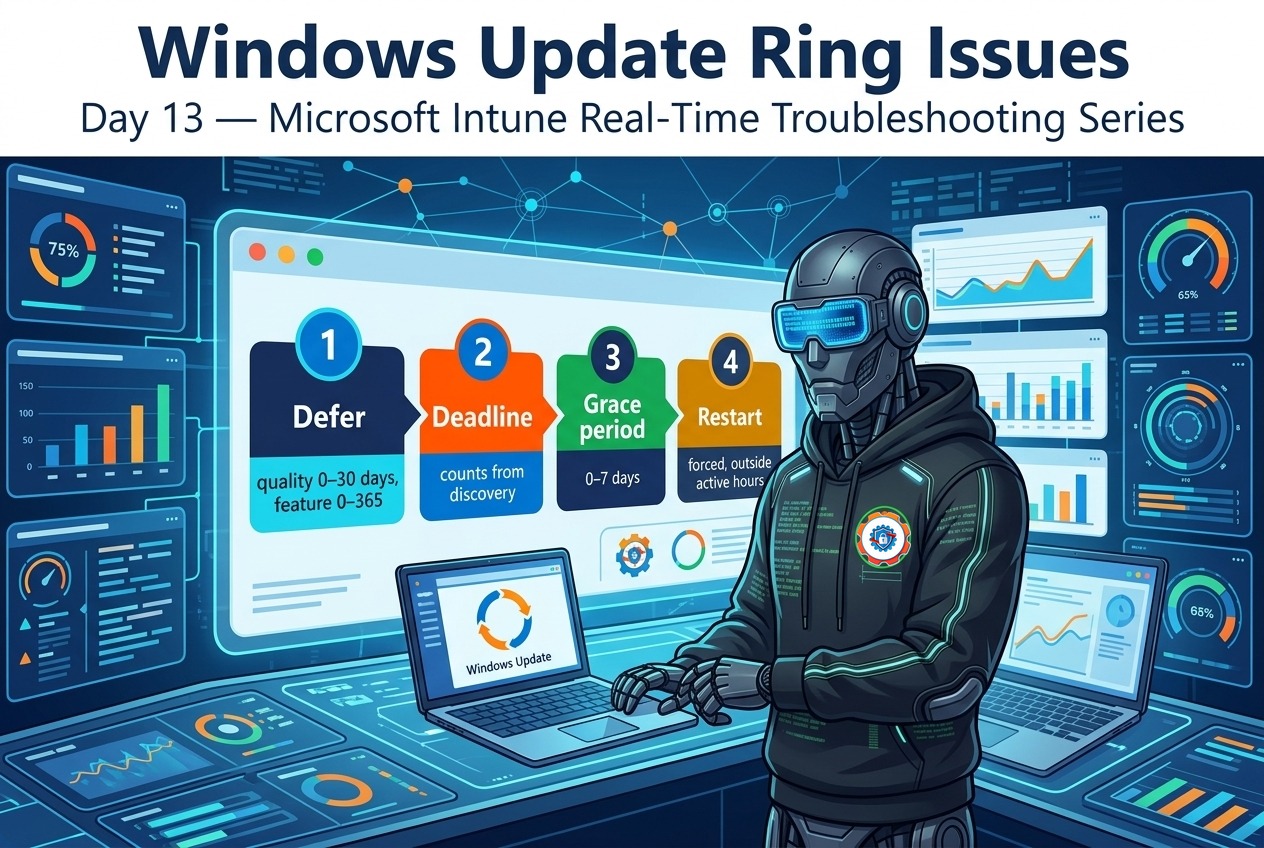
An update ring is a timeline with four beats — deferral, deadline, grace period, restart — and each beat can break without the portal noticing. Work out which beat broke before you touch the ring.
1. The deadline already passed — and the device still has not restarted. This is the most common update-ring failure, and it is a settings problem, not a device problem. A deadline counts from the moment the device's scan first discovers the update, not from release day — so a laptop that was off for a week starts its countdown late, and a laptop that was on starts it early. After the deadline, the grace period (0–7 days) is the last buffer before Windows restarts the device on its own. If Auto reboot before deadline is set to No, Windows waits for the deadline and the grace period to expire before it forces anything, and a user who keeps postponing can hold the restart off for the whole window. A pending restart is not a stuck update — it is a restart policy that never forced the issue. This is group one.
2. The device is looking at the wrong update source. A device that scans Windows Server Update Services (WSUS) instead of Windows Update never sees what the ring is offering. If HKLM\SOFTWARE\Policies\Microsoft\Windows\WindowsUpdate carries a WUServer value — left over from an old Group Policy, an image, or a co-management pilot — the device is in dual-scan territory: Intune sets the timing, but WSUS decides what is available, and the ring's deadlines apply to updates the device will never be offered. The same trap comes from the other direction: the Group Policy "Do not connect to any Windows Update Internet locations" blocks the Windows Update service entirely, so a device managed by Intune cannot reach the cloud at all. This is group two, and it is the first thing to check when a whole department is "up to date" on an old build.
3. A deferral or pause is still in force. Quality updates can be deferred 0–30 days and feature updates 0–365 days, and both deferrals count from Microsoft's release — so a ring with a 30-day quality deferral simply has nothing to offer in the first month. A pause is worse, because it is invisible in the portal: a ring can pause feature or quality updates for up to 35 days, the pause expires on its own, and while it is active the device reports nothing wrong. A feature update policy that pins the fleet to a specific Windows release is the same shape of problem at a bigger scale — the device is held at the pinned version by design, and the ring's feature deferral should be 0 when a feature update policy is doing the pinning, or the two fight. Check the deferral and pause values on the device before you assume the ring is broken.
4. The device cannot reach the update service. Error 0x8024402c is the network telling on itself: the device cannot resolve or connect to the Windows Update endpoints. The usual causes are a proxy that requires authentication the SYSTEM account cannot provide, a firewall rule that was never updated for the Windows Update endpoints, or DNS that resolves on the user's network but not on the corporate one. The update client runs as SYSTEM, not as the user — a proxy that works fine in the browser can still block updates, because the browser authenticates as the user and the update service cannot.
5. Another installation is already in progress — or the service is dead. Error 0x80240016 means an installation is already running: a second update, a Store app update, or a stalled installer holding the lock. The fix is to find the other install and let it finish, not to force a second one. Error 0x80070422 is the opposite — the Windows Update service (wuauserv) is disabled or cannot start, so nothing can even begin. Both are cheap to check and expensive to miss, because both look like "the update failed" in the portal while the cause sits one layer down.
6. The component store is corrupt. Error 0x800f081f means Windows cannot find the files it needs to install the update — the component store is damaged, or the update needs a source file that is not on the device. This is the one failure that no ring setting will fix: the device needs DISM /RestoreHealth and sfc /scannow, and if those do not repair it, a reset of the update components or an in-place repair. A device that downloads the same update, fails with this code, and downloads it again is not having a network problem — it is having a component-store problem, and every retry is wasted bandwidth.
7. The ring is assigned to the wrong devices — or to none. Update rings assign to device groups, and a filter or a group-membership mistake silently excludes machines. A ring assigned to a group the devices were never added to applies to nobody, and the portal shows the policy as Succeeded for the devices it did reach — which is the wrong set. The assignment is also where the pilot ring earns its keep: if the pilot ring's deferral and deadline values were copied to production without the pilot ever running, the first sign of trouble arrives on a thousand machines at once instead of ten.
8. Delivery Optimization is choking the download. On a network where dozens of devices pull the same update at once, Delivery Optimization is supposed to share the download between peers — but a misconfigured download mode, a cache that never fills, or a branch office with no peer to share from turns every device into a separate full download from Microsoft. The update is not failing; it is crawling, and a device that never finishes downloading never reaches the deadline at all. The Delivery Optimization log tells you whether peers are actually sharing.

3. Step-by-Step Troubleshooting
Work in this order: prove what the device actually believes first, then work backward to the setting that caused it.
1. Check what is actually installed. On a failing device, run Get-HotFix and look for this month's quality update by KB number. Then check the last successful install time in the registry. If the KB is missing and the last success is weeks old, the update never landed — and the rest of the steps are about finding out where it stopped.
2. Read the update event log. Open the Microsoft-Windows-WindowsUpdateClient/Operational log and filter for Event IDs 19 and 20. Event 19 is a successful install; Event 20 is a failed install, and its message carries the error code. Event 21 means a restart is required to finish. If there is no Event 20 at all, the update never got as far as installing — the problem is discovery, download, or deferral, not the installer.
3. Read the ring values as the device sees them. In the registry, open HKLM\SOFTWARE\Policies\Microsoft\Windows\WindowsUpdate and read the deferral values, the pause start times, and — critically — whether WUServer is set. A WUServer value means the device scans WSUS, not Windows Update, and the ring is only half in control. No deferral or pause values at all means the ring never reached this device, which points at assignment, not settings.

4. Check the services. The update pipeline needs four services running: wuauserv (Windows Update), UsoSvc (Update Orchestrator), bits (Background Intelligent Transfer), and cryptsvc (Cryptographic Services). If wuauserv is disabled, the error is 0x80070422 and nothing else matters until the service is restored. The Windows Update Medic service (WaaSMedicSvc) is supposed to repair broken update components on its own — if it is disabled too, the self-healing is off.
5. Confirm the network path as SYSTEM sees it. From the device, test connectivity to download.windowsupdate.com over port 443. Remember the update client runs as SYSTEM: a proxy that works in the user's browser can still block it. If the test fails, check the proxy configuration for the SYSTEM account and the firewall rules for the Windows Update endpoints — and check whether the "Do not connect to any Windows Update Internet locations" policy is set.
6. Force a scan and watch what happens. Run usoclient StartScan, then usoclient StartInstall, and watch the Operational log for Events 43 and 44 (download and install started). If the scan finds nothing, the deferral, pause, or WSUS source is the answer — the device is not being offered the update. If the scan finds the update and the install fails, the Event 20 message names the code, and the decoder above names the fix.
7. Repair the component store when the code says so. For 0x800f081f and its relatives, run DISM /Online /Cleanup-Image /RestoreHealth and then sfc /scannow. If DISM cannot find a source, the device may need the update's source files or an in-place repair. Do not reset the update components first — DISM is the repair; resetting SoftwareDistribution only clears the cache, and on a device with a corrupt component store it just means the same update downloads again and fails again.
8. Reset the update components — only when the evidence points there. When the failure is 0x80070002 or a download that never completes, stop wuauserv, bits, and cryptsvc, rename C:\Windows\SoftwareDistribution and C:\Windows\System32\catroot2, and restart the services. This is the fix for a corrupt download cache. It is not a fix for a corrupt component store, a wrong source, or a deferral — use it only after the logs say the cache is the problem.
9. Check the Intune side. In the admin center, open the ring and read the assignment — which groups, which filters — and confirm the failing devices are actually in scope. Then check Devices > Monitor > Windows updates for the fleet view, and the Windows Update for Business reports (Update Compliance) for per-device update state. A ring that shows Succeeded for devices that never got the update is reporting policy delivery, not update installation — the two are different facts, and the reports are where they separate.
10. Verify the restart actually happened. After the fix, confirm the device rebooted and the update shows installed — Get-HotFix again, and Event 19 in the log. A device that installed the update and never restarted is still unpatched, and the next Patch Tuesday will stack a second update on top of the first.
4. PowerShell Commands
Each of these is a real command an admin runs on the device or against the tenant. Run the device-side ones in an elevated prompt where noted.
# List installed updates — check whether this month's quality update is actually there
Get-HotFix | Sort-Object InstalledOn -Descending | Select-Object -First 10 HotFixID, Description, InstalledOn
# Show the most recent update failures (Event ID 20 carries the error code)
Get-WinEvent -LogName 'Microsoft-Windows-WindowsUpdateClient/Operational' -MaxEvents 20 |
Where-Object { $_.Id -eq 20 } | Select-Object TimeCreated, Message# Generate the readable Windows Update log (merges the ETL traces into one text file)
Get-WindowsUpdateLog -LogPath 'C:\Temp\WindowsUpdate.log'# Check the four services the update pipeline needs
Get-Service wuauserv, UsoSvc, bits, cryptsvc, msiserver |
Select-Object Name, Status, StartType# Read the ring values exactly as the device sees them — deferrals, pauses, and the update source
Get-ItemProperty 'HKLM:\SOFTWARE\Policies\Microsoft\Windows\WindowsUpdate'# Check whether the device scans WSUS instead of Windows Update (a WUServer value means dual scan)
Get-ItemProperty 'HKLM:\SOFTWARE\Policies\Microsoft\Windows\WindowsUpdate' -Name WUServer -ErrorAction SilentlyContinue# Confirm the device can reach the update service (run as SYSTEM would see it, not just the user)
Test-NetConnection download.windowsupdate.com -Port 443# Ask Windows Update directly what is pending — the COM searcher bypasses the UI entirely
$Searcher = (New-Object -ComObject Microsoft.Update.Session).CreateUpdateSearcher()
$Searcher.Search('IsInstalled=0').Updates | Select-Object Title, IsDownloaded# When the last update actually installed successfully, from the registry
(Get-Item 'HKLM:\SOFTWARE\Microsoft\Windows\CurrentVersion\WindowsUpdate\Auto Update\Results\Install').GetValue('LastSuccessTime')# Check whether Delivery Optimization peers are actually sharing the download
Get-DeliveryOptimizationStatus | Select-Object FileID, Status, BytesFromPeers, BytesFromHttp# Repair the component store when installs fail with 0x800f081f (elevated prompt)
DISM /Online /Cleanup-Image /RestoreHealth# Follow the DISM repair with a system file check (elevated prompt)
sfc /scannow5. Important Log Locations
| Location | What it tells you |
|---|---|
| Event Viewer > Applications and Services Logs > Microsoft > Windows > WindowsUpdateClient > Operational | The update log. Event ID 19 = install succeeded; Event ID 20 = install failed, with the error code; Event ID 21 = restart required; Events 43/44 = download/install started. |
C:\Windows\Logs\WindowsUpdate (read with Get-WindowsUpdateLog) |
The ETL trace files behind the Operational log — the full detail of every scan, download, and install attempt, including the exact failure point. |
| C:\Windows\SoftwareDistribution\Download and DataStore | The download cache and the update database. A corrupt cache here is the 0x80070002 / never-finishing-download failure; renaming the folder forces a clean re-download. |
| C:\Windows\Logs\CBS\CBS.log | The component store log. When an install fails with 0x800f081f, this is where DISM and the installer record what file or package is missing. |
| C:\Windows\Logs\DISM\dism.log | The DISM repair log — what /RestoreHealth actually fixed, or why it could not find a source. |
| C:\Windows\Logs\dosvc and the Microsoft-Windows-DeliveryOptimization/Operational log | Delivery Optimization — whether peers shared the download or every device pulled the full update from Microsoft. |
| HKLM\SOFTWARE\Policies\Microsoft\Windows\WindowsUpdate | The ring as the device sees it: deferral days, pause start times, target release version — and WUServer, the value that says the device scans WSUS instead of Windows Update. |
| HKLM\SOFTWARE\Microsoft\Windows\CurrentVersion\WindowsUpdate\Auto Update\Results\Install | LastSuccessTime — the last time an update actually installed successfully. The single fastest check for "is this device behind." |
| Intune admin center > Devices > Monitor > Windows updates, and Windows Update for Business reports (Update Compliance) | The fleet view: per-device update state, feature update failures, and which devices are behind — the place where "policy delivered" and "update installed" finally separate. |
6. Practical Resolution
Back to Patch Tuesday week. The troubleshooting above narrows it down fast, and each group has a different fix.
Group one — the pending restarts. On a sample machine, the Operational log shows Event 19 for the download and Event 21 — restart required — nine days ago. The ring's quality deadline was 3 days and the grace period was 1 day, but Auto reboot before deadline was set to No, so Windows waited for the deadline and the grace period to expire and then… waited for the user, who kept postponing. The fix: set Auto reboot before deadline to Yes, so the device reboots outside active hours before the deadline expires, and shorten the quality deadline to 2 days with a 1-day grace period on the broad ring. Then force the restart on the sixty machines with usoclient RestartDevice during the maintenance window, and confirm Event 19 followed by a clean Get-HotFix.
Group two — the department that never saw the update. The registry on those machines carries a WUServer value pointing at a WSUS server that was decommissioned six months ago. The devices were scanning a dead server, finding nothing, and reporting "You're up to date." The fix: remove the WSUS policy (the Group Policy setting the WUServer value, or the stale registry value itself), confirm the value is gone, run usoclient StartScan, and watch the update appear within the hour. Then add the WSUS check to the imaging runbook, so the next batch of machines does not inherit a dead update source.
Group three — the loud failures. The 0x8024402c machines sit behind a proxy that authenticates the user but not SYSTEM; the fix is a proxy bypass for the Windows Update endpoints so the SYSTEM account can reach them without credentials. The 0x800f081f machines need DISM /RestoreHealth and sfc /scannow — two of them need an in-place repair after DISM cannot find a source, and the team schedules those for Friday. After the repairs, the updates install on the next scan, and the retry loop stops.
The ring itself was never broken. One group needed a restart policy that actually restarts, one group needed a dead update source removed, and one group needed a network path and a component store repaired. Three symptoms, three layers — and the portal's green tick was the least informative thing in the room.
7. Interview Questions
Q1: What is the difference between a quality update and a feature update, and what does each deferral control?
Quality updates are the monthly cumulative fixes — security patches and reliability improvements for the Windows version you already have. Feature updates are the annual new version of Windows. In an update ring, the quality deferral (0–30 days) delays the monthly patches, and the feature deferral (0–365 days) delays the new version. They are separate settings because they carry different risk: delaying a security patch by 30 days is a risk decision; delaying a feature update by a year is a rollout decision.
Q2: The Intune portal shows the update ring as Succeeded, but the device does not have the update. Where do you look first?
On the device, not in the portal — Succeeded means the policy arrived, not that the update installed. Run Get-HotFix to confirm the update is missing, then check the Operational log for Event 20 (failed install) or the absence of any install event at all. Then read the ring values in the registry: a deferral or pause still in force, or a WUServer value pointing the device at WSUS, explains a device that was never offered the update.
Q3: What does error 0x8024402c mean, and how do you fix it?
The device cannot reach the Windows Update service — it cannot resolve or connect to the endpoints. Check the network path with Test-NetConnection download.windowsupdate.com -Port 443, then look at the proxy: the update client runs as SYSTEM, so a proxy that authenticates the user can still block it. The fix is usually a proxy bypass for the Windows Update endpoints, or a firewall rule that was never opened for them.
Q4: A device never gets offered a feature update. What are the likely causes?
Four, in order: a feature update policy pins the device to a specific Windows release; the ring's feature deferral is still counting down from release day (up to 365 days); a pause is active on feature updates (up to 35 days); or the device scans WSUS instead of Windows Update because WUServer is set. Also check the assignment — the device may simply not be in the ring's target group.
Q5: The deadline passed and the device still has not restarted. Why?
Because the deadline is the start of the forced-restart window, not the restart itself. After the deadline comes the grace period (0–7 days), and if Auto reboot before deadline is set to No, Windows waits for both to expire before forcing anything — and a user can keep postponing through the whole window. Check the grace period and the auto-reboot setting in the ring, and look for Event 21 in the Operational log: a restart required event that never turned into a restart is the signature of this failure.
Q6: An update fails repeatedly with 0x800f081f. What is the fix?
The component store is corrupt or missing the files the update needs. Run DISM /Online /Cleanup-Image /RestoreHealth and then sfc /scannow, and read C:\Windows\Logs\CBS\CBS.log for what is actually missing. Do not reset SoftwareDistribution first — that only clears the download cache, and the device will download the same update and fail the same way. If DISM cannot find a source, the device needs an in-place repair.
Day 13 done. Tomorrow, Day 14: Duplicate Devices in Intune and Entra ID — when the same laptop shows up twice in the portal, and neither record can be trusted.
Follow the series here on ongoingideas.com — one scenario a day, for 15 days.
Missed the start of the series? Begin with Day 1: Windows Device Not Enrolling into Intune, then Day 2: Company Portal Login Failures, then Day 3: Device Compliance Issues, then Day 4: Configuration Profile Failures, then Day 5: Win32 Application Installation Issues, then Day 6: Intune Management Extension Troubleshooting, then Day 7: BitLocker Policy Failures, then Day 8: Windows Autopilot Deployment Issues, then Day 9: Conditional Access Errors, then Day 10: Device Sync Problems, then Day 11: PowerShell Script Deployment Failures, then Day 12: Microsoft Defender Policy Issues.