











How to Become a Desktop Engineer — Part 6: Networking Essentials
How to Become a Desktop Engineer — Part 6 of 13
Networking Essentials
Post 5 gave you identity — who gets in, and what they’re allowed to do once they’re there. This is the sixth post in a thirteen-part series on how to become a desktop engineer, and it’s about the part identity can’t help with: the packets still have to get there.
You don’t need to be a network engineer. You need just enough networking to never be blocked by it — to look at a device that “has no internet” and know, in under a minute, whether the fault is the cable, the address, the name, or the tunnel. That is the whole promise of this post. Four protocols decide most of the tickets you’ll ever see, and they’re all visible from the endpoint.
The research backs the weighting: CompTIA Network+ — the cert that validates exactly this troubleshooting — appears in 5.9% of 2,745 US IT-support job ads counted in October 2026, and real postings list the same four by name: “Understanding of networking basics (TCP/IP, DNS, DHCP, VPN).” Not theory. The four, in that order.
DNS: it’s always DNS (until it isn’t)
The joke exists because it’s usually true. DNS turns names into addresses — intranet.company.local into an IP the machine can actually reach — and when it breaks, everything looks broken at once: the browser fails, the app fails, the sign-in fails, and the user reports “the internet is down.” The internet is fine. The names aren’t resolving.
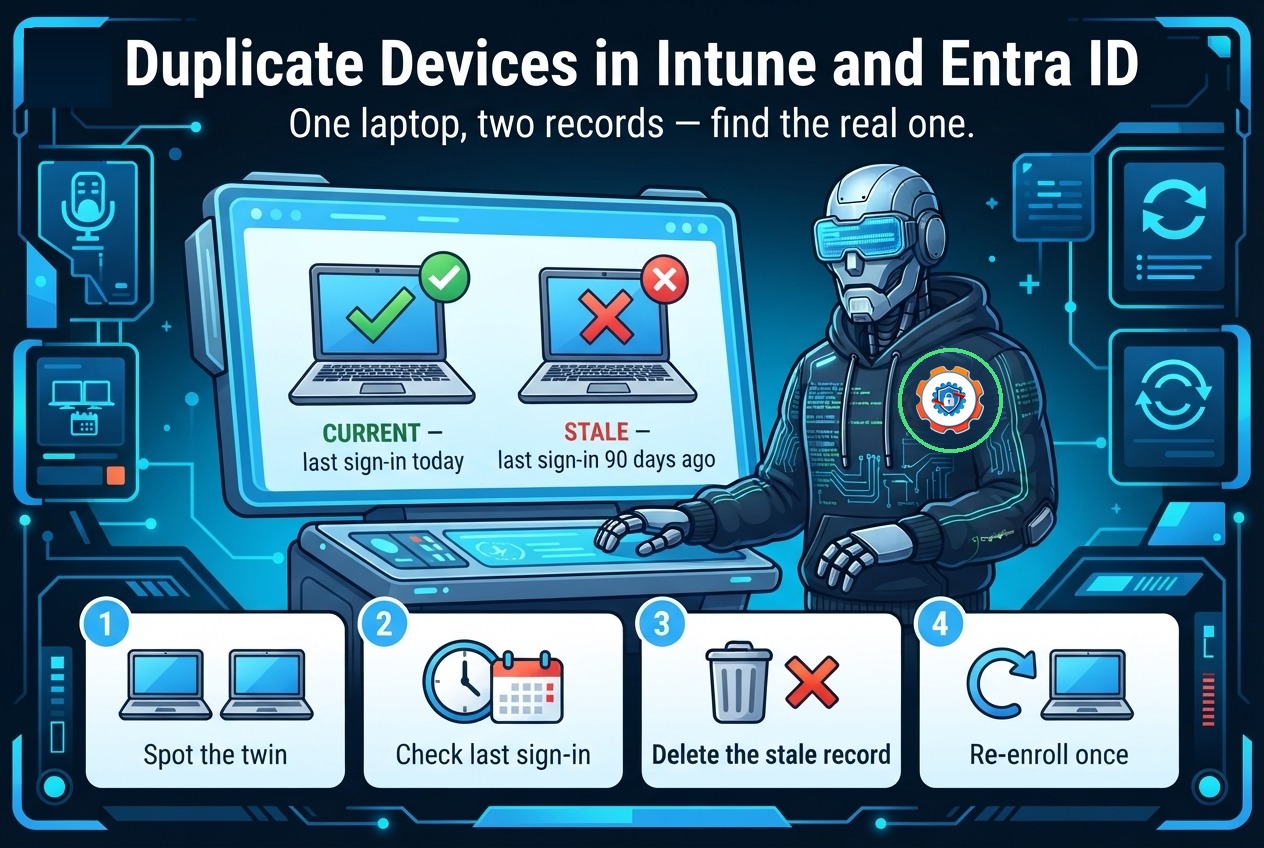
Learn the two questions that settle it. First, is the machine asking the right server? ipconfig /all shows the DNS servers the device was given — and a laptop that picked up a home router’s DNS on a VPN, or a stale entry from a network that no longer exists, will ask the wrong one. Second, does the answer come back? nslookup against the server the machine is using tells you whether the name resolves at all, and whether the answer is the one you expect. If the name resolves and the site still won’t load, you’ve just ruled out DNS in thirty seconds — that’s the value of the check, not the fix.
The traps worth knowing: a cached answer that outlived the change it recorded (ipconfig /flushdns clears it), and split DNS — the same name resolving to an internal address on the corporate network and a public one outside it, so the app works in the office and fails at home with no error that says why.
DHCP: the address you didn’t choose
DHCP hands the device its address, its subnet mask, its gateway and its DNS servers — the four numbers every packet depends on. When the lease fails, the device doesn’t tell you “DHCP failed.” It tells you nothing works, and the clue is the address itself: a 169.254.x.x address means the machine asked for a lease, heard nothing back, and gave itself one nobody can route to. That one number is a diagnosis, not a mystery.
The fix is usually boring, which is good news: ipconfig /release then ipconfig /renew and watch what comes back. If the address returns, the lease was stale. If the 169.254 address comes back, the machine can’t reach a DHCP server at all — now you’re looking at the cable, the switch port, or the Wi-Fi association, not at the machine. And if the address is fine but the gateway is wrong or missing, the device can talk to its own subnet and nothing beyond it — a failure that looks exactly like “no internet” from the user’s chair.
TCP/IP: the three-ping ladder
TCP/IP is the stack everything rides on, and the troubleshooting method for it is a ladder with three rungs. Run it in order, and each rung tells you exactly where the fault lives:
1. Ping the gateway. If the gateway doesn’t answer, the fault is local — the link, the cable, the Wi-Fi, the address itself. Don’t look any further up the stack until this rung holds.
2. Ping 8.8.8.8. An address, not a name — so DNS is out of the picture. If the gateway answers and this doesn’t, the fault is routing: the packets leave the device but don’t get where they’re going.
3. Ping a name. If the address answers and the name doesn’t, it’s DNS. You’ve arrived at the previous section with the evidence already in hand.
That’s Post 3’s five-step loop applied to the wire: identify, isolate, root-cause — and the ladder does the isolating for you. Three commands, one minute, and you know which of the four is at fault instead of guessing. When a ticket says “no internet,” run the ladder before you touch anything else.

VPN: the tunnel that changes the rules
The VPN is where the first three protocols meet the real world. A tunnel carries the device’s traffic to the corporate network — and it changes the answers to every question above. Split tunnel sends only corporate traffic through the VPN and lets everything else go direct; full tunnel sends it all. Neither is wrong, but each one breaks differently: on a full tunnel, a dead VPN looks like no internet at all; on a split tunnel, the corporate app fails while the browser works fine, and the user swears the network is fine — because half of it is.
The classic is DNS over VPN. The tunnel is up, the corporate app resolves, and then the user opens a public site and it hangs — because the device is now asking the corporate DNS server for a public name, or the home DNS server for an internal one. Same split-DNS trap as before, wearing a different coat. Check which DNS server the device is using while the tunnel is up, and check whether the tunnel is split or full, before you blame the application.

Wi-Fi and the roaming laptop
Most of your fleet is wireless now, and Wi-Fi adds one layer the ladder doesn’t see: the radio. A laptop that works at its desk and dies in the meeting room isn’t suffering a network fault — it’s suffering a signal fault, or a roaming fault, or an authentication fault on 802.1X, the protocol that checks the device’s identity before the network lets it on at all. The symptom is the same “no internet.” The evidence is different: signal strength, which access point the device is attached to, and whether authentication succeeded.
The habit that saves you here is the same one from Post 4: read the evidence before you change anything. The Wi-Fi event logs, the address the device actually holds, the gateway it can or can’t reach — the machine has already written down what happened. Your job is to read it in the right order.
Practise it this week
- Read your own lease. Run
ipconfig /allon your machine and find the four numbers: your address, mask, gateway and DNS servers. Know where each one came from. - Run the three-ping ladder. Gateway, then 8.8.8.8, then a name. Do it once while everything works, so you know what healthy looks like before you need it.
- Break DNS on purpose. Point your machine at a dead DNS server for a minute and watch what fails — then fix it with
ipconfig /flushdns. The failure you cause yourself is the one you’ll recognise instantly in a ticket.
Next up: Intune + Autopilot. The packets get there — now the machine arrives already configured. The next post is the one the whole series has been building toward: provisioning at fleet scale, where one policy reaches every device at once.
Missed the earlier posts? Start with Part 1: What a Desktop Engineer Actually Does, Part 2: The Path, Stage by Stage, Part 3: The Mindset — Curiosity Is a Technical Skill, Part 4: Windows 11 Inside Out, and Part 5: Identity: AD, GPO, Entra ID, Conditional Access.