








The Update Broke Your Apps. The Fix Is a Registry Key.
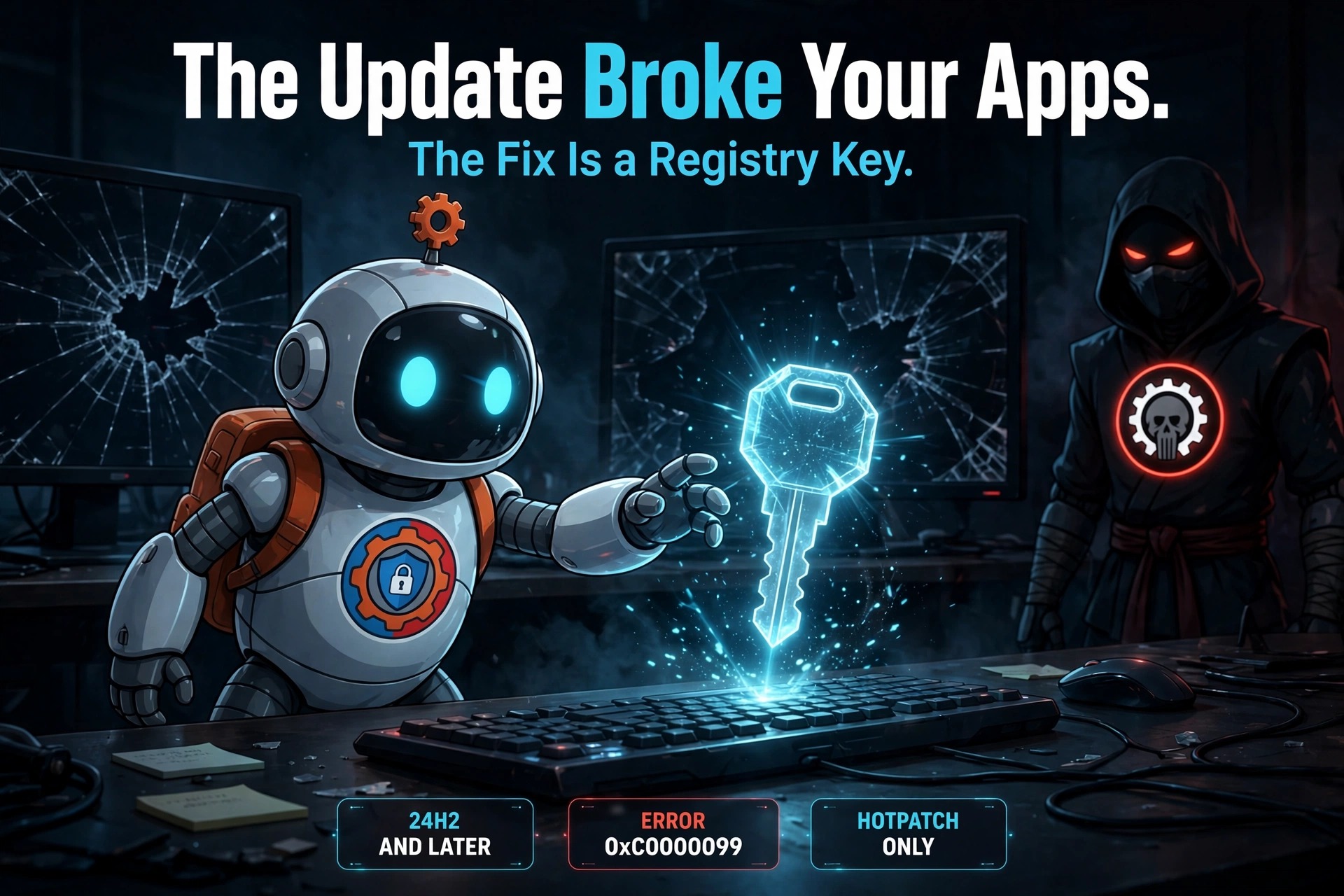
You installed a security update. Now your apps will not open. That is the situation Microsoft confirmed this week for some Windows 11 devices that received the November 2026 hotpatch update. Apps can fail when you install them, launch them, or run them, with an error similar to ERROR_ALLOTTED_SPACE_EXCEEDED (0xC0000099). Microsoft told IT administrators in a service alert; a workaround exists while a fix is pending.
What breaks — and the error you’ll see
The failure shows up when installing, launching, or running an app. Not every app breaks — Microsoft says some applications are affected — and the error is similar to ERROR_ALLOTTED_SPACE_EXCEEDED (0xC0000099). If an app that worked yesterday fails right after the November hotpatch landed, this is the first thing to check. The timing is the tell. The app did not change. The update did.
It is the latest in a run of Windows 11 sign-in and quality quirks. The Windows Hello PIN saga — the one where your face is still scanning while your PIN is ready — was another reminder that Windows 11’s small, everyday parts keep tripping over their own updates. This one is worse: a PIN prompt you can work around, but an app that will not launch stops the workday.
Why it happens
Microsoft points to one file: msi.dll, the 32-bit Windows Installer DLL. Applications that load that DLL can hit the error after the hotpatch is installed. That trigger explains the pattern. Thirty-two-bit apps are hit most often, because they are the ones most likely to load the 32-bit installer library. But 64-bit apps can run into it too, under certain conditions, so 64-bit is no guarantee.
Microsoft’s alert names the trigger, not the internals — no deeper technical explanation has been published. What is known is the shape of it: one DLL, loaded by installers and by the apps that depend on them, and a hotpatch that does not get along with it. That narrow cause helps diagnosis: if the failing app loads msi.dll, suspect the hotpatch; if not, look elsewhere.

Who is affected — and who is not
The scope is specific, and getting it wrong wastes a morning. The problem affects Windows 11 24H2 and later, but only devices that received the hotpatch through Windows Autopatch — Microsoft’s cloud-based enterprise service that automates Windows and Microsoft 365 updates. Autopatch-managed machines that took the November hotpatch are in. The rest are not.
Systems that received the standard November 2026 Patch Tuesday security updates are not affected. So the first question before touching anything: how did this update arrive? A machine on the regular Patch Tuesday track has none of this: no problem, no workaround, no registry edit.
The distinction matters because hotpatch is becoming the default. Microsoft said in March that it would turn on hotpatch security updates by default for all eligible Windows devices managed through the Microsoft Graph API and Microsoft Intune, once the May 2026 Windows security updates are installed.
Windows Autopatch is not new. Microsoft announced it in April 2022, free for customers with Windows 10 or 11 Enterprise E3 or greater, previewed in early June 2022 and generally available since July 2022. It has stumbled before: one month after that announcement, Microsoft fixed an Autopatch bug that pushed admin-restricted driver updates to some Autopatch-managed devices of EU customers.
The workaround, step by step
There is no fix yet, and Microsoft has given no date for one. What exists is a workaround, and it is a registry edit — do it carefully, once, on affected machines only. Microsoft’s warning comes first: back up the registry before you change it, and know how to restore it if something goes wrong. A registry backup is the undo button — do not skip it.
Open the Registry Editor. Press the Windows key, type regedit, and open it with administrator rights. Navigate to HKLM\SYSTEM\CurrentControlSet\Control\Session Manager\Memory Management. Find the HotPatchTableSize key and set its value to 2000, exactly as Microsoft specifies. Close the Registry Editor. Then restart the device.
The restart is not optional. The new value does not take effect until the machine reboots. The workaround is temporary: it papers over the problem until Microsoft ships a real fix. When that fix arrives, install it and follow Microsoft’s guidance on whether the registry value stays or goes. Do not treat 2000 as permanent, or apply the edit to machines that never had the problem.

What to do now
If your apps are failing with 0xC0000099 after the November hotpatch, check how the update arrived first. Autopatch hotpatch track means the workaround applies to you. Standard Patch Tuesday track means it does not. Do not edit the registry on a hunch, and do not reinstall apps that worked the day before the update. The update broke them; the fix is a registry key, and the permanent fix is Microsoft’s to ship.
Not the first small Windows 11 annoyance Microsoft has had to clean up. The thirty-one-year Sticky Keys popup saga was another one, and that one at least ended with a checkbox. This one ends with a registry edit, a restart, and a wait for a fix with no date. Apply the workaround, back up the registry first, and watch for the fix.
Source: BleepingComputer.