

















Your Face Is Still Scanning. Your PIN Is Ready.
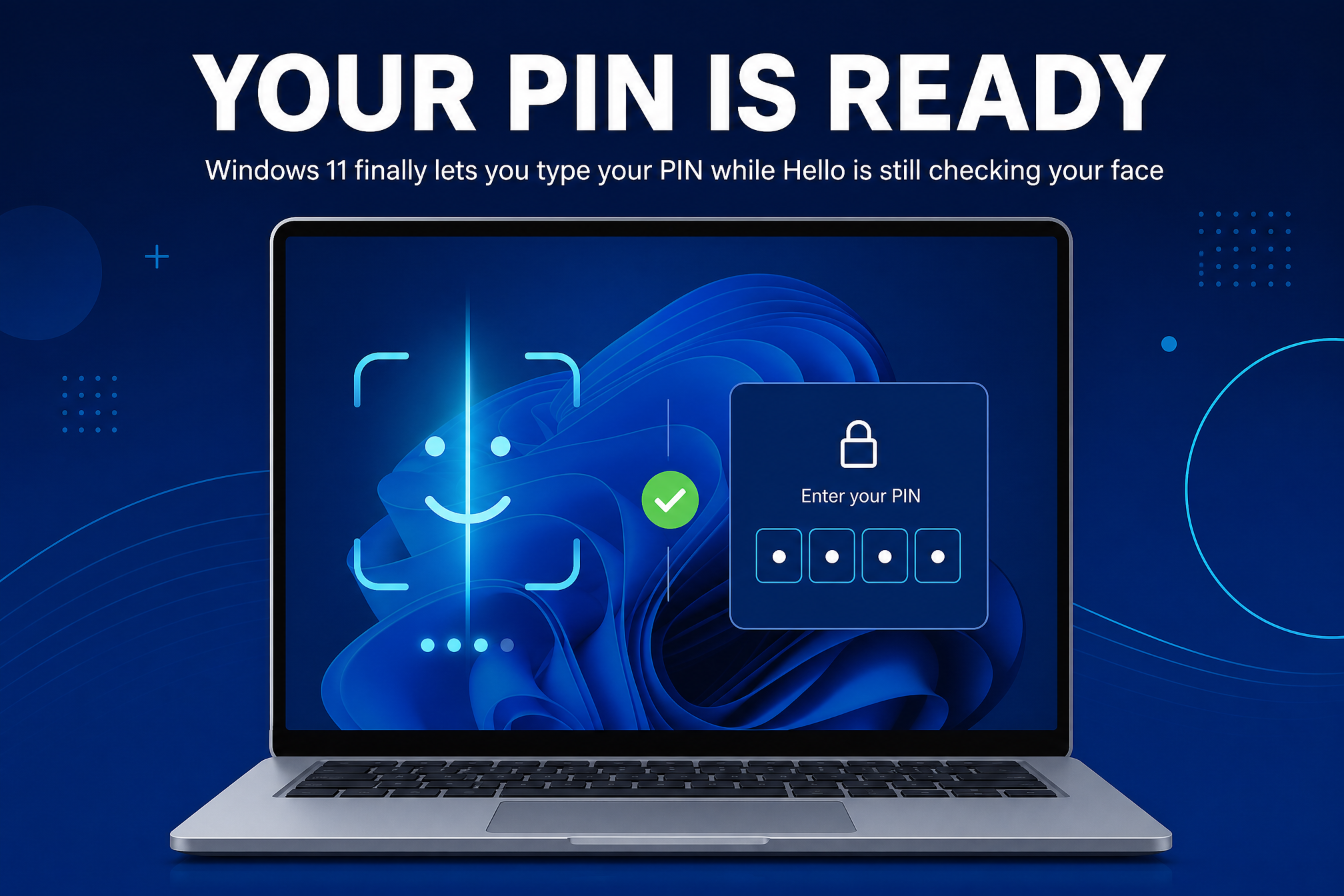
Every Windows 11 user with face unlock knows the ritual. You open the laptop, the camera stares at you, and you wait. If the light is bad or the camera cannot see you, you wait some more — then you click Sign-in options, find the PIN icon, and type the code you could have typed five seconds ago. Microsoft is finally fixing that. In the newest Windows 11 Insider build, the PIN box is just there, ready, while Windows Hello is still checking your face.
The change is in Experimental Build 26340.9882, released on November 6 and based on Windows 11 26H2. Once the build is installed, the lock screen reads “Look at the camera or enter your PIN,” and the PIN field is live from the start. Microsoft’s release notes put it simply: you can now “use whichever method works first.” Start typing your PIN the moment you sit down, and the camera can keep scanning in the background — whichever one recognizes you first wins.
It sounds small, and it is. But it is the kind of small that you notice every single time you open the lid.
What actually changed
Until now, Windows Hello treated face recognition as the only option on screen. If it could not recognize you, it eventually gave up and switched to “Enter your PIN” — or you could click Sign-in options and pick the PIN yourself. In a dim room, with wet fingers, or when someone else who knows the PIN needs to get in, that was two extra clicks every single time.
After installing Build 26340.9882, the PIN field is visible while the camera is still working. On PCs with both a fingerprint reader and an infrared camera, the prompt changes to “Look at the camera or scan your fingerprint,” with the PIN box sitting right below. And if face recognition fails, the screen now says “Retry face sign-in” instead of sending you back to Sign-in options — another two clicks saved.
Microsoft has not dropped any security to make this work. After a device restart, Windows still asks for your PIN first, and face or fingerprint sign-in works as usual after that. The change is purely about who gets to go first: you, or the camera.

Face recognition in the dark is getting help too
The PIN change is not the only sign-in fix in the pipeline. Face recognition in low light got worse last year, and that was by design: with the April 2025 update, Microsoft started requiring the color camera to see a visible face for security reasons, which broke Windows Hello for many users — especially anyone with a privacy shutter over the webcam.
Microsoft’s answer is to use your display’s light. Build 26340.9750, released to the Experimental channel on October 16, added an “Automatically adjust screen brightness during face recognition” toggle under Settings, Accounts, Sign-in options, Facial recognition. It only kicks in when the infrared camera can see your face but the color camera cannot, and brightness returns to normal afterwards. Microsoft pulled the toggle based on feedback, but says it will return starting in November 2026, turned off by default.
That is a useful fix, but it is not a reason to disable your webcam to work around the problem. Some users have found that turning off the RGB camera in Device Manager makes Hello sign in almost instantly, even in pitch black — but it goes against the security check Microsoft added, and you lose the webcam for video calls until you turn it back on. The PIN box and the brightness toggle are the supported answers; the Device Manager trick is not one.
Admins get better sign-in logs as well
Build 26340.9882 also adds new Windows Hello logging, and this is the part IT admins should care about. In Event Viewer, under Windows Logs and then Security, event 4628 records which Windows Hello methods a user has set up and which one they signed in with, while event 4629 logs failed attempts. Both use the existing Audit Logon policy. Events 5010 and 7010 under Applications and Services Logs, Microsoft, Windows, HelloForBusiness, Operational record each sign-in and unlock with the result.
If you manage a fleet, that is now a clean audit trail for exactly how people are getting into their machines — which matters the moment someone asks whether the new PIN-first behavior is being abused, or whether a device keeps failing face recognition for a reason worth investigating.
How to try it
To get the build, go to Settings, Windows Update, Windows Insider Program, link your Microsoft account, choose the Experimental channel, and check for updates. The new sign-in experience shows up as soon as the build is installed — no registry tweaks or third-party tools needed. Microsoft is rolling features out gradually, so it may not appear for everyone right away.
Two cautions. First, Experimental builds can be buggy — in this one, Task Manager’s CPU speed does not update — so try it on a spare machine or a virtual machine, and back up your files first. Second, Microsoft has not said when any of this reaches regular Windows 11 PCs. The PIN change is the kind of polish that usually ships with the next feature update, and the build it is based on, 26H2, is already Microsoft’s recommended version — so the path to your machine is short, even if the date is not announced yet. And when it does arrive, it will be one more small improvement in a Windows 11 that keeps evolving toward its next big release instead of a new version number.
One thought on “Your Face Is Still Scanning. Your PIN Is Ready.”