








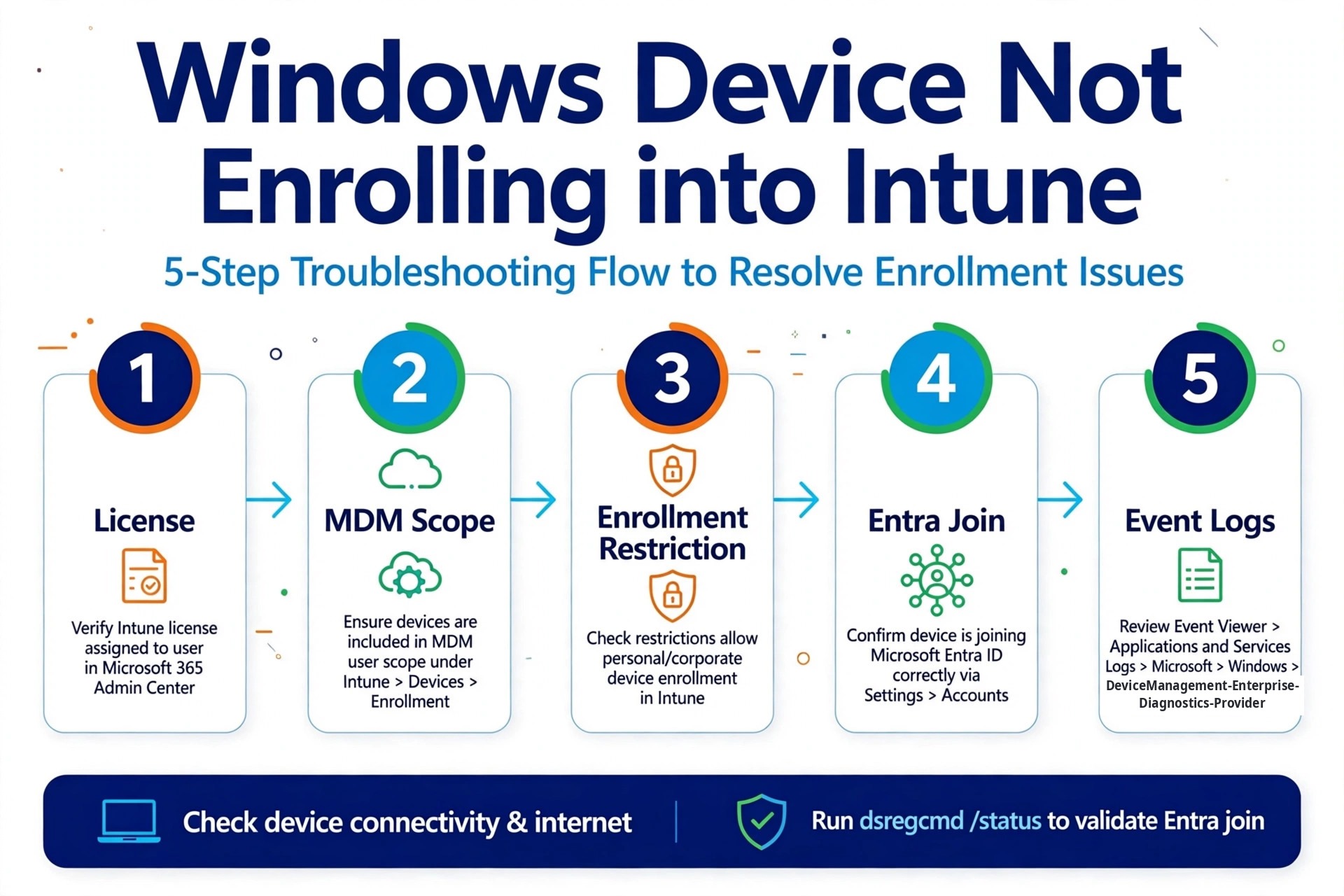
Windows Device Not Enrolling into Intune — Day 1 of the Microsoft Intune Real-Time Troubleshooting Series
A New Series: 15 Days, 15 Scenarios, 15 Practical Solutions
Welcome to Day 1 of the Microsoft Intune Real-Time Troubleshooting Series — 15 days, 15 real-world scenarios, 15 practical solutions.
This series is not a tour of the Intune admin center. Each day takes one failure that actually happens in production — the kind that lands in your queue at 8 a.m. on a Monday — and works it the way a working Intune admin would: what the user sees, what is most likely broken, the checks in the order you should run them, the commands and logs that prove it, and how the fix actually lands.
It is written for IT professionals who manage Intune day to day, and for anyone preparing for an Intune or endpoint-management interview. Every episode ends with the questions an interviewer would ask about that exact scenario — and the answers they expect to hear.
1. Real-World Scenario
It is Monday morning, and a regional office is rolling out 40 new Windows 11 laptops. The plan is straightforward: the devices join Microsoft Entra ID, Intune enrolls them automatically, and by lunchtime the users have their apps, policies, and certificates.
The first ten machines go fine. Then the failures start.
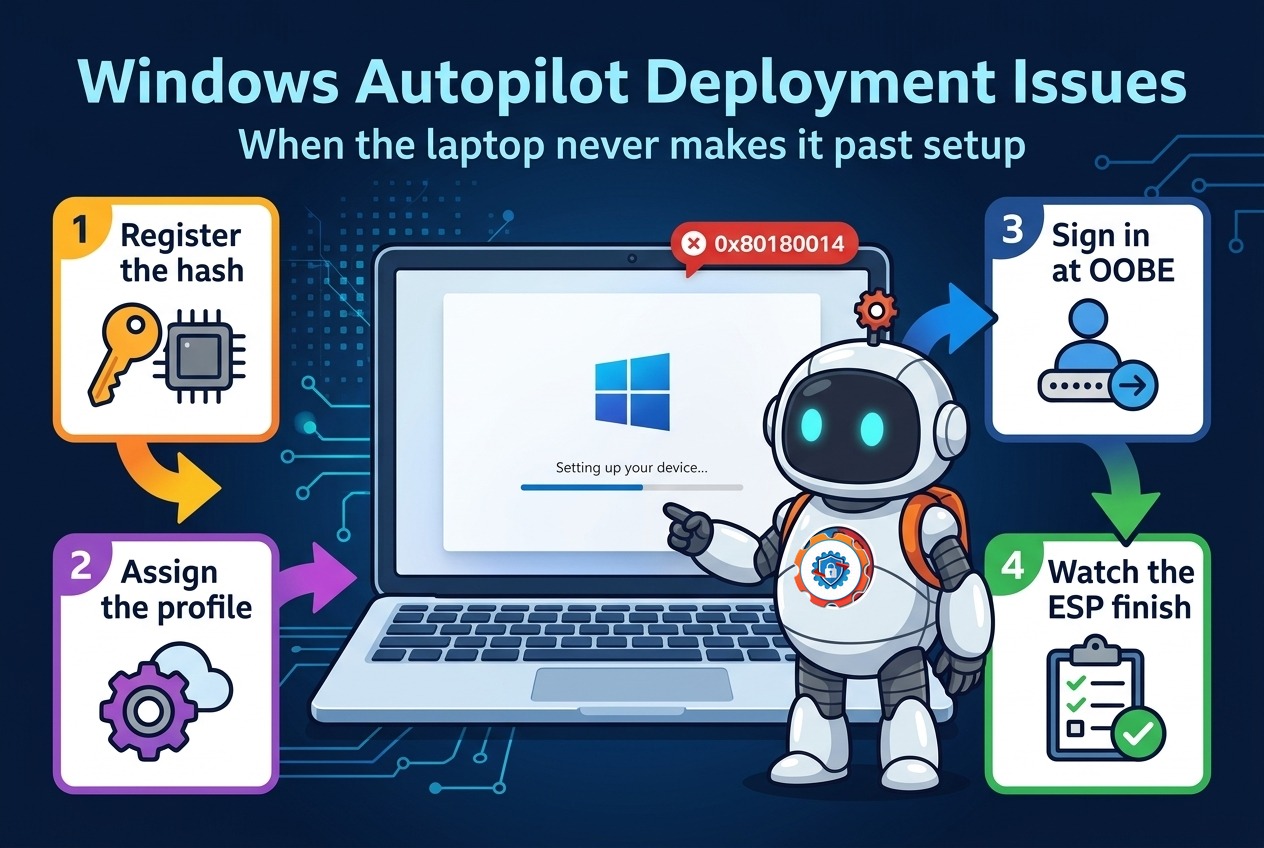
On some laptops, the user signs in and gets: “Something went wrong. Your account was not set up on this device because device management could not be enabled. Error code 0x80180014.” On others there is no error at all — the device joins Entra ID, the user signs in, and the laptop simply never appears in the Intune admin center. No policies arrive, no apps install, and the Company Portal reports the device is not managed.
The help desk now has 30 open tickets, the rollout is stalled, and nobody can say yet whether the problem is the devices, the users, or the tenant. That is the moment this troubleshooting starts.
2. Root Cause Analysis
Enrollment fails in a small number of places, and they fail in a predictable order of likelihood. Work through them in this sequence before touching the device.
1. The user has no Intune license. Enrollment requires a license — Intune, or a bundle that includes it, such as Microsoft 365 E3/E5 or Enterprise Mobility + Security. A user without one fails with error 0x80180018 (“There was an error with your license”). In a rollout, this usually means the new hires were created in Entra ID but their licenses were never assigned, or the group-based licensing rule did not cover them.
2. The user is outside the MDM user scope. In Entra ID, automatic MDM enrollment is configured under Mobility (MDM and MAM). If MDM user scope is set to None, or to Some with a group that does not include these users, the device joins Entra ID and then does nothing — no enrollment attempt, no error. This is the most common cause of the “silently never appears in Intune” symptom, and error 0x8018002b points the same way when the user’s UPN suffix is unverified or the user is out of scope.
3. An enrollment restriction blocks Windows (MDM). Under Devices > Enroll devices > Enrollment restrictions, a device platform restriction can disallow Windows MDM enrollment, or disallow personally owned devices. That produces 0x80180014 — the exact error in the scenario above. This is easy to inherit from an earlier project and forget about.
4. The user hit the device enrollment limit. Intune caps devices per user (default 15). A user re-enrolling machines, or a shared test account, hits DeviceCapReached. Remove stale device records or raise the limit.
5. The device is already enrolled — or thinks it is. A reimaged laptop, a cloned image, or a machine that was enrolled once and never cleaned up carries stale enrollment data. Error 0x8018000a (“This device is already enrolled”) is the tell. The device is not in Intune, but Windows believes it is managed.
6. The Entra join itself is broken. Enrollment depends on the device’s Entra identity. If the device never joined, or its Primary Refresh Token is missing, enrollment never gets a valid token to work with. dsregcmd /status showing AzureAdPrt : NO points here.
7. The network blocks the enrollment endpoints. A proxy, a firewall rule, or a captive portal that intercepts traffic to enrollment.manage.microsoft.com kills enrollment with a connectivity error, typically 0x80180001. Common on a new office network that has not been through the Intune allowlist yet.
8. The device cannot be managed at all. Windows 11 Home does not support MDM enrollment (0x80180022 — “Your organization does not support this version of Windows”). TPM attestation failures during Autopilot or Entra join belong in the same bucket.

3. Step-by-Step Troubleshooting
Work in this order: confirm what you are looking at, check the cheap things, then go to the logs.
1. Read the exact error. Note the code and the exact wording on the failing device. 0x80180014, 0x80180018, 0x8018000a, and 0x8018002b each point at a different layer — do not treat them as the same failure. If there is no error, that is itself a finding: it points at MDM scope (cause 2).
2. Check the work or school account state. On the device, go to Settings > Accounts > Access work or school. A healthy enrolled device shows the account as Connected. If the account is there but not connected, disconnect and reconnect it — that alone re-triggers enrollment.
3. Run dsregcmd /status on the device. This is the single most informative command in enrollment troubleshooting. Check three fields: AzureAdJoined should be YES; AzureAdPrt should be YES (a NO here is an identity/token problem, not an Intune problem); and under Tenant Details, empty MdmUrl fields mean MDM is not configured for this user — the user is out of MDM scope.

4. Verify the license. In the Microsoft 365 admin center, confirm the affected users have an Intune license assigned. Group-based licensing is a frequent culprit: the user is in the group, but the license assignment failed or the group rule never ran.
5. Verify the MDM user scope. In the Microsoft Entra admin center, go to Mobility (MDM and MAM) > Microsoft Intune and check MDM user scope. If it is Some, confirm the affected users are in the selected group — and confirm the group is a security group that Entra can actually evaluate.
6. Check enrollment restrictions. In the Intune admin center, go to Devices > Enroll devices > Enrollment restrictions. Edit the Windows platform restriction and confirm Windows (MDM) is set to Allow, and that personally owned devices are allowed if the rollout depends on them.
7. Check the device limit and stale records. In the Intune admin center, search for the device by name or serial number. If it appears as a stale record, delete it. In Entra ID, check the same for orphaned device objects, and confirm the user is under the device limit.
8. Read the enrollment event log. On the device, open Event Viewer and go to Applications and Services Logs > Microsoft > Windows > DeviceManagement-Enterprise-Diagnostics-Provider > Admin. For Group Policy auto-enrollment, Event ID 75 means success and Event ID 76 means failure — and Event 76 carries the error code. If neither event exists, enrollment never triggered, which points back at the EnterpriseMgmt scheduled task or the MDM Group Policy not applying.
9. Generate an MDM diagnostic report. On the device, go to Settings > Accounts > Access work or school > Info > Create report, or run mdmdiagnosticstool.exe from an elevated prompt. The report bundles the enrollment state, certificates, and policy status into one readable file.
10. Confirm the network path. From the device, verify connectivity to enrollment.manage.microsoft.com over port 443. If the device is behind a proxy, confirm the proxy allows the Intune endpoints and that the device can reach them without authentication prompts.
11. Clean a stale enrollment, if that is what the evidence shows. Only when 0x8018000a or a stale record is confirmed: disconnect the work or school account, run dsregcmd /leave from an elevated prompt, remove the stale enrollment GUIDs under HKLM\SOFTWARE\Microsoft\Enrollments, delete the leftover EnterpriseMgmt scheduled tasks, reboot, and enroll again.
4. PowerShell Commands
Each of these is a real command an admin runs on the device or against the tenant. Run the device-side ones in an elevated prompt where noted.
# Check Entra join state, PRT health, and whether an MDM URL is configured
dsregcmd /status
# Show the most recent enrollment events (look for Event ID 76, failed auto-enrollment)
Get-WinEvent -LogName 'Microsoft-Windows-DeviceManagement-Enterprise-Diagnostics-Provider/Admin' -MaxEvents 20 |
Select-Object TimeCreated, Id, LevelDisplayName, Message# Generate a full MDM diagnostic bundle (report lands in C:\Users\Public\Documents\MDMDiagnostics)
mdmdiagnosticstool.exe -area "DeviceEnrollment" -zip "C:\Temp\MDMDiag.zip"# Confirm the device can reach the enrollment endpoint (run as the user, not just as admin)
Test-NetConnection enrollment.manage.microsoft.com -Port 443# List stale enrollment registrations on the device
Get-ChildItem 'HKLM:\SOFTWARE\Microsoft\Enrollments'# Check whether the auto-enrollment scheduled task exists and last ran
Get-ScheduledTask -TaskPath '\Microsoft\Windows\EnterpriseMgmt\' | Select-Object TaskName, State, LastRunTime, LastTaskResult# Check the TPM state when attestation or hardware-backed join is suspected
Get-Tpm | Select-Object TpmPresent, TpmReady, TpmEnabled# From the admin side: confirm the device actually landed in Intune (Microsoft Graph PowerShell)
Connect-MgGraph -Scopes 'DeviceManagementManagedDevices.Read.All'
Get-MgDeviceManagementManagedDevice -All | Where-Object { $_.DeviceName -eq 'LTP-0142' } |
Select-Object DeviceName, EnrolledDateTime, LastSyncDateTime, ManagementState# From the admin side: check the Entra device object and its join state
Connect-MgGraph -Scopes 'Device.Read.All'
Get-MgDevice -Filter "displayName eq 'LTP-0142'" | Select-Object DisplayName, TrustType, IsManaged, ApproximateLastSignInDateTime# Leave Entra ID cleanly before re-enrollment (elevated prompt, only after confirming a stale record)
dsregcmd /leave5. Important Log Locations
| Location | What it tells you |
|---|---|
| Event Viewer > Applications and Services Logs > Microsoft > Windows > DeviceManagement-Enterprise-Diagnostics-Provider > Admin | The enrollment log. Event ID 75 = auto-enrollment succeeded; Event ID 76 = failed, with the error code. Event IDs 201/301 mark enrollment attempts and success; 404/500/600 mark errors. |
| Event Viewer > Applications and Services Logs > Microsoft > Windows > User Device Registration > Admin | The Entra join log. Event ID 204 = join started; 304 = join succeeded. If the join failed, enrollment never had a chance. |
| C:\Users\Public\Documents\MDMDiagnostics | Output of mdmdiagnosticstool.exe and the Settings > Access work or school > Create report bundle, including MDMDiagHtmlReport.html — the readable summary of management URLs, certificates, and policy state. |
| C:\ProgramData\Microsoft\IntuneManagementExtension\Logs | Intune Management Extension logs (IntuneManagementExtension.log). Mainly for Win32 apps and scripts once enrolled, but worth checking when enrollment “succeeds” and nothing else ever arrives. |
| HKLM\SOFTWARE\Microsoft\Enrollments | One subkey per enrollment. Stale GUIDs here are the registry evidence behind 0x8018000a. |
| HKLM\SOFTWARE\Microsoft\EnterpriseResourceManager\Tracked | Leftover tracked enrollment data from a previous management relationship; another place stale enrollment hides. |
| Task Scheduler > Microsoft > Windows > EnterpriseMgmt | The auto-enrollment task created by the MDM Group Policy. It runs every 5 minutes for a day after the policy applies. Its result, plus Task Scheduler Operational log Events 107 (triggered) and 102 (completed), tells you whether enrollment ever fired. |
6. Practical Resolution
Back to the 40 laptops. The troubleshooting above narrows it down fast: dsregcmd /status on a failing machine shows AzureAdJoined : YES and AzureAdPrt : YES — identity is fine — but the MdmUrl fields are empty. Event Viewer has no Event 75 and no Event 76. Enrollment never triggered.
In the Entra admin center, MDM user scope is set to Some, pointing at a group called “Intune — Pilot Users.” The 40 new hires were never added to it. And in Intune, the Windows platform restriction blocks enrollment for personally owned devices — which matters because ten of the machines were enrolled as personally owned during the pilot.
The fix, in order:
- Add the new hires’ group to the MDM user scope, or switch scope to All if that matches the organization’s policy.
- Change the Windows platform restriction to allow personally owned devices.
- On each affected laptop, have the user disconnect and reconnect the work or school account in Settings, or reboot and let the EnterpriseMgmt task pick up the corrected scope.
- Verify in the Intune admin center that the devices appear with a current enrollment date, then confirm one device receives a test policy and the Company Portal reports it as managed.
- Document the two settings — MDM scope and enrollment restrictions — in the rollout runbook, so the next batch does not hit the same wall.
The ten machines that showed 0x80180014 were the personally owned ones hitting the restriction. The twenty that failed silently were the users outside MDM scope. One root cause per symptom, both in the tenant, neither on the hardware. The laptops were never the problem.
7. Interview Questions
Q1: A Windows device will not enroll into Intune. What is the first command you run, and why?
dsregcmd /status. It answers three questions at once: is the device Entra joined (AzureAdJoined), does it hold a valid Primary Refresh Token (AzureAdPrt), and is MDM configured for this user (the MdmUrl fields). Empty MDM URLs mean the user is out of MDM scope; AzureAdPrt : NO means an identity problem that has to be fixed before Intune is even in the picture.
Q2: What is the difference between a device being Entra joined and being enrolled in Intune?
Entra join gives the device an identity in Entra ID — it can authenticate and get tokens. Enrollment registers the device with the MDM service and gives Intune management authority over it. A device can be Entra joined without being enrolled (the exact symptom when MDM scope is wrong), and Intune needs both to manage it.
Q3: What does error 0x80180014 mean, and how do you fix it?
It means Windows MDM enrollment is blocked by an enrollment restriction in the tenant — typically the Windows (MDM) platform restriction is set to Block, or personally owned devices are disallowed. Fix it in the Intune admin center under Devices > Enroll devices > Enrollment restrictions, then re-trigger enrollment on the device.
Q4: Where do Windows enrollment failures get logged?
In Event Viewer, under Applications and Services Logs > Microsoft > Windows > DeviceManagement-Enterprise-Diagnostics-Provider > Admin. Event ID 76 is a failed auto-enrollment and carries the error code; Event ID 75 is success. For the full picture, generate an MDM diagnostic report with mdmdiagnosticstool.exe or from Settings > Accounts > Access work or school > Info > Create report.
Q5: A device shows up in Entra ID but not in Intune. What does that tell you?
The device joined Entra ID but MDM enrollment never happened or never completed. Check MDM user scope first, then the Intune license, then enrollment restrictions, then dsregcmd /status for empty MDM URLs. It is a tenant-side configuration issue far more often than a device problem.
Q6: A device fails with 0x8018000a, “This device is already enrolled,” but Intune shows no record of it. What do you do?
The device holds a stale enrollment. Disconnect the work or school account, run dsregcmd /leave from an elevated prompt, delete the stale GUIDs under HKLM\SOFTWARE\Microsoft\Enrollments, clear the leftover EnterpriseMgmt scheduled tasks, reboot, and enroll again. Check HKLM\SOFTWARE\Microsoft\EnterpriseResourceManager\Tracked as well — stale data hides there too.
Day 1 done. Tomorrow, Day 2: Company Portal Login Failures — when the device is enrolled but the user cannot get into the Company Portal at all.
Follow the series here on ongoingideas.com — one scenario a day, for 15 days.
These scenarios assume you already run Intune day to day. For the bigger picture of why that is only part of the job, read why knowing Intune alone is not enough for modern endpoint management.
11 thoughts on “Windows Device Not Enrolling into Intune — Day 1 of the Microsoft Intune Real-Time Troubleshooting Series”