










Win32 App Packaging
Win32 App Packaging in Intune: What Really Happens After Deploying a Win32 Application from Intune?
What happens after you package an installer with Intune
WinAppUtil and upload it to Microsoft Intune? This guide follows the complete Win32 application lifecycle, from the original installer and encrypted package to device download, requirement evaluation, installation, detection, and reporting.
Understanding this workflow turns Win32 application troubleshooting into a structured process. Instead of treating Intune as a black box, you can determine whether a deployment failed during packaging, assignment, download, installation, detection, or status reporting.

Each stage answers a different question:
- Is the application packaged correctly?
- Is the application assigned to the device or user?
- Does the device satisfy the app requirements?
- Is the application already installed?
- Can the device download and decrypt the content?
- Did the installer return an expected exit code?
- Can Intune confirm that the application is installed?
Stage 1: The Original Installer
A Win32 application begins as an ordinary Windows installer, normally an .exe, .msi, script, or collection of supporting files.
Unlike a Microsoft Store application, a traditional installer does not always follow a predictable standard. Vendors may use different silent switches, return codes, installation paths, registry locations, and versioning methods.
Before packaging the application, verify the following:
- The installer supports a completely silent installation.
- No dialog boxes, license prompts, or user interaction are required.
- The install command works from an elevated command prompt.
- The uninstall command has been tested.
- The application creates a reliable file, registry value, or MSI product code that can be used for detection.
- All required supporting files are stored in the source folder.
Important: Microsoft does not support interactive Win32 application installations through Intune. The installation must run silently without requiring prompts, dialog boxes, or desktop interaction.
Stage 2: Microsoft Win32 Content Prep Tool
The Microsoft Win32 Content Prep Tool, commonly called IntuneWinAppUtil.exe, converts the application source folder into an .intunewin package that Intune can process.
A typical packaging command looks like this:
IntuneWinAppUtil.exe -c "C:\IntuneApps\Source" -s "Setup.exe" -o "C:\IntuneApps\Output" -q-cidentifies the source folder.-sidentifies the primary setup file.-oidentifies the output folder.-qruns the tool in quiet mode.
During processing, the tool performs several important operations:
1. Collects the Source Files
The tool includes the contents of the specified source directory. Any unnecessary files left in that directory may become part of the final package, increasing its size and potentially exposing files that were never intended for distribution.
2. Compresses the Application Content
The installer and its supporting files are compressed so they can be transported as a single package.
3. Encrypts the Packaged Content
The content is encrypted and integrity information is generated. This allows the Intune delivery process and the endpoint agent to validate and process the package before installation.
4. Records Package Metadata
The package contains metadata describing the original setup file and information needed to process the encrypted content. When an MSI is selected as the setup file, the tool can also extract MSI information that Intune uses while configuring the application.
Security reminder: Do not place passwords, API keys, privileged tokens, or other permanent secrets inside the application source folder. Packaging an application as an
.intunewinfile should not be treated as a secrets-management solution.
Stage 3: Understanding the .intunewin Package
The resulting .intunewin file is more than a renamed installer. It is a content container designed for the Intune Win32 application delivery process.
Conceptually, the package contains:
Application.intunewin
├── Package metadata
├── Encryption and integrity information
└── Encrypted application content
    ├── Setup.exe
    ├── Configuration files
    ├── Scripts
    └── Supporting files
The package should be handled with the same care as the original source directory. If the source contains confidential configuration information, that information remains part of the application payload.
Stage 4: Uploading the Application to Intune
The .intunewin file is uploaded from the Microsoft Intune admin center by selecting:
Apps
└── Windows
    └── Create
        └── Windows app (Win32)
Uploading the file only provides the application content. You must still define the operational instructions that tell Intune how the application should behave.
- Application name, description, publisher, and category
- Install and uninstall commands
- Installation context
- Restart behavior and return codes
- Minimum operating system and architecture requirements
- Detection rules
- Dependencies and supersedence relationships
- Required, available, or uninstall assignments
Intune currently supports Win32 application packages up to 30 GB per application. Microsoft also recommends using the latest version of the Win32 Content Prep Tool when creating new packages.
Stage 5: Assignment and Policy Delivery
An uploaded application does nothing until it receives an assignment. Win32 applications can be assigned to user or device groups using one of three intentions:
- Required: Intune automatically attempts to install the application.
- Available for enrolled devices: The application appears in Company Portal for optional installation.
- Uninstall: Intune attempts to remove the application from targeted devices.
Filters, group membership, assignment exclusions, dependencies, and requirement rules can all affect whether a specific device receives or processes the application.
This creates an important troubleshooting distinction: an application can be uploaded and configured correctly while never becoming applicable to the affected device.
Stage 6: Intune Management Extension
Win32 applications are processed by the Intune Management Extension, commonly abbreviated as IME. The extension supplements the native Windows MDM channel and provides the local execution engine needed for Win32 applications, scripts, remediations, and other advanced workloads.
The extension is installed automatically when a qualifying workload, such as a Win32 application or PowerShell script, is assigned to a supported enrolled device.
The primary IME directory is:
C:\ProgramData\Microsoft\IntuneManagementExtensionThe primary log directory is:
C:\ProgramData\Microsoft\IntuneManagementExtension\LogsImportant logs include:
IntuneManagementExtension.log: Main agent activity, policy processing, and application workflow.AppWorkload.log: Application workload processing on current IME versions.AppActionProcessor.log: Application detection and action processing.AgentExecutor.log: PowerShell script execution details.ClientHealth.log: IME health-check and remediation activity.
Stage 7: Requirements and Pre-Installation Detection
Before running the installer, IME evaluates the application’s configuration against the device. This evaluation determines whether the application is applicable and whether installation is necessary.
Requirement Evaluation
Requirement rules determine whether the application is allowed to install on the device. Examples include:
- Minimum Windows version
- Operating system architecture
- Available disk space
- Minimum memory or processor requirements
- File or registry conditions
- Custom PowerShell requirement scripts
If the requirements are not satisfied, the application may be reported as not applicable rather than failed. Therefore, administrators should review the complete device-install status instead of looking only at failed installations.
Pre-Installation Detection
Detection rules answer a different question: Is the application already installed?
Intune supports several detection methods:
- MSI product code
- File or folder existence
- File version, size, or modified date
- Registry key or registry value
- Custom PowerShell detection script
If the detection rule is already satisfied, Intune considers the application installed and does not need to execute the install command.
Common failure pattern: If Intune reports an application as installed even though the application is missing, examine the detection rule first. The rule may be matching a leftover file, shared registry value, incorrect path, or artifact created by an older version.
Stage 8: Download, Decryption, and Staging
When the application is required, applicable, and not already detected, IME obtains the application content and prepares it locally.
- IME receives the Win32 application policy.
- The endpoint obtains an authorized content location.
- The encrypted application payload is downloaded.
- The downloaded content is validated.
- The package is decrypted and staged locally.
- IME prepares the configured install command for execution.
Delivery Optimization can help reduce external bandwidth usage by allowing supported devices to share applicable content. However, Delivery Optimization configuration, network boundaries, cache health, and content eligibility can affect the actual download behavior.
When troubleshooting this stage, check proxy access, firewall rules, Microsoft service endpoints, Delivery Optimization configuration, available disk space, and IME logs.
Stage 9: Installation and Exit Codes
After the content is staged, IME runs the install command using the context configured for the application.
System Context
Most enterprise applications are configured to install in system context. In this configuration, the installer runs as NT AUTHORITY\SYSTEM rather than as the signed-in user.
This means the installer must not depend on:
- A visible desktop interface
- A user clicking a button
- A mapped drive associated with the signed-in user
- User-specific environment variables
- Resources that only the interactive user can access
User Context
User-context installation is appropriate when the application is designed for the user’s profile and does not require administrative privileges. The user must have sufficient permissions for the configured command to complete successfully.
Exit-Code Processing
IME captures the exit code returned by the install command. Intune allows each return code to be classified as:
- Success
- Failed
- Soft reboot
- Hard reboot
- Retry
Common Windows Installer return codes include:
0: Successful completion1641: Installation succeeded and initiated a restart3010: Installation succeeded and requires a restart
A successful return code indicates that the installer believes it completed successfully. It does not independently prove that Intune can detect the installed application.
Stage 10: Post-Installation Detection
After the install command finishes, Intune evaluates the application’s detection rule again.
This second evaluation is essential because the installer’s exit code and the application’s installed state are separate signals:
- The exit code reports what the installer returned.
- The detection rule verifies whether the expected application evidence exists.
If the installer returns 0 but post-installation detection fails, Intune cannot verify the application and may report the deployment as failed.
This commonly occurs when:
- The detection rule checks the wrong registry hive.
- A 32-bit registry value is being checked in the 64-bit registry view.
- The application version changed.
- The executable was installed in a different directory.
- The detection script produces an unexpected exit code or output.
- The installed application requires a restart before the detection artifact appears.
- The installer launched another process and exited before installation completed.
Key principle: A successful installer exit code and successful application detection are not the same thing. Both must be analyzed during troubleshooting.
Troubleshooting the Complete Win32 Pipeline
The Application Never Attempts to Install
- Confirm that the device or user is included in the assignment.
- Check assignment filters and group exclusions.
- Review requirement rules.
- Verify dependency applicability.
- Confirm that IME is installed and running.
- Check whether the detection rule is already satisfied.
The Application Is Stuck at Downloading
- Check available disk space.
- Review proxy and firewall access.
- Examine Delivery Optimization behavior.
- Review IME logs for content-download errors.
- Confirm that the endpoint can reach required Microsoft services.
The Application Is Stuck at Installing
- Test the command manually under the intended security context.
- Verify that the installer is completely silent.
- Look for hidden prompts or child processes.
- Review the vendor installation log.
- Check whether the installer is waiting for another installation to finish.
The Installer Succeeds but Intune Reports Failure
- Run the detection logic manually after installation.
- Verify file and registry redirection.
- Confirm the installed version and path.
- Review the return-code configuration.
- Determine whether a restart is required before detection succeeds.
Intune Reports Installed but the Application Is Missing
- Look for a detection rule that is too broad.
- Check for leftover files or registry values.
- Verify that the rule identifies the correct application edition.
- Include a version comparison where appropriate.
- Test the rule on both clean and previously used devices.
Win32 Packaging Best Practices
- Use a clean source folder. Include only files required by the application.
- Download the latest Win32 Content Prep Tool. Older versions may generate warnings or omit newer packaging improvements.
- Test the silent command locally. Test installation, repair, upgrade, and removal before uploading the package.
- Test in system context. A command that works under an administrator account may fail as SYSTEM.
- Make detection version-aware. Avoid a simple file-exists rule when the deployment must enforce a specific version.
- Avoid exact-version detection when unnecessary. An overly strict comparison can cause detection to fail after a successful upgrade.
- Capture vendor installation logs. IME logs show what Intune executed, while vendor logs show what happened inside the installer.
- Document expected exit codes. Classify successful restart codes correctly.
- Avoid secrets in the source package. Retrieve sensitive configuration through an appropriate secured process instead.
- Pilot before production. Test clean installation, upgrade, uninstall, restart behavior, and failed-install recovery.
Final Thoughts
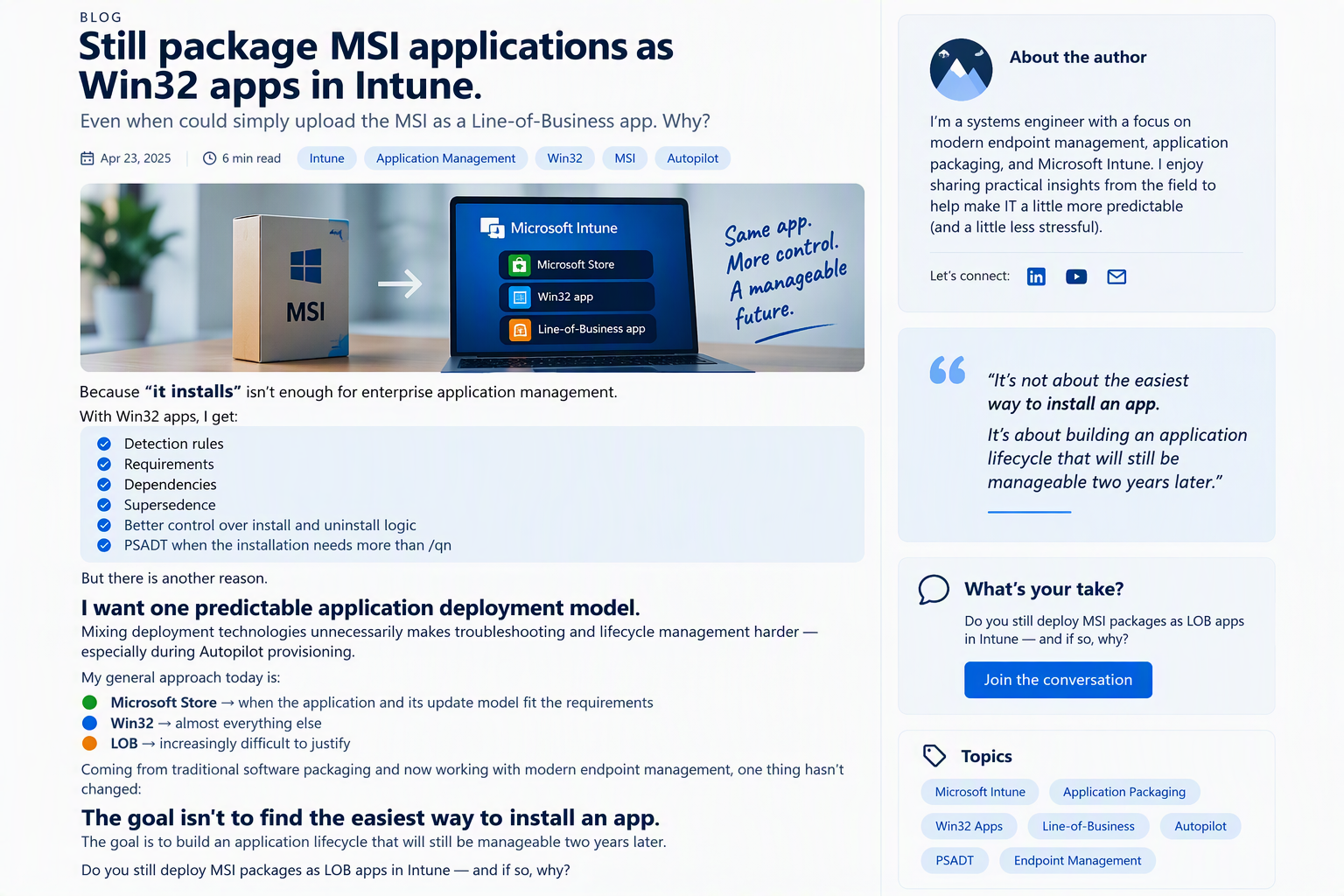
A Win32 application deployment is not a single action. It is a pipeline consisting of packaging, upload, assignment, applicability evaluation, detection, download, installation, verification, and reporting.
Once each stage is understood, the most common Intune application problems become easier to isolate:
- An application that never starts usually points to targeting, requirements, dependencies, or pre-installation detection.
- An application that remains in an installing state often points to an interactive installer, hanging child process, or incorrect command.
- An application that installs successfully but reports failure usually points to post-installation detection.
- An application reported as installed when it is missing usually points to an overly broad detection rule.
The most important troubleshooting question is no longer, “Why did Intune fail?” The better question is, “At which stage did the Win32 application workflow stop?”
Official References
- Win32 app management in Microsoft Intune 【1-144402】
- Add, assign, and monitor a Win32 app in Microsoft Intune 【2-7224fa】
- Microsoft Intune Management Extension for Windows 【3-ca741d】
- Troubleshoot Win32 applications in Microsoft Intune 【4-5c870c】
- Microsoft Win32 Content Prep Tool 【5-7fcf43】