






Windows Autopilot Deployment Issues — Day 8 of the Microsoft Intune Real-Time Troubleshooting Series
Day 8 of the Microsoft Intune Real-Time Troubleshooting Series
Welcome to Day 8 of the Microsoft Intune Real-Time Troubleshooting Series — 15 days, 15 real-world scenarios, 15 practical solutions.
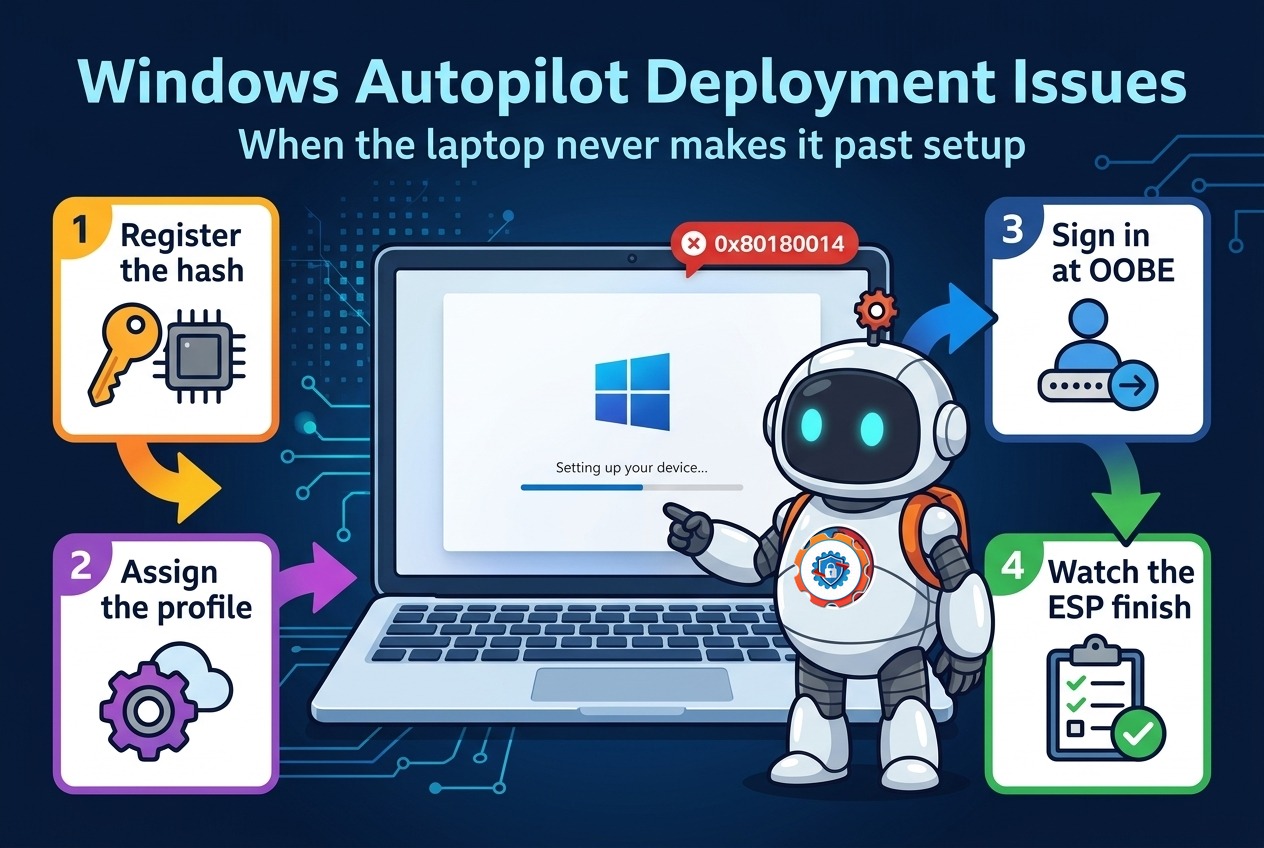
The first seven days got a device enrolled, signed in, compliant, profiled, running its apps and scripts, and encrypted. Today is about the deployment itself — the moment a laptop goes from a sealed box to a managed desktop with nobody from IT touching it. That moment is Windows Autopilot: when it works, the user opens the box, connects to Wi-Fi, signs in, and lands on a desktop with their apps and policies already in place. When it breaks, the user is stuck on a setup screen with a hex error code, or watching a progress screen that never moves — and the rollout queue fills up. Autopilot fails in a small number of places, and the error code usually tells you which one.
1. Real-World Scenario
It is Monday morning, and sixty new laptops have arrived from the OEM for a new office. The hardware hashes were imported into Intune on Friday. The plan is zero-touch: the users unbox their own laptops, sign in, and start work.
By 10 a.m. the service desk has three groups of tickets that do not look related until you put them together.
Group one: eighteen laptops stop at the out-of-box experience with "Something went wrong" and error 0x80180014 at "Registering your device for mobile management." Three more show the wrong company branding on the sign-in screen — the name of the vendor's demo tenant, not the company.
Group two: the laptops that get past sign-in sit on the Enrollment Status Page at "Account setup" for the full hour, then fail with a timeout error — the user never reaches the desktop.
Group three: the six laptops the technician pre-provisioned on Friday — the white-glove batch, apps and policies installed before the users ever see them — fail in the technician flow with error 0x80180005.
Sixty laptops, three different failures, one rollout.
2. Root Cause Analysis
Autopilot is a chain: the device must be registered, a profile must be assigned, the profile must download, the device must join Entra ID and enroll, and the Enrollment Status Page must finish. One weak link stops the whole chain, and each link fails in its own way.
1. The hardware hash was never imported — or has not synced yet. A device that is not in the Autopilot service cannot get a profile. Event ID 807 (ZtdDeviceIsNotRegistered) is the tell, and the OOBE error is usually 0x80180014. After importing a hash, allow at least 15 minutes before the device tries to enroll — the service does not sync instantly.
2. No deployment profile is assigned to the device. Registration alone is not enough, and assignment is group-based — the device must be in a group the profile targets. Event ID 815 (ZtdDeviceHasNoAssignedProfile) means no profile was found at all; Event ID 809 means the profile that was assigned has since been deleted. In the admin center the device shows a profile status of "Not assigned."
3. Pre-provisioning is blocked in the assigned profile. The technician flow — Windows Autopilot for pre-provisioned deployment, the white-glove flow — only works if the profile allows it. If "Allow pre-provisioned deployment" is set to No, the technician's enrollment fails at "Registering your device for mobile management" with error 0x80180005.
4. The device is being reused and the old record is still there. Self-deploying and pre-provisioning deployments create a device record in Intune, and reusing, resetting, or redeploying such a device without clearing it fails with 0x80180014 — the same code as an unregistered device, which is why this one gets misdiagnosed. The fix is in the admin center: open the device under Windows Autopilot devices and select Unblock device, then redeploy. The same code also appears when Windows MDM enrollment is disabled in the tenant.
5. The device is registered in the wrong tenant. A hash imported into a vendor's demo tenant, or a serial number that does not match the hardware, means the registration and the tenant the user signs into do not agree. Event ID 908 (SerialNumberMismatch / ProductKeyIdMismatch) marks the mismatch, and the registry value TenantMatched under HKLM\SOFTWARE\Microsoft\Provisioning\Diagnostics\Autopilot is 0 — the user is shown an error and forced to start over. The wrong branding on the sign-in screen is the visible symptom.
6. TPM attestation fails. Self-deploying and pre-provisioning modes enroll the device without user credentials, so they prove its identity with TPM attestation — which needs a TPM 2.0 that is present, enabled, and ready. Event ID 171 (AutopilotManager failed to set TPM identity confirmed) is the failure, and Event ID 172 usually follows it. A TPM disabled in firmware, or cleared by a motherboard swap and never re-initialized, stops both modes cold.
7. The network blocks the profile download. The profile downloads from the Autopilot deployment service as soon as the network is in place — and is re-downloaded after every reboot. If the device cannot reach the service, no profile ever arrives, and Windows caches a blank profile locally and runs a generic out-of-box experience with none of the company's settings. The registry value IsAutopilotDisabled set to 1 under the Autopilot diagnostics key is the marker.
8. The Enrollment Status Page never finishes. The ESP runs in three phases — Device preparation (Entra join and enrollment), Device setup (device-targeted apps, certificates, and profiles), and Account setup (user-targeted items after sign-in) — and when "Block device use until all apps and profiles are installed" is set to Yes, the user waits until every tracked item completes or the timer expires. The default timer is 60 minutes (hybrid Entra join adds about 40 minutes on top). The usual culprits: too many apps on the blocking list, a blocking list on a user-targeted ESP profile (ignored during device setup — a documented quirk), line-of-business MSI apps mixed with Win32 apps, or an app that reboots the device during Account setup, where reboots are not supported.

3. Step-by-Step Troubleshooting
Work in this order: read the exact error, check the registration, read the logs, then fix the layer the evidence points at.
1. Read the exact error and where it stopped. 0x80180014 at "Registering your device for mobile management" is a registration or reuse problem; 0x80180005 in the technician flow is pre-provisioning blocked; an ESP timeout is a different problem entirely — note which phase it stalled in (Device preparation, Device setup, or Account setup), because each phase tracks different items.
2. Check the device in the admin center. In the Intune admin center, go to Devices > Enrollment > Windows Autopilot devices and search by serial number. The device should be listed with a profile status of "Assigned." Not listed means the hash was never imported; "Not assigned" means the profile targeting is wrong.
3. Confirm the profile assignment and the sync. Assignment is group-based: confirm the device is in a group the deployment profile targets, and that the group has synced. If the hash was imported recently, wait at least 15 minutes before the device tries to enroll, then reboot — the profile is re-downloaded after every reboot, so a reboot also recovers a device that cached a blank profile.
4. Read the Autopilot event log. On the device, open Event Viewer and go to Applications and Services Logs > Microsoft > Windows > ModernDeployment-Diagnostics-Provider > Autopilot. Event 807 means not registered; 815 means no profile assigned; 809 means the assigned profile was deleted; 908 means a serial or product-key mismatch; 171 means TPM attestation failed; 153 means the profile downloaded successfully. Event 100 ("Autopilot policy not found") is usually temporary — the device is still waiting for the profile.
5. Check the Autopilot registry. On the device, read HKLM\SOFTWARE\Microsoft\Provisioning\Diagnostics\Autopilot. CloudAssignedTenantDomain shows the tenant the device is registered with — blank means not registered. TenantMatched is 1 when the sign-in tenant matches the registration and 0 when it does not. IsAutopilotDisabled set to 1 means no registration or the profile could not be downloaded.
6. Open the diagnostics page, or collect the CAB. On Windows 11, if the ESP profile has "Show app and profile configuration progress" and "Turn on log collection and diagnostics page for end users" both set to Yes, press Ctrl+Shift+D during the ESP (or select View Diagnostics) to see the provisioning detail live. Otherwise, press Shift+F10 at the out-of-box experience and run mdmdiagnosticstool.exe -area Autopilot;TPM -cab C:\AutopilotLogs.cab. Diagnostics are also collected automatically when Autopilot fails — check them under Tenant administration > Device diagnostics in the admin center, where they are kept for 28 days. If the automatic CAB never arrives, confirm the network path: ztd.dds.microsoft.com and enrollment.manage.microsoft.com over port 443, and lgmsapeweu.blob.core.windows.net unblocked for the diagnostics upload.
7. Fix the profile, not the device. If pre-provisioning is blocked, set "Allow pre-provisioned deployment" to Yes in the assigned profile. If the profile is missing, assign one — and if it was deleted, assign a different one. For a reused self-deploying or pre-provisioning device failing with 0x80180014, use Unblock device in the Autopilot devices list, then redeploy. A wrong-tenant registration has to be deleted from the wrong tenant and re-imported into the right one — there is no way to re-point it from the device.
8. Find the app or item holding the ESP. Check the Intune Management Extension log at C:\ProgramData\Microsoft\IntuneManagementExtension\Logs\IntuneManagementExtension.log for the app installs, and the ESP tracking registry under HKLM\SOFTWARE\Microsoft\Enrollments\{EnrollmentGUID}\FirstSync (a SkipUserStatusPage value of 0xffffffff means the Account setup phase was skipped). Then fix the ESP profile: change the blocking list from All to Selected with only the apps users need on day one, move line-of-business MSI apps out of the ESP deployment, and fix any app that reboots during Account setup — reboots are supported during Device setup, not Account setup. Raise the timer ("Show an error when installation takes longer than specified number of minutes") to cover the real install time on the slowest network.

9. Reset cleanly when the device state is the problem. Use Windows Autopilot Reset from the Intune admin center: it removes user data and apps, keeps the device registered in Entra ID and Intune, and re-runs the out-of-box experience. Do not wipe the device manually and re-import the hash — a manual wipe orphans the Entra device object and the Autopilot record, which is how the reused-device failure in cause 4 starts.
4. PowerShell Commands
Each of these is a real command an admin runs on the device or against the tenant. Run the device-side ones in an elevated prompt where noted. At the out-of-box experience, press Shift+F10 to open a command prompt.
# Collect the device's hardware hash into a CSV for import (PowerShell Gallery script by Michael Niehaus)
Install-Script -Name Get-WindowsAutopilotInfo -Force
Get-WindowsAutopilotInfo -OutputFile C:\Temp\AutopilotHash.csv
# Check Entra join state and whether a Primary Refresh Token is held
dsregcmd /status# Check the TPM — self-deploying and pre-provisioning need TPM 2.0, present and ready
Get-Tpm | Select-Object TpmPresent, TpmReady, TpmEnabled, TpmActivated, ManufacturerVersion# Confirm the device can reach the Autopilot deployment service (port 443)
Test-NetConnection ztd.dds.microsoft.com -Port 443# Read the Autopilot event log — 807 not registered, 815 no profile, 908 mismatch, 171 TPM attestation
Get-WinEvent -LogName 'Microsoft-Windows-ModernDeployment-Diagnostics-Provider/Autopilot' -MaxEvents 30 |
Where-Object { $_.Id -in 100, 153, 163, 171, 172, 807, 809, 815, 908 } |
Select-Object TimeCreated, Id, LevelDisplayName, Message# Read the Autopilot registration the device actually holds — tenant, match state, disabled flag
Get-ItemProperty 'HKLM:\SOFTWARE\Microsoft\Provisioning\Diagnostics\Autopilot' |
Select-Object CloudAssignedTenantDomain, CloudAssignedTenantId, TenantMatched, IsAutopilotDisabled# Collect the Autopilot + TPM diagnostic bundle (at OOBE, from the Shift+F10 prompt)
mdmdiagnosticstool.exe -area Autopilot;TPM -cab C:\AutopilotLogs.cab# Parse a collected Autopilot CAB with the companion diagnostics script (PowerShell Gallery)
Install-Script -Name Get-AutopilotDiagnostics -Force
Get-AutopilotDiagnostics -Online# Check the ESP state the device recorded — SkipUserStatusPage 0xffffffff means Account setup was skipped
Get-ItemProperty 'HKLM:\SOFTWARE\Microsoft\Enrollments\*\FirstSync' -ErrorAction SilentlyContinue |
Select-Object PSChildName, SkipUserStatusPage# Restart immediately from the OOBE command prompt so the device re-downloads its profile
shutdown.exe /r /t 0# From the admin side: confirm the device is registered and which profile is assigned (Microsoft Graph)
Connect-MgGraph -Scopes 'DeviceManagementServiceConfig.Read.All'
Get-MgDeviceManagementWindowsAutopilotDeviceIdentity -Filter "serialNumber eq 'PF3X9K2A'" |
Select-Object SerialNumber, Model, Manufacturer, DeploymentProfileAssignmentStatus, GroupTag# Tail the Intune Management Extension log to see which app install the ESP is waiting on
Get-Content 'C:\ProgramData\Microsoft\IntuneManagementExtension\Logs\IntuneManagementExtension.log' -Tail 505. Important Log Locations
| Location | What it tells you |
|---|---|
| Event Viewer > Applications and Services Logs > Microsoft > Windows > ModernDeployment-Diagnostics-Provider > Autopilot | The Autopilot log. Event 807 = device not registered; 809/815 = no profile assigned; 908 = serial/product-key mismatch; 171 = TPM attestation failed; 153 = profile downloaded; 100 = profile not found yet (usually temporary). |
| Event Viewer > Applications and Services Logs > Microsoft > Windows > DeviceManagement-Enterprise-Diagnostics-Provider > Admin | The enrollment log. Event ID 76 = failed auto-enrollment with the error code; Event ID 75 = success. |
| Event Viewer > Applications and Services Logs > Microsoft > Windows > User Device Registration > Admin | The Entra join log. Event ID 204 = join started; 304 = join succeeded. If the join failed, enrollment never had a chance. |
| C:\ProgramData\Microsoft\IntuneManagementExtension\Logs\IntuneManagementExtension.log | The agent log — which Win32 apps installed, which failed, and what the ESP is waiting on. |
| HKLM\SOFTWARE\Microsoft\Provisioning\Diagnostics\Autopilot | The registration the device holds: CloudAssignedTenantDomain, TenantMatched (1 = match, 0 = wrong tenant), IsAutopilotDisabled. |
| HKLM\SOFTWARE\Microsoft\Enrollments\{EnrollmentGUID}\FirstSync | ESP settings and tracking — including SkipUserStatusPage (0xffffffff means the Account setup phase was skipped). |
| Intune admin center > Tenant administration > Device diagnostics | Diagnostics CABs collected automatically when Autopilot fails, kept for 28 days. |
| Event Viewer > Applications and Services Logs > Microsoft > Intune > ODJConnectorService | The Intune Connector for Active Directory log — the hybrid Entra join path. The connector needs line of sight to a domain controller. |
| C:\Users\Public\Documents\MDMDiagnostics | Output of mdmdiagnosticstool.exe — the device-side diagnostic bundle including the Autopilot ETL traces. |
6. Practical Resolution
Back to the sixty laptops — each group has a different fix at a different layer.
Group one — the eighteen 0x80180014 failures. Fifteen were imported Friday at 17:40 and the rollout started Monday at 08:00 — but the import had queued behind a larger batch, and the records had not finished syncing. Event 807 confirmed it: wait, reboot, and the profile downloaded — fifteen laptops enrolled on the next attempt. The other three showed Event 908: the OEM had transposed two characters in their serial numbers, so their hashes were re-collected with Get-WindowsAutopilotInfo and re-imported. The three laptops showing the vendor\'s demo branding had their hashes registered in the vendor\'s demo tenant: the registrations were deleted there and re-imported into the company tenant.
Group two — the ESP timeouts. The ESP profile had its blocking list set to All, with fourteen required apps, including a line-of-business MSI and an app whose installer reboots the machine during Account setup — where reboots are not supported. Worse, the blocking list lived on a user-targeted ESP profile, which the device setup phase ignores. The fix: Selected blocking list with only the security agent and the VPN client, the MSI moved out of the ESP deployment, the rebooting app\'s install behavior fixed in Intune, and the timer raised from 60 to 90 minutes. The next batch reached the desktop in eleven minutes.
Group three — the 0x80180005 pre-provisioning failures. The assigned profile had "Allow pre-provisioned deployment" set to No — the technician flow was never enabled for it. Setting it to Yes let the flow continue immediately, with no reboot and no profile re-download. One of the six was also a reused pilot device: it needed Unblock device in the Autopilot devices list before it would enroll again.
The fix, in order:
- Re-import the three mismatched hashes and the three wrong-tenant registrations, and wait at least 15 minutes after any import before devices enroll.
- Confirm every device shows "Assigned" in the Autopilot devices list before it ships to a user.
- Set "Allow pre-provisioned deployment" to Yes on the profile used for the technician flow, and Unblock device for any reused machine.
- Cut the ESP blocking list to Selected (security + VPN only), move the MSI out, fix the rebooting app, and raise the timer to 90 minutes.
- Add three runbook checks: no device ships until its profile status reads "Assigned"; every import ends with a 15-minute wait and a spot-check reboot; every ESP profile change is tested on one device before it reaches a rollout.
The laptops were never the problem. The chain was: registrations that had not synced, a profile that blocked the technician flow, and a setup screen waiting on apps it was never going to finish.
7. Interview Questions
Q1: A device fails at the out-of-box experience with error 0x80180014. What is the first thing you check?
Whether the device is registered in the Autopilot service and has a profile assigned. In the admin center, Devices > Enrollment > Windows Autopilot devices, search by serial number — it should be listed with a profile status of "Assigned." On the device, Event ID 807 in the ModernDeployment-Diagnostics-Provider > Autopilot log means the hash was never imported; 815 means no profile is assigned. The same code on a reused self-deploying or pre-provisioning device means the old Intune record is still there — use Unblock device.
Q2: What is the difference between user-driven, self-deploying, and pre-provisioning Autopilot?
User-driven is the standard flow: the user signs in with their Entra credentials, the device joins Entra ID and enrolls. Self-deploying enrolls the device with no user credentials at all — the device joins as itself, which is why it needs TPM 2.0 attestation (Event 171 is the failure when attestation breaks). Pre-provisioning is the technician flow: IT runs the deployment before the user ever sees the device, so apps and policies are already installed — the technician starts it by pressing the Windows key five times at the out-of-box experience, and the profile must have "Allow pre-provisioned deployment" set to Yes.
Q3: A device sits on the Enrollment Status Page at Account setup until the 60-minute timer expires. How do you find what it is waiting on?
First confirm which phase stalled — Device preparation, Device setup, or Account setup — because each tracks different items. Then check the Intune Management Extension log for the app installs, and the ESP tracking registry under HKLM\SOFTWARE\Microsoft\Enrollments\{EnrollmentGUID}\FirstSync. The usual causes: too many apps on the blocking list, a blocking list on a user-targeted ESP profile (ignored during device setup), a line-of-business MSI mixed with Win32 apps, or an app that reboots during Account setup, where reboots are not supported. Fix the ESP profile — Selected list, day-one apps only — and raise the timer to cover the real install time.
Q4: What do Autopilot Event IDs 807, 815, and 908 mean?
807 (ZtdDeviceIsNotRegistered) — the device's hardware hash is not in the Autopilot service; import it and wait at least 15 minutes. 815 (ZtdDeviceHasNoAssignedProfile) — the device is registered but no deployment profile is assigned to it; check the group targeting. 908 (SerialNumberMismatch / ProductKeyIdMismatch) — the serial number or product key in the registration does not match the hardware; re-collect the hash and re-register the device.
Q5: A device is stuck at the out-of-box experience. How do you collect Autopilot diagnostics from it?
Press Shift+F10 to open a command prompt and run mdmdiagnosticstool.exe -area Autopilot;TPM -cab C:\AutopilotLogs.cab — the bundle includes the Autopilot event traces and the TPM state. On Windows 11, if the ESP profile enables the diagnostics page, press Ctrl+Shift+D (or select View Diagnostics) to see the provisioning detail live. Diagnostics are also collected automatically when Autopilot fails and uploaded to the tenant, under Tenant administration > Device diagnostics for 28 days — but only if lgmsapeweu.blob.core.windows.net is not blocked on the network.
Q6: A device was reset and now fails re-enrollment with 0x80180014, but it enrolled fine the first time. Why?
For self-deploying and pre-provisioning deployments, Intune keeps a device record from the first deployment, and reusing the device without clearing it fails with 0x80180014. In the admin center, open the device under Windows Autopilot devices and select Unblock device, then redeploy the profile. The same code also appears when Windows MDM enrollment is disabled in the tenant — check the enrollment restrictions if unblocking does not fix it. Prefer Windows Autopilot Reset from Intune over a manual wipe: it keeps the registration intact instead of orphaning the Entra device object.
Day 8 done. Tomorrow, Day 9: Conditional Access Errors — when the policy that is supposed to protect sign-in locks the user out instead.
Follow the series here on ongoingideas.com — one scenario a day, for 15 days.
Missed the start of the series? Begin with Day 1: Windows Device Not Enrolling into Intune, then Day 2: Company Portal Login Failures, then Day 3: Device Compliance Issues, then Day 4: Configuration Profile Failures, then Day 5: Win32 Application Installation Issues, then Day 6: Intune Management Extension Troubleshooting, then Day 7: BitLocker Policy Failures.