












Intune Management Extension Troubleshooting — Day 6 of the Microsoft Intune Real-Time Troubleshooting Series
Day 6 of the Microsoft Intune Real-Time Troubleshooting Series
Welcome to Day 6 of the Microsoft Intune Real-Time Troubleshooting Series — 15 days, 15 real-world scenarios, 15 practical solutions.
Day 1 was a device that would not enroll; Day 2, a user locked out of the Company Portal; Day 3, a device judged noncompliant; Day 4, settings that would not land; Day 5, apps that would not install. The device is enrolled, signed in, compliant, and taking its policies. The MDM channel is healthy. And yet nothing that depends on the agent ever happens: Win32 apps sit on Install pending, PowerShell scripts never run, remediations stay silent. The admin center shows the device checking in happily — and the agent that does the actual work is missing, stopped, or quietly broken.
That agent is the Intune Management Extension — the IME. It installs your Win32 apps, runs your scripts, and carries out remediations. When it breaks, everything it owns goes quiet at once, while everything the MDM channel owns keeps working. That split — profiles fine, apps and scripts dead — is the signature of an IME problem.
1. Real-World Scenario
It is Monday morning, and the service desk has a strange pattern in the queue: forty tickets, all from the same floor. The new VPN client never arrived, the disk-cleanup script IT pushed last week never ran, and a compliance remediation did nothing.
In the Intune admin center, the affected devices are all enrolled, checked in within the last hour, compliant, and showing their configuration profiles as succeeded. They look perfectly managed.
But the app blade tells a different story: the VPN client has sat on Install pending since Friday, and the PowerShell script shows no run history at all — not failed, not succeeded. And the remediation shows no results. Nothing the Intune Management Extension is responsible for has happened on any of these machines since Thursday afternoon.
The tickets disagree about what is broken, but the pattern is the clue: everything that runs through the MDM channel works, and everything that runs through the agent does not. The agent is the problem. The question is which part of it.
2. Root Cause Analysis
The IME is a Windows service — IntuneManagementExtension — plus a small agent install and a set of logs. It installs automatically, but only when the device qualifies and only when something that needs it is assigned. It fails in a small number of places, in a predictable order of likelihood.
1. The IME was never installed — nothing that needs it was ever assigned. The agent installs automatically when a PowerShell script, a Win32 app, a Microsoft Store app, a custom compliance policy, or a proactive remediation is assigned to the user or device. No qualifying workload, no agent — and no error, either.
2. The device does not meet the prerequisites. The IME needs a supported Windows edition — not Windows Home, not S mode — a device joined to Microsoft Entra ID (Entra joined, hybrid joined, or registered), enrollment in Intune, .NET Framework 4.7.2 or later, and Windows 10 version 1607 or later (1709 or later for automatic enrollment).
3. The service is stopped, disabled, or will not start. The agent is the IntuneManagementExtension service, running as System. If it is stopped, nothing in its lane runs A corrupted agent configuration file is a known cause, as is a broken .NET install.
4. The agent is too old to receive work. Devices must run IME version 1.58.103.0 or later; older versions receive no IME-dependent work. It updates itself automatically on sync, so a device that has not synced in weeks can be stranded on an old build.
5. The agent cannot check in. The IME checks for new or updated work every 8 hours, on a schedule independent of the MDM check-in. No internet access, no route to the Intune service endpoints, or no Windows Push Notification Services (WNS) means the agent never learns about its assignments. A proxy configured only at the user level is a classic version: the agent runs as System, so it cannot see a user-level proxy.
6. The agent removed itself after an irrecoverable failure. Microsoft removes the IME when it has been in an irrecoverable state for more than 24 hours of device-awake time, when no scripts are assigned anymore, or when the device is no longer managed. A device that had the agent on Thursday and does not have it on Monday may have removed it itself
7. The "Microsoft Intune Windows Agent" app is disabled in Entra ID. The IME authenticates against the Intune gateway using a Microsoft Entra app called Microsoft Intune Windows Agent. Under some conditions this app fails a subscription validity check and gets disabled — and re-enabling it does not stick. While it is disabled, the agent cannot get tokens and user-targeted payloads stop working. The fix: delete the app's service principal with Microsoft Graph, forcing a clean re-creation.
8. The assignment never reached the device. The agent can be perfectly healthy and still do nothing if the work was never targeted at it: an app assigned to the wrong group, a script assigned to users when the device needs a device assignment, or — on co-managed devices — the Apps workload still set to Configuration Manager
9. The script or app fails inside the agent, not because of it. A PowerShell script that exits non-zero, a script written for the 64-bit PowerShell host running in the 32-bit host, or an app stuck in the Global Re-evaluation Schedule cooldown after three failures (see Day 5) all look like "the agent did nothing" from the admin center. The agent ran the work; the work itself failed — see AgentExecutor.log for scripts and AppWorkload.log for apps.


3. Step-by-Step Troubleshooting
Work in this order: confirm the agent exists, confirm it is running, confirm it can talk to Intune, then read the right log.
1. Confirm the agent is installed at all. Check that the folder C:\Program Files (x86)\Microsoft Intune Management Extension exists and contains Microsoft.Management.Services.IntuneWindowsAgent.exe. Folder missing means the agent was never installed — go to step 8 first.


2. Check the service. Run Get-Service IntuneManagementExtension. The service must be Running with a StartType of Automatic. If it is stopped, start it and watch whether it stays up.
3. Check the agent version. Read the file version of the agent executable in PowerShell. It must be 1.58.103.0 or later. An older version explains a device that "has the agent" but receives no IME-dependent work.
4. Force a check-in — the right way. The IME checks in every 8 hours on its own schedule, and the Sync button in the Settings app or the admin center only triggers an MDM check-in. To force the agent to check in, restart the IntuneManagementExtension service — or open the Company Portal, go to Settings, and tap Sync, which triggers both.
5. Read the main log. Open C:\ProgramData\Microsoft\IntuneManagementExtension\Logs\IntuneManagementExtension.log in CMTrace (or OneTrace) and look for the most recent check-in and any error lines. No entries since Thursday means the agent has not checked in since then — a connectivity or authentication problem, not an app problem.
6. Read the workload log that matches the symptom. Apps: AppWorkload.log. Scripts: AgentExecutor.log. Remediations: HealthScripts.log. Detection: AppActionProcessor.log. Agent health: ClientHealth.log.
7. Check the network path the way the agent sees it. The agent runs as System, so test connectivity as System, not as the signed-in user. Confirm the device can reach the Intune service endpoints and WNS. If the proxy is configured only at the user level, the agent cannot use it — configure the proxy machine-wide, or use bitsadmin /util /setieproxy to set the proxy for BITS, which the agent uses for downloads.
8. Verify the assignment and the prerequisites. In the admin center, use Troubleshooting + support > Troubleshoot for the user and device and confirm the app or script assignment actually arrived. Then confirm the prerequisites: edition (not Home, not S mode), Entra join state (dsregcmd /status), .NET Framework 4.7.2 or later, and the Apps workload on co-managed devices.
9. Check the "Microsoft Intune Windows Agent" app in Entra ID. If the agent checks in but user-targeted payloads never arrive, look in Entra ID at the Microsoft Intune Windows Agent enterprise application. If it is disabled and re-enabling it does not stick, delete its service principal with Microsoft Graph (an Application Administrator can do this in Graph Explorer) and let Intune re-create it.
10. Reinstall the agent cleanly, as a last resort. Do not install the agent by hand — manual installation is not supported; the only supported mechanism is automatic installation when the device syncs. Remove the cause, then re-trigger the install: confirm a qualifying workload is assigned, restart the service or sync from the Company Portal, and confirm the agent folder and service reappear.
4. PowerShell Commands
Each of these is a real command an admin runs on the device or against the tenant. Run the device-side ones in an elevated prompt where noted.
# Confirm the Intune Management Extension service exists and is running (elevated prompt)
Get-Service IntuneManagementExtension | Select-Object Name, Status, StartType
# Restart the IME to force an immediate check-in with Intune (elevated prompt)
Restart-Service IntuneManagementExtension# Check the agent version — must be 1.58.103.0 or later
(Get-Item 'C:\Program Files (x86)\Microsoft Intune Management Extension\Microsoft.Management.Services.IntuneWindowsAgent.exe').VersionInfo.FileVersion# Confirm the agent and logs folder exist
Test-Path 'C:\Program Files (x86)\Microsoft Intune Management Extension\Microsoft.Management.Services.IntuneWindowsAgent.exe'
Test-Path 'C:\ProgramData\Microsoft\IntuneManagementExtension\Logs'# List the IME log files, newest first
Get-ChildItem 'C:\ProgramData\Microsoft\IntuneManagementExtension\Logs' |
Sort-Object LastWriteTime -Descending | Select-Object Name, Length, LastWriteTime# Search the main agent log for check-in and error lines
Select-String -Path 'C:\ProgramData\Microsoft\IntuneManagementExtension\Logs\IntuneManagementExtension.log' -Pattern 'check-in|error|failed' |
Select-Object -Last 20 LineNumber, Line# Search the script-execution log for failed PowerShell scripts
Select-String -Path 'C:\ProgramData\Microsoft\IntuneManagementExtension\Logs\AgentExecutor.log' -Pattern 'error|failed|exit code' |
Select-Object -Last 20 LineNumber, Line# Check the .NET Framework version — the IME needs 4.7.2 or later
Get-ItemProperty 'HKLM:\SOFTWARE\Microsoft\NET Framework Setup\NDP\v4\Full' | Select-Object Release, Version# Confirm the device is Entra joined — the IME never installs on a device that is not
dsregcmd /status# Check the Windows edition — Home and S mode do not support the IME
Get-ComputerInfo | Select-Object WindowsProductName, WindowsEditionId# Confirm the device can reach the Intune service endpoint (port 443)
Test-NetConnection manage.microsoft.com -Port 443# From the admin side: is the Microsoft Intune Windows Agent app disabled in Entra ID?
Connect-MgGraph -Scopes 'Application.Read.All'
Get-MgServicePrincipal -Filter "displayName eq 'Microsoft Intune Windows Agent'" |
Select-Object DisplayName, AccountEnabled5. Important Log Locations
| Location | What it tells you |
|---|---|
| C:\ProgramData\Microsoft\IntuneManagementExtension\Logs\IntuneManagementExtension.log | The main agent log: check-ins, policy requests, processing, and reporting. Read this first when the agent is silent. Rolls over at 3 MB. |
| C:\ProgramData\Microsoft\IntuneManagementExtension\Logs\AgentExecutor.log | PowerShell script executions — exit code and output. |
| C:\ProgramData\Microsoft\IntuneManagementExtension\Logs\AppWorkload.log | Win32 app deployment: download, install, exit code, detection. |
| C:\ProgramData\Microsoft\IntuneManagementExtension\Logs\AppActionProcessor.log | Detection and applicability checks for assigned apps. |
| C:\ProgramData\Microsoft\IntuneManagementExtension\Logs\ClientHealth.log | IME health, including connectivity checks. |
| C:\ProgramData\Microsoft\IntuneManagementExtension\Logs\HealthScripts.log | Remediation health and results. |
| C:\ProgramData\Microsoft\IntuneManagementExtension\Logs\ClientCertCheck.log | Device client certificate checks. |
| C:\ProgramData\Microsoft\IntuneManagementExtension\Logs\Win32AppInventory.log | The installed-app inventory the agent collects. |
| C:\ProgramData\Microsoft\IntuneManagementExtension\Logs\Sensor.log | Endpoint analytics data collection. |
| C:\Program Files (x86)\Microsoft Intune Management Extension\ | The agent install folder, including the agent executable and its .exe.config file. A corrupted config stops the service from starting. |
| Event Viewer > Applications and Services Logs > Microsoft > Windows > DeviceManagement-Enterprise-Diagnostics-Provider > Admin | The MDM channel log. Profiles, enrollment, and compliance live here — not IME work. If the agent is the problem, this log will look healthy. |
| Intune admin center > device > Device diagnostics (via Collect diagnostics) | Pull the IME logs off a device you cannot reach. The device must be online. |
6. Practical Resolution
Back to the forty tickets. The troubleshooting above narrows it down fast — to three different causes on the same floor.
First, the service check: on thirty machines, Get-Service IntuneManagementExtension returns Stopped, and the main log stops on Thursday afternoon. These machines got the new VPN client assignment on Thursday — their first Win32 app — and the agent had never installed. Their proxy is configured at the user level only, and the agent runs as System: it could never reach the Intune service to download itself. The fix is a machine-wide proxy configuration; the agent then installs and the VPN client follows.
Second, on eight machines the service is running, but the agent version reads 1.55.x — below the 1.58.103.0 floor. Their users work offline most days, so the machines have not synced in weeks and the agent never got its automatic update. The fix is a sync from the Company Portal, which triggers both the check-in and the update.
Third, on the last two machines the agent is current and the service is running — but ClientHealth.log shows repeated authentication failures. In Entra ID, the Microsoft Intune Windows Agent app is disabled, and re-enabling it does not stick. The fix is tenant-level: delete the service principal with Microsoft Graph and let Intune re-create it.
The fix, in order:
- Fix the proxy at the machine level on the affected floor, so the System-context agent can reach Intune; confirm the agent installs and the service starts.
- On the stale machines, sync from the Company Portal to force an IME check-in and let the agent update past 1.58.103.0.
- Delete and re-create the disabled Microsoft Intune Windows Agent service principal in Entra ID.
- Verify in the admin center that the VPN client installs, the disk-cleanup script reports a run, and the remediation returns results.
- Add two checks to the runbook: a new Win32 app or script assignment is not "done" until the agent's first check-in appears in
IntuneManagementExtension.log, and any floor with a user-level-only proxy gets a machine-wide proxy first.
The devices were never the problem. The agent that does the work was either never installed, too old to be given work, or locked out of the tenant
7. Interview Questions
Q1: Apps and scripts do nothing, but configuration profiles apply fine. Where do you look first?
That split is the signature of an IME problem: profiles travel over the MDM channel, while apps and scripts travel through the Intune Management Extension agent. Check whether the IntuneManagementExtension service is running and what IntuneManagementExtension.log says about the last check-in.
Q2: What triggers the Intune Management Extension to install on a device?
It installs automatically when a qualifying workload is assigned to the user or device: a PowerShell script, a Win32 app, a Microsoft Store app, a custom compliance policy, or a proactive remediation. The device must also meet the prerequisites — a supported Windows edition (not Home, not S mode), Entra joined or registered, enrolled in Intune, and .NET Framework 4.7.2 or later.
Q3: How often does the IME check in with Intune, and how do you force it to check in now?
Every 8 hours, independent of the MDM check-in. The Sync button in the Settings app or the admin center only triggers an MDM check-in — it does not force an IME check-in. Restart the IntuneManagementExtension service, or sync from the Company Portal (Settings > Sync), which triggers both.
Q4: The agent is missing entirely from a device that should have it. What do you check?
In order: is a qualifying workload actually assigned to that user or device; does the device meet the prerequisites (edition, Entra join, enrollment, .NET 4.7.2+); can the device reach the Intune endpoints and WNS (the agent runs as System, so a user-level proxy is invisible to it); and is the device in S mode.
Q5: A PowerShell script runs on some devices but not others with the same assignment. What differs?
Start with the agent: is the IME installed and running on the failing devices, and is it version 1.58.103.0 or later? Then check targeting — user versus device assignment — and, on co-managed devices, whether the Apps workload is still with Configuration Manager. Then read AgentExecutor.log: a script that exits non-zero, or one written for the 64-bit host running in the 32-bit host, fails inside the agent while the agent itself is healthy.
Q6: The "Microsoft Intune Windows Agent" app is disabled in Entra ID and re-enabling it does not stick. What do you do?
Delete the app's service principal from the tenant using Microsoft Graph — an Application Administrator can do this in Graph Explorer with a DELETE on the service principal — and let Intune re-create it. While the app is disabled the agent cannot get tokens, so user-targeted payloads stop working.
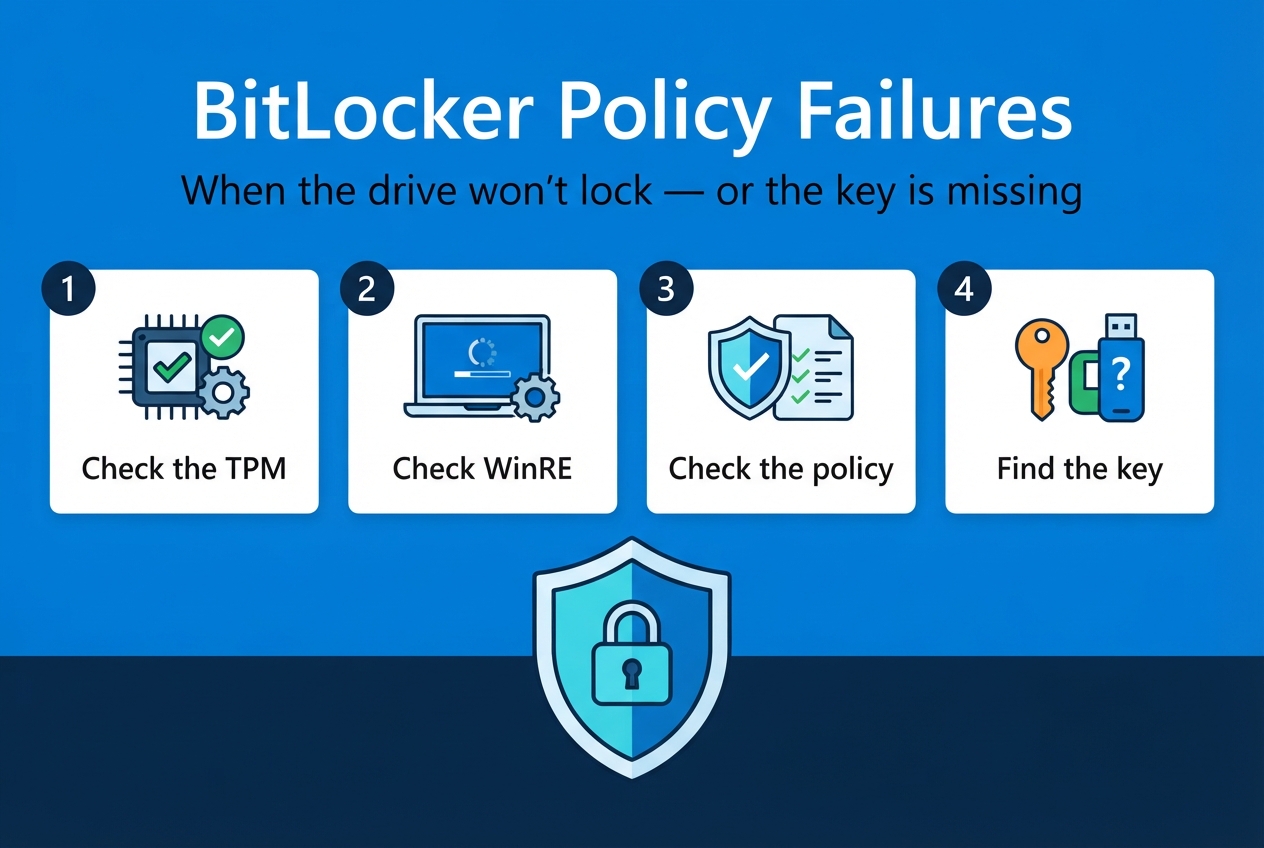
Day 6 done. Tomorrow, Day 7: BitLocker Policy Failures — when the encryption policy lands but the drive never locks, or the recovery key is nowhere to be found.
Follow the series here on ongoingideas.com — one scenario a day, for 15 days.
Missed the start of the series? Begin with Day 1: Windows Device Not Enrolling into Intune, then Day 2: Company Portal Login Failures, then Day 3: Device Compliance Issues, then Day 4: Configuration Profile Failures, then Day 5: Win32 Application Installation Issues.