










BitLocker Policy Failures — Day 7 of the Microsoft Intune Real-Time Troubleshooting Series
Day 7 of the Microsoft Intune Real-Time Troubleshooting Series
Welcome to Day 7 of the Microsoft Intune Real-Time Troubleshooting Series — 15 days, 15 real-world scenarios, 15 practical solutions.
The first six days covered enrollment, the Company Portal, compliance, profiles, apps, and the agent that does the work. The device is enrolled, signed in, compliant, taking its policies, and running its apps and scripts. Everything works — except the one control that protects the data on the disk if the laptop is lost or stolen.
That control is BitLocker. Intune can push a BitLocker policy that silently encrypts a device with no user interaction at all. When it fails, you get one of three symptoms: devices sitting unencrypted weeks after the policy landed; a user rebooting after a firmware update into a blue screen demanding a 48-digit recovery key nobody can find; or a device showing as encrypted while its recovery key exists nowhere. An encrypted drive with no recovery key is a data-loss incident waiting for a reboot.
1. Real-World Scenario
It is Monday morning, and the service desk has three BitLocker tickets from the weekend that do not look related until you put them together.
Ticket one: sixty new laptops went out last month under the new silent-encryption policy. The encryption report shows forty encrypted and twenty still Not encrypted, three weeks after the policy landed. No errors, no user complaints — the drives simply never encrypted.
Ticket two: a sales director updated her laptop's firmware on Friday. On Monday the machine boots to a blue BitLocker recovery screen asking for a 48-digit recovery key. She never saw a key, never saved one, and the help desk cannot find one for her device in Entra ID.
Ticket three: an executive's laptop was reported stolen on Saturday. The device shows as encrypted in the admin center — but when the security team goes to pull its recovery key from Entra ID, there is nothing there. If the laptop is recovered, nobody can unlock it.
Three symptoms, one policy, one tenant — and the troubleshooting starts in the admin center, not on the devices.
2. Root Cause Analysis
Silent BitLocker encryption is a chain: the policy lands, the hardware qualifies, the recovery key is backed up, and only then does encryption start. One weak link stops the whole chain, and each link fails in its own way.
1. The TPM is not ready. Silent encryption needs a TPM — version 1.2 or later — enabled, activated, and ready. On the twenty unencrypted laptops, the TPM is disabled in firmware on some, and never initialized after reimaging on others. The encryption report shows these devices as Not ready.
2. Windows Recovery Environment (WinRE) is disabled. WinRE is a hard prerequisite for silent encryption. If it is off — often after a custom image shrank the recovery partition — the device is ready in every other way and still never encrypts.
3. The hardware prerequisites are not met. Silent encryption also requires native UEFI firmware (not legacy BIOS), Secure Boot enabled, and a system partition of at least 350 MB formatted as FAT32 for UEFI. A machine in legacy BIOS mode, or one whose system partition was resized below the minimum during imaging, fails before encryption is even attempted. Windows 11 Home is a related trap: it does not support BitLocker management through Intune.
4. The policy still asks the user to do something. Not every BitLocker profile is silent. If the profile is configured for user-enabled encryption, the user gets a notification and has to start the process — and if they ignore it, the drive stays unencrypted indefinitely.
5. The encryption method does not match, or another product encrypted the drive first. If the policy demands XTS-AES 128-bit but the device is already encrypted with XTS-AES 256-bit — or the reverse — the device lands in an error state even though it is encrypted. The same happens when a device was encrypted manually, by MBAM, or by Configuration Manager before enrollment: the settings match the current policy, but Intune did not initiate the encryption.
6. The recovery key was never backed up. BitLocker backs the recovery key up to Entra ID before encryption starts — and if that backup fails, silent encryption fails with it. The two classic reasons: the device hit Entra ID's limit of 200 recovery keys per device, so the new backup is refused; or the device had no route to Entra ID at the critical moment.
7. The startup authentication settings conflict with silent encryption. Silent encryption requires TPM-only protection — it cannot ask for a startup PIN or a startup key, because either one needs the user. If a security baseline or a legacy Group Policy sets Require additional authentication at startup with a PIN or startup key required, the silent policy and the baseline fight each other, and encryption never starts.
8. A legacy Group Policy from the MBAM era still applies. A domain GPO written for the old MBAM deployment can set an encryption method, a recovery-key backup target, or a startup requirement that contradicts the Intune policy. The device then reports a policy conflict no Intune setting explains.

3. Step-by-Step Troubleshooting
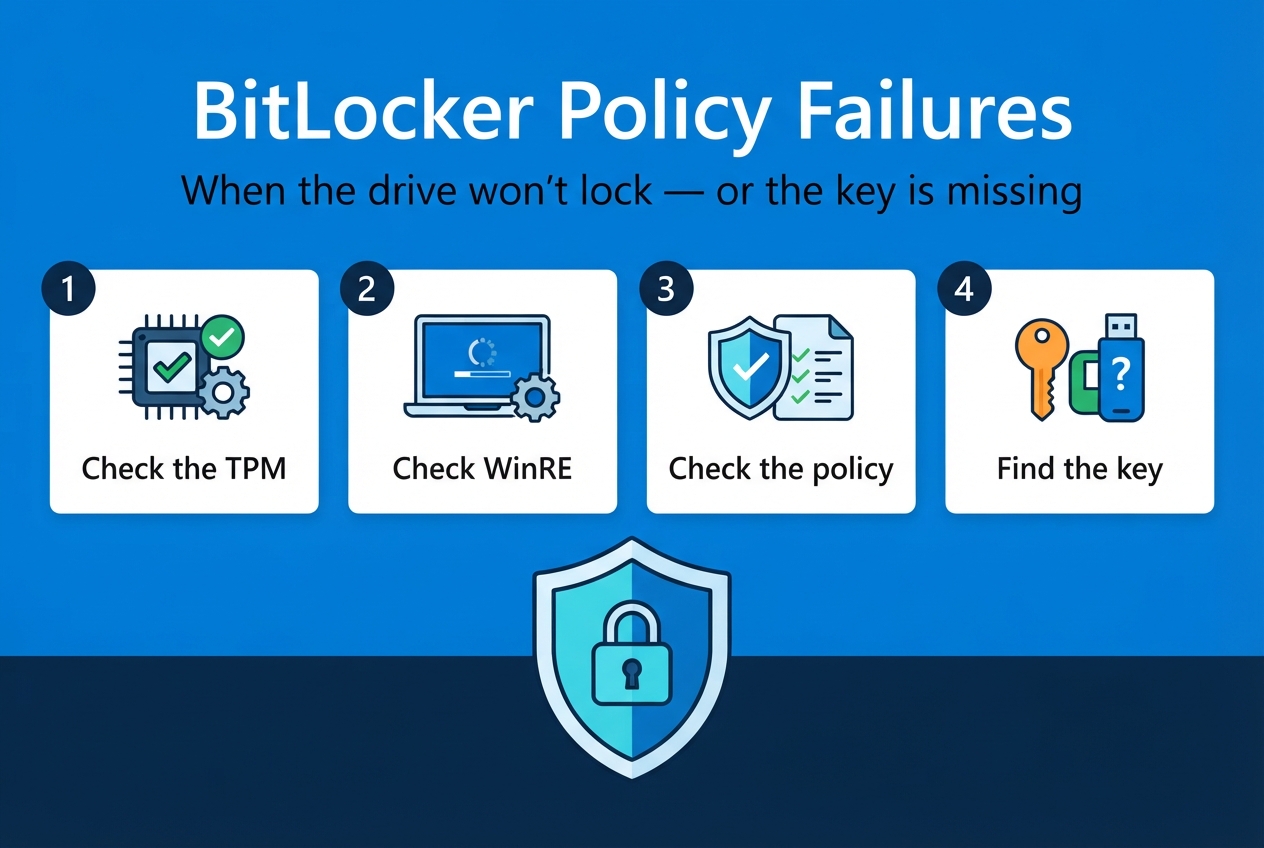
Work in this order: read the report, then confirm the device state, then check the hardware, then check the policy, then chase the key.
1. Open the Intune encryption report. In the Intune admin center, go to Devices > Monitor > Encryption report. It shows each device's encryption status, TPM status, and readiness — Ready, Not ready, or Not applicable. A Not ready device is a hardware problem; a Ready device that is not encrypted is a policy or user-action problem.
2. Confirm the encryption state on the device. On an affected laptop, run manage-bde -status C:. Check Conversion Status, Protection Status, and the Key Protectors list. A Fully Decrypted drive with no protectors never started; a Fully Encrypted drive with only a TPM protector has no recovery key to back up.
3. Check the TPM. Run Get-Tpm. The TPM must be present, enabled, activated, and ready — version 1.2 or later for silent encryption. If it is disabled in firmware, enable it in the UEFI settings. After a motherboard replacement, clear it with Clear-Tpm and let Windows re-initialize it.
4. Check WinRE. Run reagentc /info. Windows RE status must be Enabled. If it is disabled, enable it with reagentc /enable — and if that fails, the recovery partition is gone: an image fix, not a device fix.
5. Check the hardware prerequisites. Confirm the device boots in native UEFI mode (not legacy BIOS), Secure Boot is enabled, and the system partition is at least 350 MB and FAT32 for UEFI.
6. Read the policy the device actually received. Intune delivers BitLocker settings through the BitLocker CSP, and the BitLocker MDM policy Refresh scheduled task copies them into the BitLocker policy registry. Check HKLM\SOFTWARE\Microsoft\PolicyManager\current\device\BitLocker, then HKLM\SOFTWARE\Policies\Microsoft\FVE for Group Policy BitLocker settings — values there that contradict the MDM policy are the legacy-GPO conflict.
7. Read the BitLocker event logs. In Event Viewer, go to Applications and Services Logs > Microsoft > Windows > BitLocker-API > Management. Event ID 805 means the operating system volume was unlocked with a recovery key — useful for proving when a recovery prompt actually happened. The same log records whether the recovery-password backup to Entra ID or AD DS succeeded.
8. Chase the missing recovery key. In the Entra admin center, go to Devices > All devices, open the device, and look at its BitLocker keys. Every key has a key ID; the blue recovery screen shows the key ID at the bottom — match them. If there is no key at all, the backup never happened: add a new recovery password protector and back it up with BackupToAAD-BitLockerKeyProtector — before the next reboot, not after.

9. Break a recovery-prompt loop. A single recovery prompt after a firmware update is normal: the TPM's measured boot values changed, so it refuses to release the key. Enter the 48-digit key once, then reseal the TPM protector against the new measurements with manage-bde -protectors -disable C: followed immediately by manage-bde -protectors -enable C:.
10. Fix the policy, then re-verify. Fix the cause at the right layer: enable the TPM in firmware, enable WinRE, change the profile to truly silent (no startup PIN or key, no user step), remove the conflicting GPO, or decrypt a mismatched device and let the policy re-encrypt it. Then confirm the device is encrypted — and its key is in Entra ID.
4. PowerShell Commands
Each of these is a real command an admin runs on the device or against the tenant. Run the device-side ones in an elevated prompt where noted.
# Show the volume's encryption state, protection status, and key protectors
Get-BitLockerVolume -MountPoint C: |
    Select-Object MountPoint, VolumeStatus, ProtectionStatus, EncryptionMethod, KeyProtector
# Conversion status, protection, and protectors
manage-bde -status C:# Key protectors and their IDs — the recovery password ID is what Entra must hold
manage-bde -protectors -get C:# Check the TPM: present, ready, enabled, activated, and its version
Get-Tpm | Select-Object TpmPresent, TpmReady, TpmEnabled, TpmActivated, ManufacturerVersion# Confirm Windows Recovery Environment is enabled (elevated prompt)
reagentc /info# Read the BitLocker-API Management log — look for recovery unlocks (Event 805) and backup results
Get-WinEvent -LogName 'Microsoft-Windows-BitLocker-API/Management' -MaxEvents 20 |
Select-Object TimeCreated, Id, LevelDisplayName, Message# See the BitLocker policy the device actually received from Intune (MDM CSP settings)
Get-ItemProperty 'HKLM:\SOFTWARE\Microsoft\PolicyManager\current\device\BitLocker'# Back up an existing recovery password protector to Entra ID (use the ID from manage-bde -protectors -get)
BackupToAAD-BitLockerKeyProtector -MountPoint C: -KeyProtectorId '{11111111-2222-3333-4444-555555555555}'# Add a recovery password protector to a volume that only has a TPM protector
Add-BitLockerKeyProtector -MountPoint C: -RecoveryPasswordProtector# Encrypt the OS drive silently-style: TPM protector, XTS-AES 256-bit, used space only
Enable-BitLocker -MountPoint C: -EncryptionMethod XtsAes256 -UsedSpaceOnly -TpmProtector# Reseal the TPM protector after a firmware update so the recovery prompt stops (does not decrypt)
manage-bde -protectors -disable C:
manage-bde -protectors -enable C:# From the admin side: confirm a recovery key exists in Entra ID for this device (Microsoft Graph)
Connect-MgGraph -Scopes 'BitlockerKey.Read.All'
Get-MgInformationProtectionBitlockerRecoveryKey -All |
Where-Object { $_.DeviceId -eq '<device-object-id>' } |
Select-Object Id, CreatedDateTime, DeviceId5. Important Log Locations
| Location | What it tells you |
|---|---|
| Event Viewer > Applications and Services Logs > Microsoft > Windows > BitLocker-API > Management | Event ID 805 = the OS volume was unlocked with a recovery key; recovery-password backup success or failure is recorded here too. |
| Event Viewer > Applications and Services Logs > Microsoft > Windows > BitLocker-API > BitLocker Operational | Encryption starting, progressing, and completing on each volume. |
| Event Viewer > Applications and Services Logs > Microsoft > Windows > BitLocker > BitLocker Management | When BitLocker was turned on or off on a volume, and by what. |
| Event Viewer > Applications and Services Logs > Microsoft > Windows > BitLocker-DrivePreparationTool > Admin | Drive preparation failures — partition problems that stop encryption before it starts. |
| Event Viewer > Windows Logs > System | Event ID 24652 = the OS volume was unlocked using a recovery key (source BitLocker-Driver). |
| HKLM\SOFTWARE\Microsoft\PolicyManager\current\device\BitLocker | The BitLocker policy as Intune delivered it — what the device believes the policy says. |
| HKLM\SOFTWARE\Policies\Microsoft\FVE | Group Policy BitLocker settings — values contradicting the MDM policy are the legacy-GPO conflict. |
| Task Scheduler > Microsoft > Windows > BitLocker > BitLocker MDM policy Refresh | Copies the CSP settings into the BitLocker policy registry. If it never ran, the policy never reached BitLocker. |
| Intune admin center > Devices > Monitor > Encryption report | Per-device encryption status, TPM status, and readiness, with the CSP status codes behind each failure. |
| Entra admin center > Devices > All devices > device > BitLocker keys | The escrowed recovery keys for the device, each with its key ID — plus Read BitLocker key entries in the Entra audit log showing who viewed a key and when. |
6. Practical Resolution
Back to the three tickets — each has a different fix at a different layer.
The twenty unencrypted laptops. Twelve are Not ready: Get-Tpm shows the TPM disabled in firmware on eight — a BIOS default the imaging team never changed — and on four the TPM was never initialized after reimaging. Enable the TPM on the eight; clear and re-initialize it on the four. Five more are Ready but not encrypted, and reagentc /info shows WinRE disabled — the custom image dropped the recovery partition. The image gets fixed and WinRE re-enabled. The last three are Ready and waiting on a user who never acted: the profile was configured for user-enabled encryption, not silent. The profile is changed to silent and the three encrypt on the next refresh.
The sales director's recovery screen. Her firmware update changed the TPM's measured boot values — a normal, expected prompt after firmware work. The help desk matches the key ID on her blue screen to the keys in Entra ID and she boots. Then the admin reseals the protector with manage-bde -protectors -disable C: followed by -enable C:.
The executive's missing key. The device is encrypted, but Entra ID holds no key — and the BitLocker-API Management log shows the backup failed. The device had already accumulated 200 recovery keys from repeated re-encryptions, and Entra ID refused the 201st. The fix: add a fresh recovery password protector, back it up with BackupToAAD-BitLockerKeyProtector, and verify the key appears in Entra ID.
The fix, in order:
- Enable and initialize the TPM on the twelve Not ready machines; re-enable WinRE on the five image victims.
- Change the BitLocker profile to truly silent — no startup PIN, no startup key, no user step — and remove the legacy MBAM-era GPO that conflicts with it.
- Recover the sales director with the matched key from Entra ID, then reseal her TPM protector so the prompt does not loop.
- Create and back up a fresh recovery password protector for the executive's device, and confirm it in Entra ID.
- Add three runbook checks: a device is not "done" until the report shows it encrypted and its key is in Entra ID; every reimage ends with a TPM and WinRE check; every firmware update is followed by a reseal check.
The laptops were never the problem. The chain was: hardware that did not qualify, WinRE off, a policy that still asked the user, and a backup that failed silently.
7. Interview Questions
Q1: A device shows as Not encrypted in the Intune encryption report three weeks after the BitLocker policy landed. Where do you start?
In the encryption report — Devices > Monitor > Encryption report. Read the readiness state first: Not ready is hardware (TPM, WinRE, BIOS, Secure Boot); Ready but not encrypted is policy — usually the profile still requires user interaction instead of encrypting silently.
Q2: What are the prerequisites for silent BitLocker encryption through Intune?
The device must be Entra joined or hybrid joined, with a TPM 1.2 or later that is enabled and ready, native UEFI with Secure Boot on, and WinRE enabled. The OS must be Windows 10 version 1803 or later for administrators (1809 or later for standard users), or Windows 11. The policy itself must be truly silent: no startup PIN, no startup key, and no step left for the user.
Q3: A device is encrypted, but there is no recovery key in Entra ID. How is that possible, and what do you do?
The backup happens before encryption, and if it fails, silent encryption fails with it — but a device encrypted by another means (manually, by MBAM, or before enrollment) can be encrypted with no key escrowed. Or the device hit Entra ID's 200-key limit, or had no route to Entra ID when the backup ran. Check the backup result in the BitLocker-API Management log, then add a recovery password protector, back it up with BackupToAAD-BitLockerKeyProtector, and verify the key appears in Entra ID.
Q4: A user gets a BitLocker recovery prompt after a firmware update. Is that a failure, and how do you stop it coming back?
A single prompt after a firmware update is normal and expected: the update changed the boot measurements the TPM sealed the key against, so the TPM refuses to release it. Enter the 48-digit key once, then reseal the protector with manage-bde -protectors -disable C: followed by manage-bde -protectors -enable C:. That re-binds the protector to the new measurements without decrypting the drive. A prompt at every boot means the measurements keep changing — check the boot order and Secure Boot state.
Q5: The encryption report shows a device as encrypted but the profile state is in error. What does that mean?
The device was encrypted by another means — manually, by MBAM, or by Configuration Manager — or with a different encryption method than the policy demands, for example XTS-AES 256-bit when the policy wants 128-bit. Decrypt the device and let the Intune BitLocker policy encrypt it again on the next policy refresh.
Q6: Where does the recovery key live, and how do you prove who has seen it?
For Entra-joined devices, in Entra ID: Devices > All devices > the device > BitLocker keys, each key carrying a key ID to match against the recovery screen. Every view of a key writes a Read BitLocker key entry to the Entra audit log under the KeyManagement category — retained 7 days on Entra ID Free and 30 days on P1 or P2. Viewing a key never rotates it — rotate it after any incident where it may have been exposed.
Day 7 done. Tomorrow, Day 8: Windows Autopilot Deployment Issues — when the device never makes it past the out-of-box experience, or enrolls into the wrong tenant entirely.
Follow the series here on ongoingideas.com — one scenario a day, for 15 days.
Missed the start of the series? Begin with Day 1: Windows Device Not Enrolling into Intune, then Day 2: Company Portal Login Failures, then Day 3: Device Compliance Issues, then Day 4: Configuration Profile Failures, then Day 5: Win32 Application Installation Issues, then Day 6: Intune Management Extension Troubleshooting.